


Solution 1. Check your date and time settings.
Ensure that your computer's (or phone) date and time are correct. To do that: *
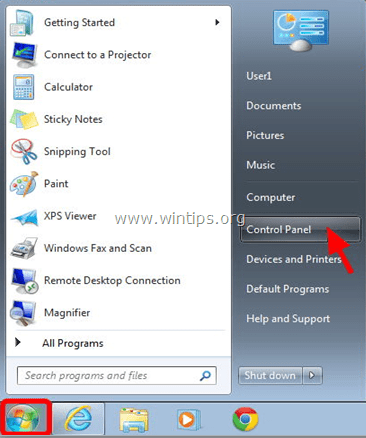
1. Open Windows Control Panel.
- In Windows 7 & Vista: Go to Start > Control Panel.
- In Windows 10, 8 & 8.1:
- Press “Windows”
+ “R” keys to load the Run dialog box.
- Type “control panel” and press Enter.
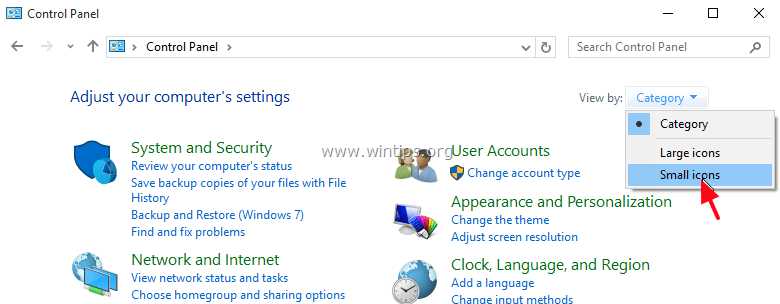
2. Change the View by: to Small icons.
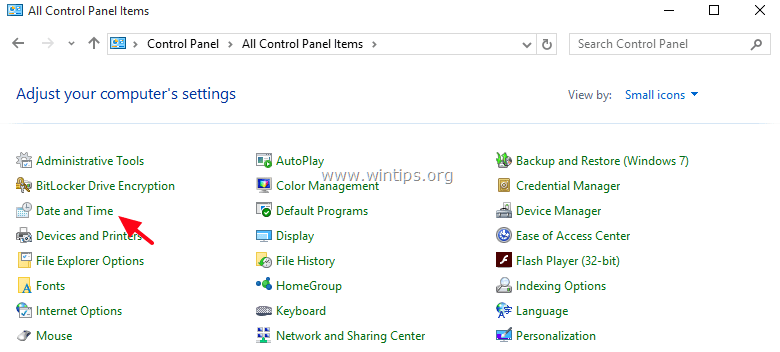
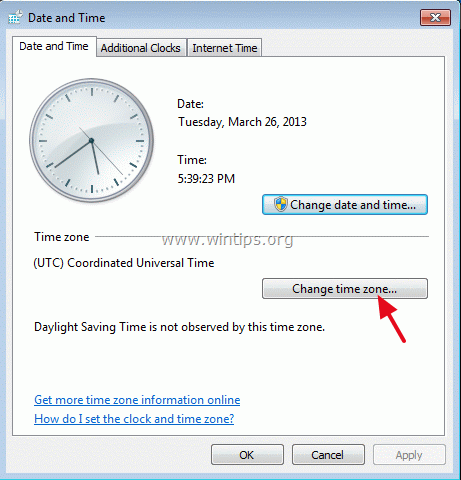
3. Double click to open Date and Time.
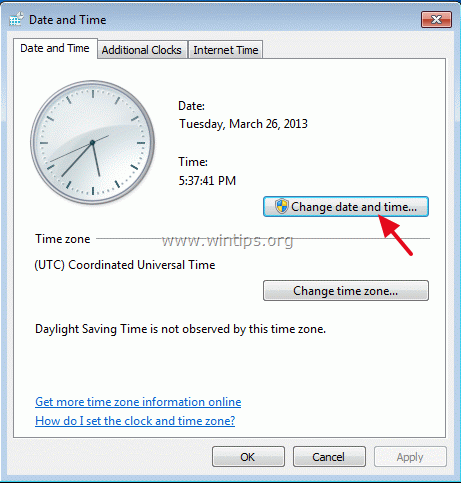
4. Press “Change date and time” to specify the current date/time/year in your computer.
5. When finished with date/time, press “Change time zone” and ensure that you have the proper time zone according to your location.
5a. Set your current Time Zone and press OK.
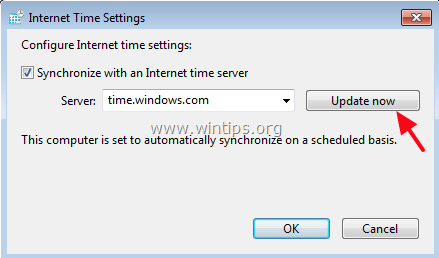
6. Then, at Internet Time tab, choose Change settings.
7. Check the "Synchronize with an Internet time server" checkbox & then choose a Time Server from the list. (e.g. time.windows.com)
7a. Press Update Now.
i. When the time is updated, press OK twice to close all open windows and check for Updates.
Other Solutions to fix the Windows Update 80072f8f Error. *
* Note: The following solutions are for Windows 10, 8, 7 or Vista based computers only.
Solution 2: Modify Advanced Security Settings in Internet Explorer.
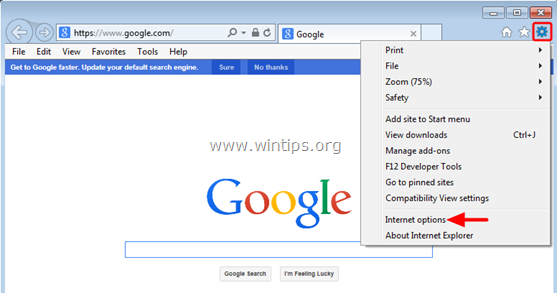
1. From Internet Explorer main menu, click: Tools and choose Internet Options.
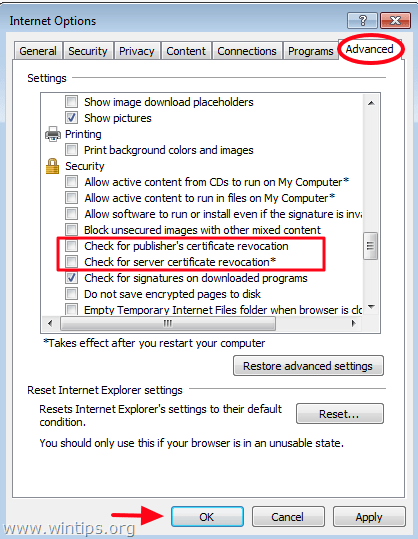
2. Go to the Advanced tab.
3. Under Security section, uncheck the following:
- Check for publisher’s certificate revocation.
- Check for server certificate revocation.
4. Click OK
5. Restart Internet Explorer.
6. Try to Update your computer now.
Solution 3. Modify Firewall settings / Add exceptions.
If you use a firewall program, disable it until you install updates or add the following Windows Update websites to the exceptions list.
+ إنشاء موضوع جديد
النتائج 1 إلى 4 من 4
مشاهدة المواضيع
-
16-05-2017, 00:49 #2Status
- Offline

- تاريخ التسجيل
- Apr 2014
- الدولة
- Egypt
- المشاركات
- 4,703
 Engineering and Technology
- معدل تقييم المستوى
- 10
 رد: حل مشكلة خطا تحديث الويندوز windows update error 80072f8f
------------------------------------------------------------------------
رد: حل مشكلة خطا تحديث الويندوز windows update error 80072f8f
------------------------------------------------------------------------
شركة رايز للهندسة و التكنولوجيا Rise Company for Engineering & Technology
------------------------------------------------------------------------
Web Hosting | Web Designing | E-Marketing
رقم # 1 فى خدمات الشركات Business Services
استضافة مواقع Web Hosting - عمل ايميل شركة Business Emails
تصميم موقع شركة Web Design - تسويق الكترونى على جوجل Google Adwords
www.rise.company | www.rise.company/emails
ملحوظة : جميع خدماتنا مخصصة للشركات فقط وغير متاحة للافراد
وليس لنا اى منتجات او صيانة نهائيا! يرجى الانتباه الى ذلك.






 رد مع اقتباس
المواضيع المتشابهه
-
حل مشكلة بعد تحديث جملة joomla 3.x - No installation plugin has been enabled.
بواسطة Rise Company في المنتدى رايز للويب Rise Webمشاركات: 0آخر مشاركة: 16-03-2017, 10:58 -
حل مشكلة بعد تحديث جملة joomla 3.x - 1054 Unknown column extra_query
بواسطة Rise Company في المنتدى رايز للويب Rise Webمشاركات: 0آخر مشاركة: 16-03-2017, 10:49 -
حل مشكلة The current value for this field is invalid. You must update it.
بواسطة Rise Company في المنتدى رايز للاستضافة Rise Hostمشاركات: 0آخر مشاركة: 21-12-2015, 21:23 -
Windows 7 Drivers x32/x64 (Update 22.12.09)
بواسطة Eng Amr Adel في المنتدى رايز للكمبيوتر Rise Computerمشاركات: 0آخر مشاركة: 22-12-2009, 09:57 -
تحديث النود دون أتصال حتى 15 -12- 2009 ( ESET Offline Update (4688
بواسطة Eng Amr Adel في المنتدى رايز للكمبيوتر Rise Computerمشاركات: 0آخر مشاركة: 15-12-2009, 17:56

المفضلات