

ووردبريس wordpress اضافة السيو Yoast Sitemap عدم ظهور محتوي خريطة XML
حل مشكلة Error loading stylesheet: Parsing an XSLT stylesheet failed
Blank – white screen, no text - 404 ‘Page Not Found’ error
Yoast Sitemap Not Showing ALL Pages - Empty – header, no URLs
################################
المشكلة :
################################
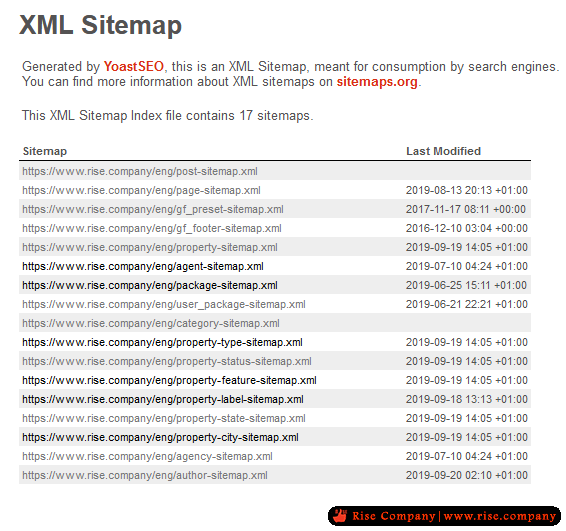
بعد الدخول على رابط الخريطة من خلال https://www.yoursite.com/sitemap.xml
يظهر لك خريطة XML ولكن عند الدخول على اى رابط منها تظهر المشكلة هنا
المشكلة على متصفح جوجل : صفحة بيضاء فقط Blank – white screen, no text
المشكلة على متصفح موزيلا : صفحة خطا فقط Error loading stylesheet: Parsing an XSLT stylesheet failed
################################
سبب المشكلة :
################################
هو ان هناك اما ملف xml من نوع static يعمل conflict مع خريطة الاضافة من نوع dynamic
او هناك اضافة plugin اخري تعمل sitemap او اضافة بها كود يسبب خطا او مشكلة
او بسبب وجود اضافة خاصة / كود بالكاش cache بياخذ بسببه sitemap وهذا يجب استثنائه
################################
خطوات حل المشكلة :
################################
يجب تطبيق الخطوات التالية بدقة وعدم اهمال اى شىء
1- اذا كان هناك ملف .htaccess قم بحذفه
2- اذا كان هناك اى ملف بامتداد .xml قم بحذفه
3- قم بوقف جميع الاضافات الخاصة بالوورد بريس واترك فقط ما يخص template و Yoast
4- قم بحذف yoast واعادة تنزيله من جديد
5- هيظهر خطا 404 قم بالذهاب الى Go to Admin > Settings > Permalinks اعمل save بدون تعديل اى شىء.
6- اذهب الى المسار https://www.yoursite.com/sitemap.xml وافتح ما بداخله و اعمل refresh اكثر من مرة
* هام جدا تم تطبيق تلك الطريقة على موقعين وتم حلها ... هذه الخطوات صحيحة واذا لم تفلح قم بالمزيد عليها فقط.
################################################## #############################
My sitemap is blank, what’s wrong?
First, determine whether you have a blank or an empty sitemap. A blank sitemap is basically a white screen with no header, no links, nothing at all. An empty sitemap shows the sitemap header but contains no links.
- Blank – white screen, no text
- 404 ‘Page Not Found’ error
- Empty – header, no URLs
- Another error
Blank Sitemaps
A blank sitemap is basically a white screen with no header, no links, nothing at all. There could be several things wrong.
Sitemap Source Code
Check whether the source of the sitemap shows you the data you would expect in an XML sitemap. Not sure how to see the source code, follow the steps in this article.
If the sitemap source code is empty, you may have a static file, theme or plugin conflict. Please check for theme or plugin conflicts and, if no conflicts are found, FTP into your site to locate and remove any static sitemap files.
Sitemap Stylesheet
If the sitemap source code contains data, make sure the XSL file, linked in the very top of the XML file, is available. Sometimes this file gets blocked by .htaccess prevention of the wp-content directory.
You can find your XSL stylesheet by viewing your sitemap_index.xml and looking at the source code.
Then find the XSL stylesheet URL at the top and view it. You may need to copy/paste it into the browser.
Click here to view the original image of 727x326px.
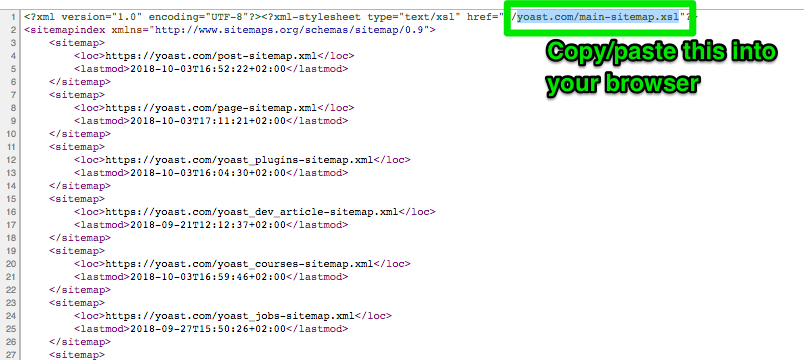
If the XSL file loads then something else is causing the error. If it does not load, it may be blocked. You should speak to your host provider and confirm nothing in your .htaccess file is preventing it from loading.
Cache Issue
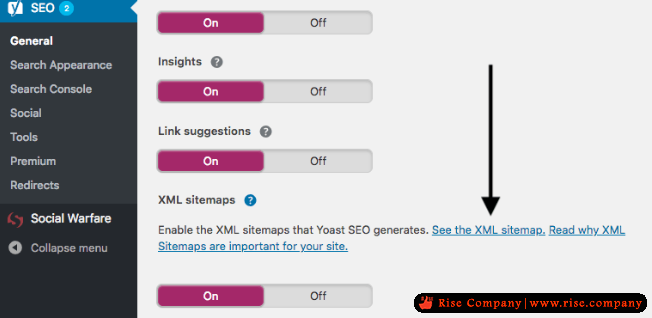
If you have a cache plugin or server side cache, please flush the cache. If the issue remains, please disable and re-enable the sitemap feature (steps here) to force a cache reset.
Most cache plugins allow you to exclude the sitemap URLs from being cached and/or minified. Please read this article for more information on sitemap cache.
Invalid XML Code
Open the sitemap and the sitemap stylesheet in Firefox to see if any errors display. If an error displays, please read this article about common sitemap errors.
Mismatched Site URLs
Yoast SEO uses the WordPress site URLs to generate the sitemap. In rare cases, these URLs may not match the preferred URL format of your site.
- Log in to your WordPress website.
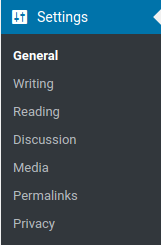
When you’re logged in, you will be in your ‘Dashboard’.- Click on ‘Settings’.
On the left-hand side, you will see a menu. In that menu, click on ‘Settings’.- Click on ‘General’.
The Settings menu will expand providing you additional options. Click on ‘General’.
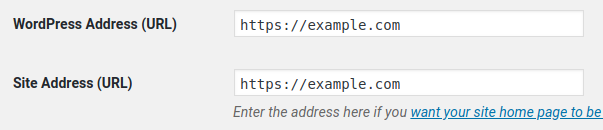
Check the ‘WordPress Address (URL)’ and the ‘Site Address (URL)’.
The URLs should use the preferred http/https and www/non-www format that your site is setup to use.
Empty Sitemap
An empty sitemap shows the sitemap header but contains no links. The most common reason for an empty sitemap is no matched data and this typically happens with specialty sitemaps like the video and news sitemaps.
Empty News Sitemap
If your news sitemap is empty, you probably haven’t published anything recently. Per the Google guidelines, your news sitemap should contain only URLs for your articles published in the last two days.
Empty Video Sitemap
If your video sitemap is empty, the Video SEO plugin has not located any videos on your site. Please ensure you have set up the plugin correctly including the initial re-index of your videos to locate videos that were posted prior to the plugin activation. If the sitemap remains empty after re-indexing videos, please check for theme or plugin conflicts.
المرجع :
https://kb.yoast.com/kb/my-sitemap-i...k-what-s-wrong
https://kb.yoast.com/kb/how-to-check...gin-conflicts/
https://kb.yoast.com/kb/xml-sitemap-errors/
https://kb.yoast.com/kb/category/yoast-seo/
+ إنشاء موضوع جديد
النتائج 1 إلى 1 من 1
-
20-09-2019, 23:34 #1Status
- Offline

- تاريخ التسجيل
- Apr 2014
- الدولة
- Egypt
- المشاركات
- 4,703
 Engineering and Technology
- معدل تقييم المستوى
- 10
 ووردبريس wordpress اضافة السيو Yoast Sitemap عدم ظهور محتوي خريطة XML
------------------------------------------------------------------------
ووردبريس wordpress اضافة السيو Yoast Sitemap عدم ظهور محتوي خريطة XML
------------------------------------------------------------------------
شركة رايز للهندسة و التكنولوجيا Rise Company for Engineering & Technology
------------------------------------------------------------------------
Web Hosting | Web Designing | E-Marketing
رقم # 1 فى خدمات الشركات Business Services
استضافة مواقع Web Hosting - عمل ايميل شركة Business Emails
تصميم موقع شركة Web Design - تسويق الكترونى على جوجل Google Adwords
www.rise.company | www.rise.company/emails
ملحوظة : جميع خدماتنا مخصصة للشركات فقط وغير متاحة للافراد
وليس لنا اى منتجات او صيانة نهائيا! يرجى الانتباه الى ذلك.

 رد مع اقتباس
المواضيع المتشابهه
-
ووردبريس wordpress اضافة السيو All in One SEO ظهور خطا فى Dynamic sitemap
بواسطة Rise Company في المنتدى قسم ووردبريس WordPressمشاركات: 0آخر مشاركة: 20-09-2019, 22:04 -
ووردبريس wordpress رسائل اس ام اس smsglobal اضافة WP SMS
بواسطة Rise Company في المنتدى قسم ووردبريس WordPressمشاركات: 0آخر مشاركة: 19-09-2019, 16:22 -
ووردبريس wordpress تغيير الباسورد Change Password من MySQL / PHPMyAdmin
بواسطة Rise Company في المنتدى قسم ووردبريس WordPressمشاركات: 0آخر مشاركة: 12-09-2019, 11:17 -
شرح تفعيل cPAddons من WHM وتنزيل اضافة WordPress من Cpanel
بواسطة Rise Company في المنتدى رايز للاستضافة Rise Hostمشاركات: 0آخر مشاركة: 07-04-2018, 11:29 -
اضافة صغيرة لالفاء و منع ظهور رسالة التحديث فى idm حتى عام 2020
بواسطة Rise Company في المنتدى رايز للكمبيوتر Rise Computerمشاركات: 0آخر مشاركة: 02-03-2017, 11:24

المفضلات