

حل مشكلة عدم وجود Windows Boot Manager فى UEFI
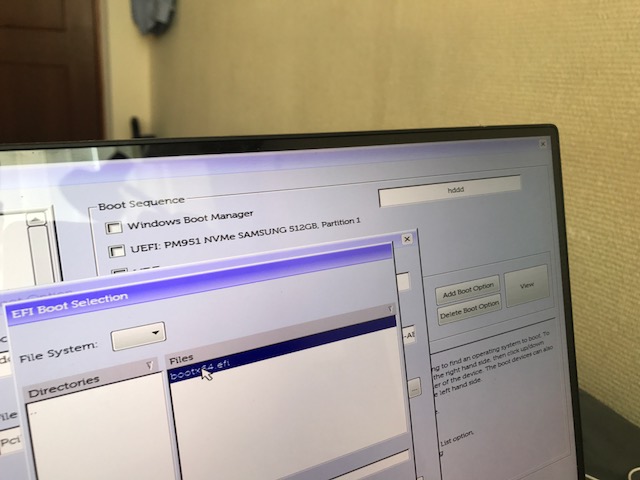
create a boot using bootx64.efi - can't see windows boot manager in uefi
Why Windows Boot Manager is not in UEFI list? no bootable devices found solved
missing the Windows Boot Manager entry - Windows cannot boot in legacy or UEFI
Can't boot on windows 10, Windows Boot manager entry has disappeared from UEFI
GPT partition scheme for UEFI" and formatting in FAT32
Windows won't boot in UEFI mode, deleted EFI partition.
المشكلة :
هو داخل البايوس لا يظهر الهارد ولا cd على الرغم من غلق Boot Security والتحويل الى Legacy
وفى الحالة دى اذا كان legacy لا يعمل اطلاقا فالبديل هو استخدام UEFI ولكن شرط استخدامه هو وجود
الاختيار windows boot manager عند تفعيل UEFI لا بد ان يظهر اذا لم يظهر لن ينفع تسطيب ويندوز اطلاقا
حيث قد يدخل معك فى مراحل تسطيب الويندوز وبعد عمل ريستارت يظهر لك no bootable devices found
مع العلم ان الهارد و cd قد لا يظهر داخل ترتيب boot ولا حتى من f12 ولكن لا مشكلة فى ذلك يكفي وجود
الاختيار windows boot manager واذا لم يكن موجود فهيكون هذا الموضوع هو شرح حلول استرجاعه مرة اخري.
حل المشكلة :
1- استخدم فلاشة تم حرقها بنظام UEFI وتاكد ان النظام بها هو fat32
2- احرق الفلاشة ببرنامج RUFUS مع تفعيل Rufus strictly for UEFI systems only
3- غير برنامج الحرق RUFUS واستخدم winsetupfromusb فهو الافضل
4- لا بد ان يكون الهارد GPT وليس MBR حتى يعمل اقلاع على UEFI
5- هيتم استخدام windows repair الخاص بويندوز 10 اثناء عمل بوت على الفلاشة
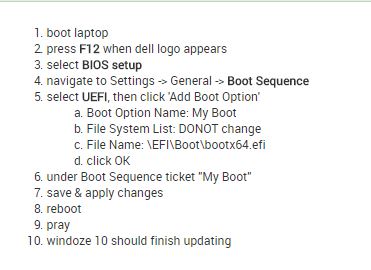
- boot laptop
- press F12 when dell logo appears
- select BIOS setup
- navigate to Settings -> General -> Boot Sequence
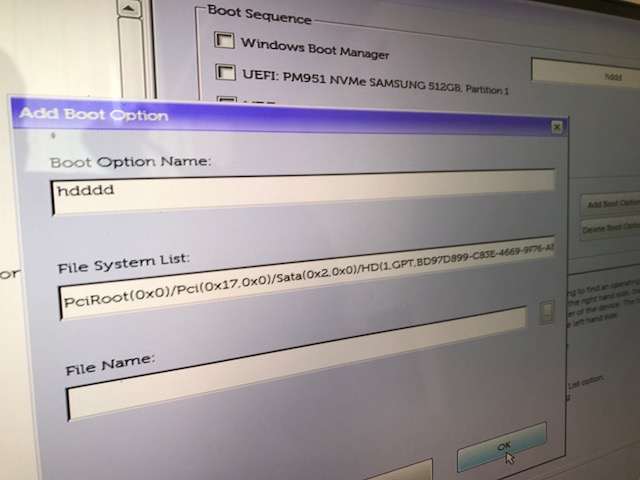
- select UEFI, then click 'Add Boot Option'
- Boot Option Name: My Boot
- File System List: DONOT change
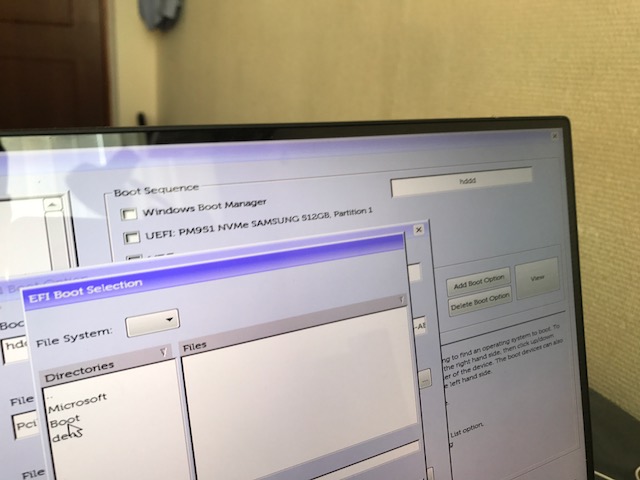
- File Name: \EFI\Boot\bootx64.efi
- click OK
- under Boot Sequence ticket "My Boot"
- save & apply changes
- reboot
- pray
- windoze 10 should finish updating
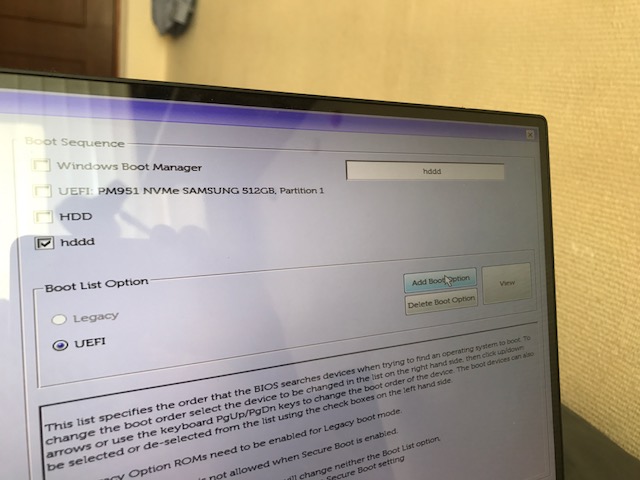
حل اخر :
- Deleted your Windows boot entry -- To boot in EFI mode, EFIs maintain a list of boot entries in NVRAM. It's possible that, when you switched to BIOS/CSM/legacy mode, your firmware deleted the EFI-mode entry for Windows. If so, then with that entry gone, your computer can no longer boot Windows in EFI mode. The solution to this problem is to re-create this boot entry.
- Changed your boot order -- A single computer can have multiple NVRAM boot entries, so a boot order is also stored in NVRAM. Importantly, these entries can include both BIOS-mode and EFI-mode boot entries. It's possible that your firmware re-ordered these entries, putting a BIOS-mode entry at the top; and despite the fact that you've disabled BIOS-mode support, the computer is still trying to boot using that entry and failing.
Both these problems can be fixed in Windows, and the second may be fixable in your firmware setup utility, but details vary. As that's a relatively easy fix, though, I recommend you poke around in the setup utility for a way to adjust the boot order. The Windows entry is called "Windows Boot Manager." Be sure it's first in the boot order list. You should also review other settings; enabling your CSM may have automatically toggled something else that you need to switch back. Unfortunately, such details tend to be highly machine-specific, so you may need to ask on a forum dedicated to your brand of computer or motherboard.
If that fails, then there's probably a way to fix this with a Windows emergency disk; however, I'm not very familiar with such tools, so I can't tell you how to do it. I can, however, suggest a workaround that should get you booting temporarily and use Windows' regular tools to fix the problem:
- Disable Secure Boot on your computer. Details vary from one system to another; but see this page of mine for some examples of how to do it. (You can re-enable Secure Boot when you're done.) Note that not all computers support Secure Boot, but almost everything that shipped with Windows 8 and later does.
- Download the USB flash drive or CD-R version of my rEFInd boot manager. Download links for both types of media are on that page.
- Prepare a bootable medium from the rEFInd image you download.
- Boot using the rEFInd medium. It should detect your Windows installation and enable you to boot it.
- In Windows, open an Administrator Command Prompt window and type bcdedit /set {bootmgr} path \EFI\Microsoft\Boot\bootmgfw.efi. This should create a new Windows boot entry and make it the default.
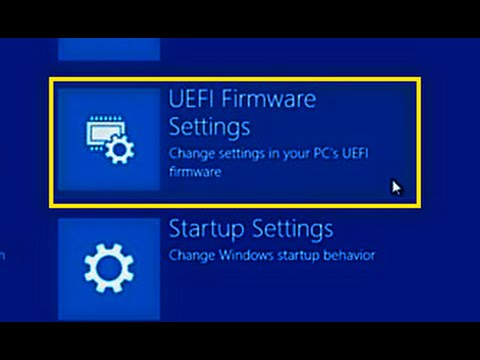
Reset UEFI Firmware to Defaults
مواقع هامة :
http://www.rodsbooks.com/refind/getting.html
+ إنشاء موضوع جديد
النتائج 1 إلى 1 من 1
-
14-11-2019, 01:09 #1Status
- Offline

- تاريخ التسجيل
- Apr 2014
- الدولة
- Egypt
- المشاركات
- 4,703
 Engineering and Technology
- معدل تقييم المستوى
- 10
 حل مشكلة عدم وجود Windows Boot Manager فى UEFI
------------------------------------------------------------------------
حل مشكلة عدم وجود Windows Boot Manager فى UEFI
------------------------------------------------------------------------
شركة رايز للهندسة و التكنولوجيا Rise Company for Engineering & Technology
------------------------------------------------------------------------
Web Hosting | Web Designing | E-Marketing
رقم # 1 فى خدمات الشركات Business Services
استضافة مواقع Web Hosting - عمل ايميل شركة Business Emails
تصميم موقع شركة Web Design - تسويق الكترونى على جوجل Google Adwords
www.rise.company | www.rise.company/emails
ملحوظة : جميع خدماتنا مخصصة للشركات فقط وغير متاحة للافراد
وليس لنا اى منتجات او صيانة نهائيا! يرجى الانتباه الى ذلك.

 رد مع اقتباس
المواضيع المتشابهه
-
تفعيل Enable Boot with UEFI Boot Mode مانيوال Adding manually in BIOS
بواسطة Rise Company في المنتدى قسم الاي تي IT مشاكل و حلولمشاركات: 0آخر مشاركة: 08-11-2019, 20:20 -
حل مشكلة البوت boot فى اللابات الجديدة dell inspiron 3580 no boot device
بواسطة Rise Company في المنتدى قسم الاي تي IT مشاكل و حلولمشاركات: 0آخر مشاركة: 08-11-2019, 17:27 -
حل مشكلة acronis true image no boot device نجاح Restore وفشل Boot
بواسطة Rise Company في المنتدى قسم الاي تي IT مشاكل و حلولمشاركات: 0آخر مشاركة: 25-11-2018, 13:40 -
حل مشكلة عدم وجود شهادة ssl عند whmcs login to cpanel not secure
بواسطة Rise Company في المنتدى قسم ادارة الاستضافة Whmcsمشاركات: 0آخر مشاركة: 15-08-2018, 23:13 -
تم الحل [Solved] : مشكلة عمل بوت بالفلاشة gigabyte h61 boot from usb issue
بواسطة Rise Company في المنتدى قسم الاي تي IT مشاكل و حلولمشاركات: 0آخر مشاركة: 04-12-2016, 23:57

المفضلات