


حل مشكلة توقف البرنتر how to force remove printer queue
How to Forcefully Clear the Print Queue in Windows
How do I clear the print queue if a document is stuck?
can't delete print queue in Windows 10
How to clear the Print Spooler in Windows 7
Clear Print Queue in Windows
In order to get the printing services back up and running, follow these steps:حل المشكلة هو حذف الملفات فى المسار التالي : C:\WINDOWS\System32\spool\PRINTERS
ولكن لكى يتم ذلك يجب اولا ان يتم وقف service من العمل حتى لا يعترض عملية الحذف.
1. Go to Start, Control Panel and Administrative Tools. Double click on Services icon.
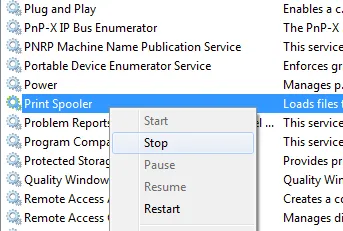
2. Scroll down to the Print Spooler service and right click on it and select Stop. In order to do this, you need to be logged in as Administrator. At this point, no one will be able to print anything on any of the printers that are being hosted on this server.
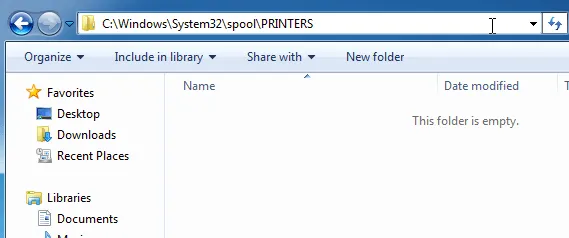
3. Next you need to go to the following directory: C:\WINDOWS\System32\spool\PRINTERS.
You can also type %windir%\System32\spool\PRINTERS into the address bar in Explorer
if the C drive is not the default Windows partition. Delete all the files in this folder.
This will clear all print queues (If you’re doing this on a server,
it’s a good idea to first make sure there are no other print jobs being processed for any of the other printers on the server
because doing this step will delete those jobs also).
4. Now you can go back to the Services console and right-click and choose Start for the Print Spooler service!
-------------------------------------------------------------
يمكنك عمل باتش جاهز
فى المرفقات هتجده جاهز
وعند تشغيله يجب ان يكون run as administrator
At this point, you should be able to print without a problem. If you prefer to use a script,
i.e. for a server, then you can create a batch file with the commands below or just type them into the command prompt:
The first and third commands are fairly obvious: they stop and start the print spooler service.كود:net stop spooler del %systemroot%\System32\spool\printers\* /Q /F /S net start spooler
The middle command deletes everything in the printers folder and the /Q is for quiet mode, which means you won’t get a prompt asking if you want to delete each file. /F will force delete all read-only files and /S will delete any subdirectories if those exist. Deleting content from this folder can never harm your computer, so don’t worry if you see some files or folders and aren’t sure waht they are for.
You can read my previous post if you want to know how to create a batch file. Then all you have to do is run the batch file anytime you want to clear out the print queue. Luckily, the procedure for clearing out the print queue is the same for Windows 8, Windows 7, Vista, and XP.
المرجع:
https://www.online-tech-tips.com/com...a-print-queue/
https://www.windowscentral.com/how-r...job-windows-10
+ إنشاء موضوع جديد
النتائج 1 إلى 1 من 1
العرض المتطور
-
19-05-2020, 16:12 #1Status
- Offline

- تاريخ التسجيل
- Apr 2014
- الدولة
- Egypt
- المشاركات
- 4,703
 Engineering and Technology
- معدل تقييم المستوى
- 10
 حل مشكلة توقف البرنتر how to force remove printer queue
------------------------------------------------------------------------
حل مشكلة توقف البرنتر how to force remove printer queue
------------------------------------------------------------------------
شركة رايز للهندسة و التكنولوجيا Rise Company for Engineering & Technology
------------------------------------------------------------------------
Web Hosting | Web Designing | E-Marketing
رقم # 1 فى خدمات الشركات Business Services
استضافة مواقع Web Hosting - عمل ايميل شركة Business Emails
تصميم موقع شركة Web Design - تسويق الكترونى على جوجل Google Adwords
www.rise.company | www.rise.company/emails
ملحوظة : جميع خدماتنا مخصصة للشركات فقط وغير متاحة للافراد
وليس لنا اى منتجات او صيانة نهائيا! يرجى الانتباه الى ذلك.


 رد مع اقتباس
المواضيع المتشابهه
-
حل مشكلة البرنتر printer operation failed with error 0x000004005
بواسطة Rise Company في المنتدى قسم الطابعات وماكينات التصويرمشاركات: 0آخر مشاركة: 19-11-2019, 14:08 -
ويندوز سيرفر Windows Server اظهار البرنتر Printer فى listed in the Active Directory
بواسطة Rise Company في المنتدى قسم الويندوز سيرفر Windows Serverمشاركات: 0آخر مشاركة: 24-05-2019, 23:53 -
شرح تثبيت تعريف HP LaserJet Pro P1102 Printer و مكان ملفات تعريف البرنتر
بواسطة Rise Company في المنتدى قسم الطابعات وماكينات التصويرمشاركات: 0آخر مشاركة: 21-01-2019, 12:47 -
شرح تعريف التاتش فى اللاب توب hp pavilion 11 x360 touchscreen not working
بواسطة Rise Company في المنتدى قسم الاي تي IT مشاكل و حلولمشاركات: 0آخر مشاركة: 28-07-2018, 15:58 -
حل مشكلة توقف google map api key عن العمل واصبح استخدامها ليس مجانا
بواسطة Rise Company في المنتدى قسم جوجل Googleمشاركات: 0آخر مشاركة: 17-07-2018, 16:26

المفضلات