


Clear and Restart the Print Spooler with a Batch File
If clearing your print queue by restarting the Print Spooler service is something you think you’ll be doing more than once—or you’d just rather not go through the trouble of using the Services app—you can also create a simple batch file to do the job.
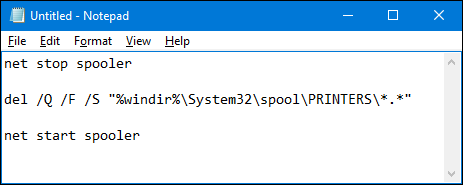
Fire up Notepad or your preferred text editor. Copy and paste the following text as separate lines into the blank document:
كود:net stop spooler del /Q /F /S "%windir%\System32\spool\PRINTERS\*.*" net start spooler
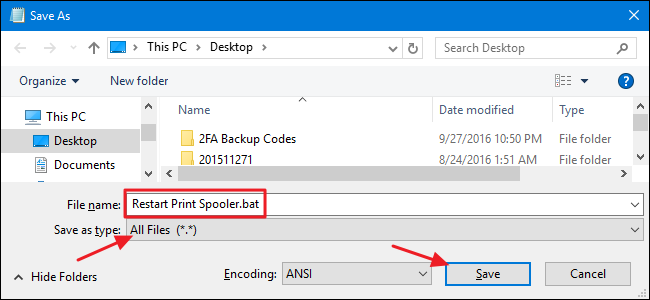
Next, you’ll save your document as a .bat file. Open the “File” menu and click the “Save As” command. In the “Save As” window, browse to the location you want to save the file. On the “Save as type” drop-down menu, choose the “All files (*.*)” entry. Name your file whatever you like, but include “.bat” at the end. Click “Save” when you’re done.
You can now double-click that batch file to clear the print spooler whenever you want. Better yet, create a shortcut to the batch file and then place that shortcut where it makes the most sense to you—desktop, Start menu, or taskbar—and you’ll have one-click access to clear and restart the print spooler whenever you want.
+ إنشاء موضوع جديد
النتائج 1 إلى 3 من 3
مشاهدة المواضيع
-
15-08-2020, 21:54 #2Status
- Offline

- تاريخ التسجيل
- Apr 2014
- الدولة
- Egypt
- المشاركات
- 4,703
 Engineering and Technology
- معدل تقييم المستوى
- 10
 رد: شرح كيفية الغاء / حذف اوامر الطباعة فى البرنتر cancel queued print jobs
------------------------------------------------------------------------
رد: شرح كيفية الغاء / حذف اوامر الطباعة فى البرنتر cancel queued print jobs
------------------------------------------------------------------------
شركة رايز للهندسة و التكنولوجيا Rise Company for Engineering & Technology
------------------------------------------------------------------------
Web Hosting | Web Designing | E-Marketing
رقم # 1 فى خدمات الشركات Business Services
استضافة مواقع Web Hosting - عمل ايميل شركة Business Emails
تصميم موقع شركة Web Design - تسويق الكترونى على جوجل Google Adwords
www.rise.company | www.rise.company/emails
ملحوظة : جميع خدماتنا مخصصة للشركات فقط وغير متاحة للافراد
وليس لنا اى منتجات او صيانة نهائيا! يرجى الانتباه الى ذلك.

 رد مع اقتباس
المواضيع المتشابهه
-
حل مشكلة عدم عمل print او download للملف pdf على الايميلات و جوجل
بواسطة Rise Company في المنتدى قسم الاي تي IT مشاكل و حلولمشاركات: 0آخر مشاركة: 15-05-2019, 18:00 -
تصميم مواقع للغير Freelancers Web Design Jobs Online
بواسطة Rise Company في المنتدى رايز للويب Rise Webمشاركات: 0آخر مشاركة: 06-05-2019, 03:58 -
تنزيل Role الطباعة Print Server ويندوز سيرفر windows server 2016
بواسطة Rise Company في المنتدى قسم الويندوز سيرفر Windows Serverمشاركات: 0آخر مشاركة: 04-08-2018, 01:06 -
اهم اوامر تعريب تمبلت و اضافات جملة Joomla
بواسطة Rise Company في المنتدى رايز للويب Rise Webمشاركات: 0آخر مشاركة: 08-04-2017, 16:10 -
How to Cancel an eFax Account - the real scam
بواسطة Rise Company في المنتدى رايز للالكترونيات Rise Electronicsمشاركات: 1آخر مشاركة: 24-02-2016, 01:00

المفضلات