

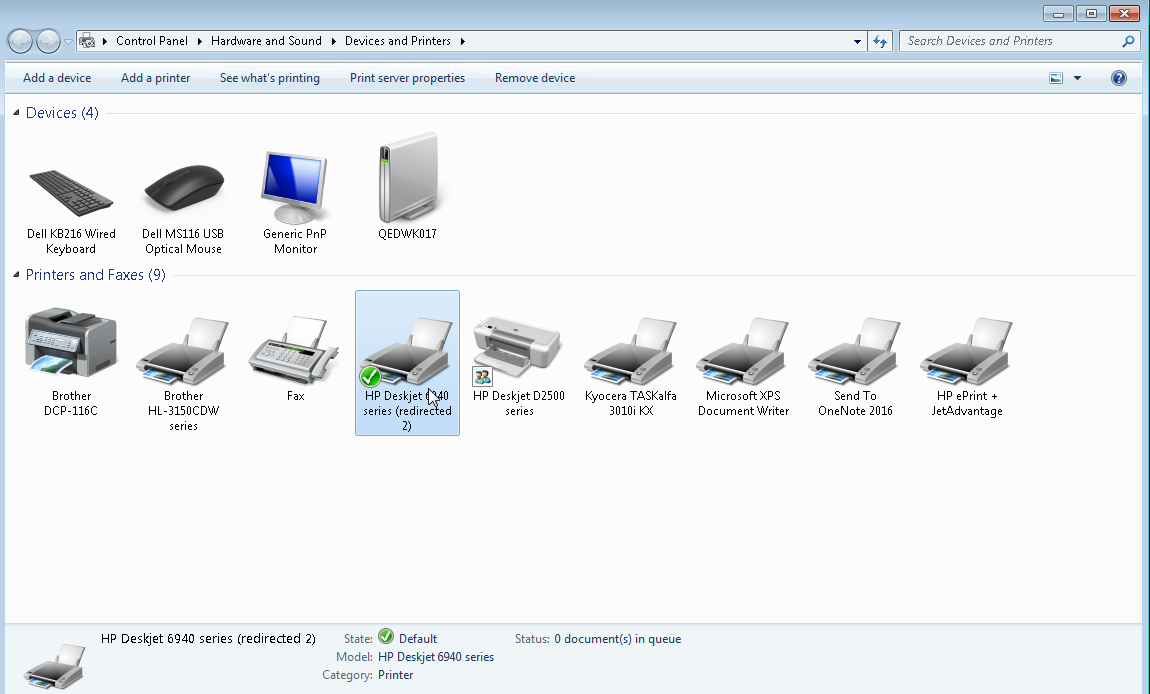
ويندوز سيرفر Windows Server الطباعة من خلال RDP redirected printer
كيفية اضافة طابعة / برنتر على السيرفر تعمل من بعد من خلال rdp
حل مشكلة عدم ظهور البرنترات فى الويندوز سيرفر من ويندوز 7 / 10
كيفية الطباعة Remote Desktop Network Printer Redirection على السيرفر
Fix: Printer Doesn’t Show In Windows Remote Desktop Session
How to Redirect Your Printer in windows server 2019
[SOLVED] Redirected Printer not showing up in RDP
Connected printers not showing in 'Devices and Printers
[SOLVED] Printer Not Showing Up When Searching
you have a printer installed on your Microsoft Windows computer, but the printer is not showing in your Remote Desktop session?
There are a few things to check when you experience this issue.
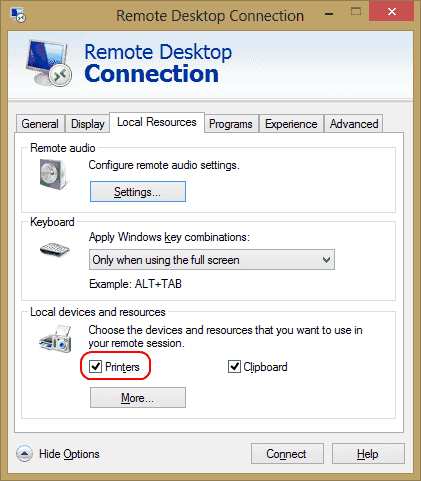
1. Check that Printers Are Enabled on Connection
Ensure that you have the Printers option selected in your Remote Desktop settings. You can check this by bringing up the Remote Desktop Connection screen, selecting Local Resources and ensuring the Printers option is selected.
2. Ensure Drivers Are Installed On Server
Check that the printer drivers for the printer you are attempting to use are installed on the computer you are connecting to. If the drivers haven’t been installed on the computer you are connecting to, the printer won’t appear at all.
على الرغم من الاعدادت الخاصة بك سليمة الا انك لا تجد البرنتر الخاصة بجهاز الاكمبيوتر الخاص بك
يظهر على ويندوز سيرفر وذلك بسبب ان الويندوز سيرفر لن يظهر اى برنتر لديك الا اذا وجد عنده التعريف الخاص بها
اى كل ما عليك فعله هو تحميل التعريف من موقع الشركة الخاص بالاصدار الخاص بك و تثبيته دون اى اهمية
لطريقة التوصيل سواء usb او network او serial لا يهمنا فقط قم بالتثبيت باى طريقة ممكنة لان الهدف
هو التعريف وليس التوصيل وبعد ذلك هتجد ان البرنتر ظهرت فى الحال وتطبق ذلك على شىء مختلف ايضا
ونكرر مرة اخرى لازم التعريف ... لن يظهر الا بتثبيت التعريف اولا وهيعمل على الفور.
3. Check Server Settings
If you are connecting to a Windows Server box,
ensure the settings on the server don’t disable the sharing of Printers.
Login to the server, and perform these steps.
هذه الخطوة لن تفيدك الا اذا كنت غيرت فى الاعدادات وهى التى تسبب لك المشكلة
حيث هتجد ان جميع الاختيارات Not configured اى لا يوجد بها مشكلة ولا يتطلب منك شىء لفعله.
Windows 2016 & 2019
In these versions of Windows Server, RDP settings are controlled in Group Policy.
- Launch “gpedit.msc“.
- Navigate to “Computer Configuration” > “Administrative Templates” > “Windows Components” > “Remote Desktop Services” > “Remote Desktop Session Host“.
- Expand “Printer Redirection“.
- Ensure that “Do not allow client printer redirection” is set to “Not configured” or “Disabled“. Another setting you may want to check is the “Redirect only the default client printer“. This policy should also set to “Not configured” or “Disabled” if you want more than just the default printer to be available to use.
Windows 2012
- Open “Server Manager“.
- Select “Remote Desktop” Services.
- Select “Collections“.
- Select “Tasks“, then choose “Edit Properties“.
- Under the “Client Settings” tab, ensure the “Windows Printer” is enabled.
Windows 2008
- Go to “Start” > “Administrative Tools” > “Remote Desktop Services” > “Remote Desktop Session Host Configuration“.
- Select “Connections“, right-click the name of the connection > “Properties” > “Client Settings” > “Redirection“. Ensure that “Windows Printer” is not checked.
المرجع :
https://www.technipages.com/solve-pr...esktop-session
+ إنشاء موضوع جديد
النتائج 1 إلى 2 من 2
-
04-09-2020, 18:12 #1Status
- Offline

- تاريخ التسجيل
- Apr 2014
- الدولة
- Egypt
- المشاركات
- 4,703
 Engineering and Technology
- معدل تقييم المستوى
- 10
 ويندوز سيرفر Windows Server الطباعة من خلال RDP redirected printer
------------------------------------------------------------------------
ويندوز سيرفر Windows Server الطباعة من خلال RDP redirected printer
------------------------------------------------------------------------
شركة رايز للهندسة و التكنولوجيا Rise Company for Engineering & Technology
------------------------------------------------------------------------
Web Hosting | Web Designing | E-Marketing
رقم # 1 فى خدمات الشركات Business Services
استضافة مواقع Web Hosting - عمل ايميل شركة Business Emails
تصميم موقع شركة Web Design - تسويق الكترونى على جوجل Google Adwords
www.rise.company | www.rise.company/emails
ملحوظة : جميع خدماتنا مخصصة للشركات فقط وغير متاحة للافراد
وليس لنا اى منتجات او صيانة نهائيا! يرجى الانتباه الى ذلك.
-
04-09-2020, 18:13 #2Status
- Offline
- تاريخ التسجيل
- Apr 2014
- الدولة
- Egypt
- المشاركات
- 4,703
Engineering and Technology
- معدل تقييم المستوى
- 10
رد: ويندوز سيرفر Windows Server الطباعة من خلال RDP redirected printer
How to Redirect Your Printer
- Login to Remote Desktop Connection Program
- Click on control panel
- Click on “View devices and printers”
- Click on “Add a printer” and select “Add a local printer”
- Make a note of the printer ports that are seen on your local system. For example, LPT1 is not visible, but COM3 is.
- Now, on your local system, go to the settings for your functioning printer (Start -> Control Panel -> Devices and Printers -> Right click printer -> Printer Properties -> Ports Tab)
- Check the tick box that says "Enable Printer Pooling."
- Check the box that your remote system is seeing (In the above example of step 5, it is COM3). Note: Make sure that your existing port remains checked (For example the IP port for the wireless router).
- Return to your remote system
- Download and install your printer’s drivers but don't select a port.
- Follow again steps 2-4 but select the port you checked in step 8 (In this case, COM3 was selected on the local system)
- Select your printer from the list.
- Click “yes” when it asks if you want to use the existing drivers
Note: Print a test page to be sure that it works.
------------------------------------------------------------------------
شركة رايز للهندسة و التكنولوجيا Rise Company for Engineering & Technology
------------------------------------------------------------------------
Web Hosting | Web Designing | E-Marketing
رقم # 1 فى خدمات الشركات Business Services
استضافة مواقع Web Hosting - عمل ايميل شركة Business Emails
تصميم موقع شركة Web Design - تسويق الكترونى على جوجل Google Adwords
www.rise.company | www.rise.company/emails
ملحوظة : جميع خدماتنا مخصصة للشركات فقط وغير متاحة للافراد
وليس لنا اى منتجات او صيانة نهائيا! يرجى الانتباه الى ذلك.

 رد مع اقتباس
المواضيع المتشابهه
-
ويندوز سيرفر Windows Server اظهار البرنتر Printer فى listed in the Active Directory
بواسطة Rise Company في المنتدى قسم الويندوز سيرفر Windows Serverمشاركات: 0آخر مشاركة: 24-05-2019, 23:53 -
ويندوز سيرفر Windows Server الطباعة و الاسكنر Printer Management and Document
بواسطة Rise Company في المنتدى قسم الويندوز سيرفر Windows Serverمشاركات: 0آخر مشاركة: 24-05-2019, 22:44 -
ويندوز سيرفر Windows Server ادارة الطابعات عن طريق السيرفر printer
بواسطة Rise Company في المنتدى قسم الويندوز سيرفر Windows Serverمشاركات: 0آخر مشاركة: 24-05-2019, 22:27 -
تنزيل Role تسطيب ويندوز من خلال النتورك WDS ويندوز سيرفر windows server 2016
بواسطة Rise Company في المنتدى قسم الويندوز سيرفر Windows Serverمشاركات: 0آخر مشاركة: 04-08-2018, 01:36 -
تنزيل Role الطباعة Print Server ويندوز سيرفر windows server 2016
بواسطة Rise Company في المنتدى قسم الويندوز سيرفر Windows Serverمشاركات: 0آخر مشاركة: 04-08-2018, 01:06

المفضلات