

ويندوز سيرفر Windows Server عمل اكثر من باك اب create multiple schedules
Create multiple schedules with Task Scheduler
To create multiple scheduled backups, you can use Task Scheduler to run Wbadmin command. With Task Scheduler, you can create weekly scheduled backups or less frequent schedules rather than daily backups.
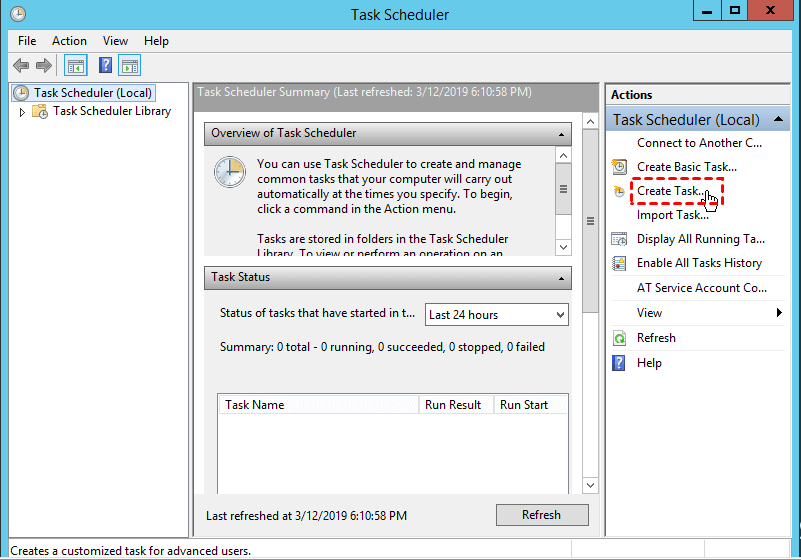
Step 1. Click Start and type “task scheduler” in the search box. Select Task Scheduler in the listed results.
Step 2. Under the Action tab, select Create Task.
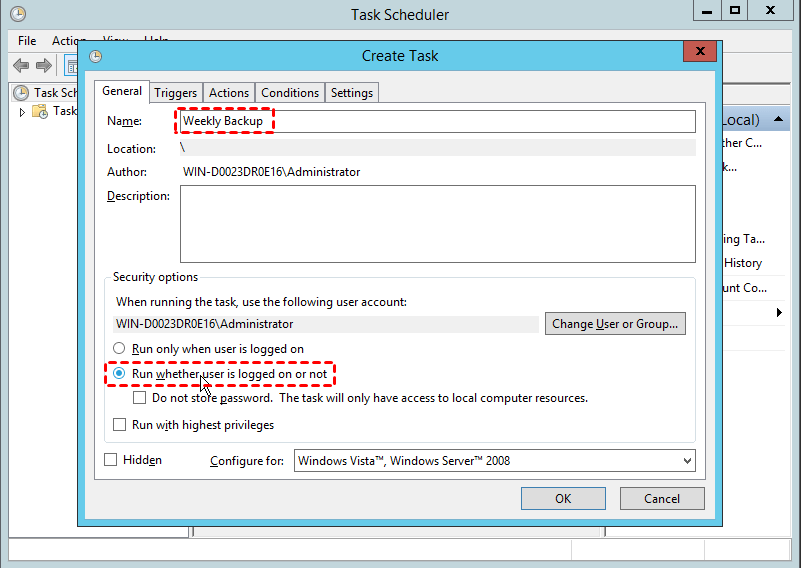
Step 3. In General, you can name the task and write a description if needed. Then check the option Run whether user is logged on or not.
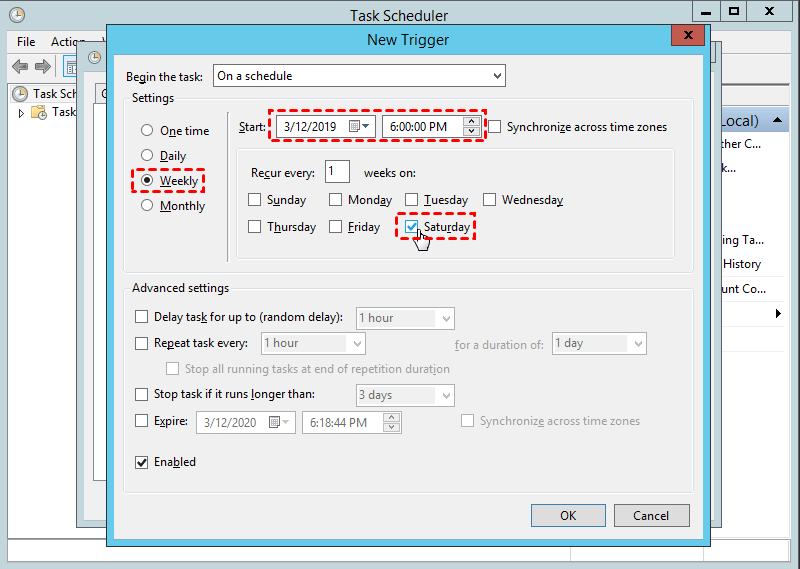
Step 4. Then go to the Triggers tab and click New to choose when you want the backup to run. You can set one time, daily, weekly, and monthly tasks.
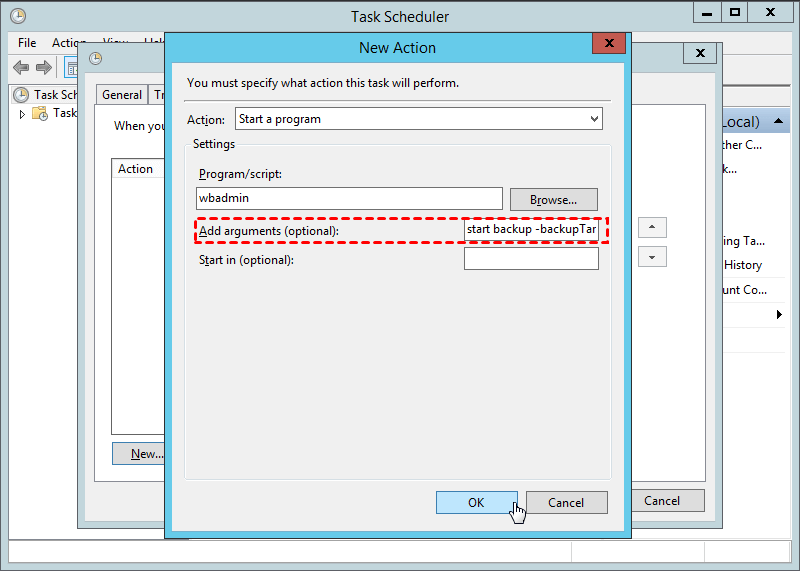
Step 5. Go to the Actions tab, and click New to begin as well. Type “wbadmin” in the Program/script box, and write a backup command in Add argument (optional) box. If you are not familiar with wbadmin in Windows Server 2012/2008, here is an example to back up the entire C to the H: drive:
كود:start backup -backupTarget:H: -include:C: -allCritical -quietDescriptions:
- start backup: tell wbadmin.exe to start a backup.
- -backupTarget: the target volume to store the backups.
- -include: the volume(s) to backup. To backup more than one volume, separate them with a comma.
- -allCritical: tells the backup program also includes any other data that are required for a full server recovery.
- -quiet: to perform unattended backup tasks.
Step 6. Click OK to finish creating this scheduled task. Or you can also go to Conditions tab and Settings tab to have a check.
If you are neither comfortable with WBadmin command nor with Task Scheduler or you may want a more flexible way to make a backup, then you can switch to third-party server backup program that can have multiple scheduled backups with easy operations. Just keep reading to get it.
للمزيد من التفاصيل
http://terenceluk.blogspot.com/2011/...with-task.html
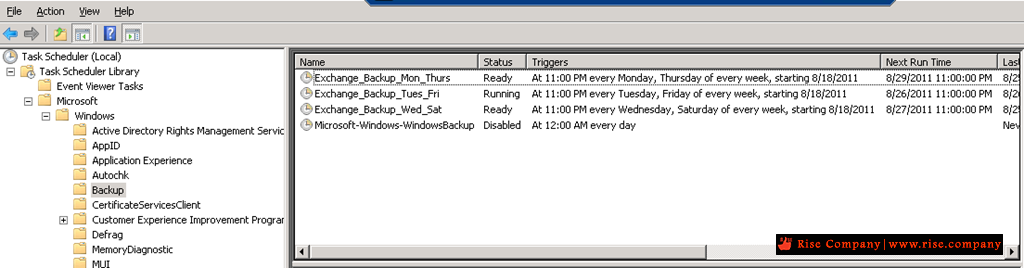
I’ve been working on a project for a school that had limited budget this year for their infrastructure and was not able to upgrade their Microsoft DPM 2007 backup software to the latest version and since DPM 2007 does not support backing up the Exchange Server 2010 information stores, the only alternative solution for them was to use the build in Windows Server Backup application that is natively built into Windows Server 2008 R2. The challenge of using Windows Server Backup was that you could only schedule one backup job from within the GUI and because I had to stagger the backup jobs to have them save the backups to different folders, what I needed to do was manually create backup jobs within Task Scheduler.
The first task was to figure out what the proper syntax was and since backup jobs in Windows Server Backup was essentially a task scheduled with the %windir%\System32\wbadmin.exe command, I simply looked up the switches available for the wbadmin.exe command. Details and explanation for this
command can be found here:
http://technet.microsoft.com/en-us/l...15(WS.10).aspx
and all the switches to start a backup job can be found here:
http://technet.microsoft.com/en-us/l...83(WS.10).aspx.
As shown in the Parameters in the link above, the switches we’re interested are as follows:
Parameter Description -backupTarget
Specifies the storage location for this backup. Requires a hard disk drive letter (f:), a volume GUID-based path in the format of \\?\Volume{GUID}, or a Universal Naming Convention (UNC) path to a remote shared folder (\\<servername>\<sharename>\). By default, the backup will be saved at: \\<servername>\<sharename>\WindowsImageBackup\<ComputerBackedUp>\. -include For Windows°Vista and Windows Server 2008, specifies the comma-delimited list of volume drive letters, volume mount points, or GUID-based volume names to include in the backup. This parameter should be used only when the -backupTarget parameter is used.
For Windows°7 and Windows Server 2008 R2, specifies the comma-delimited list of items to include in the backup. You can include multiple files, folders, or volumes. Volume paths can be specified using volume drive letters, volume mount points, or GUID-based volume names. If you use a GUID-based volume name, it should be terminated with a backslash (\). You can use the wildcard character (*) in the file name when specifying a path to a file. Should be used only when the -backupTarget parameter is used.-vssFull Performs a full back up using the Volume Shadow Copy Service (VSS). All files are backed up, each file's history is updated to reflect that it was backed up, and the logs of previous backups may be truncated. If this parameter is not used wbadmin start backup makes a copy backup, but the history of files being backed up is not updated. -quiet Runs the subcommand with no prompts to the user.
The schedule I worked out was to backup the information store
in different folders on \\backupServer\f$ for different days as shown in the following:
Note that this is just an example and the folders are set up as such because of the limited drive space I had.
Monday Tuesday Wednesday Thursday Friday Saturday Backup_Mon_Thurs Backup_Tues_Fri Backup_Wed_Sat Backup_Mon_Thurs Backup_Tues_Fri Backup_Wed_Sat
Once you’ve determined the amount of scheduled backups you need, you can proceed with setting up
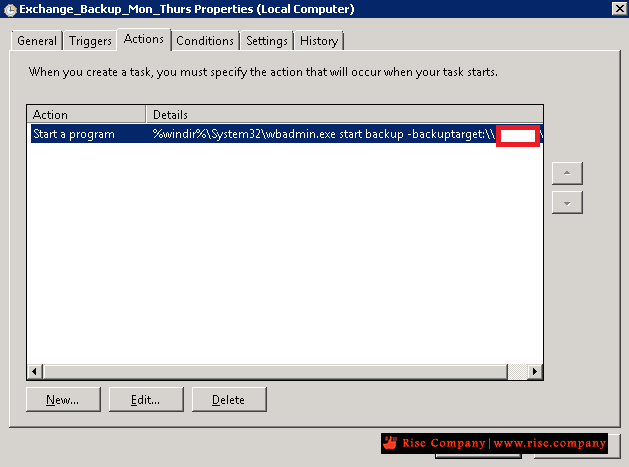
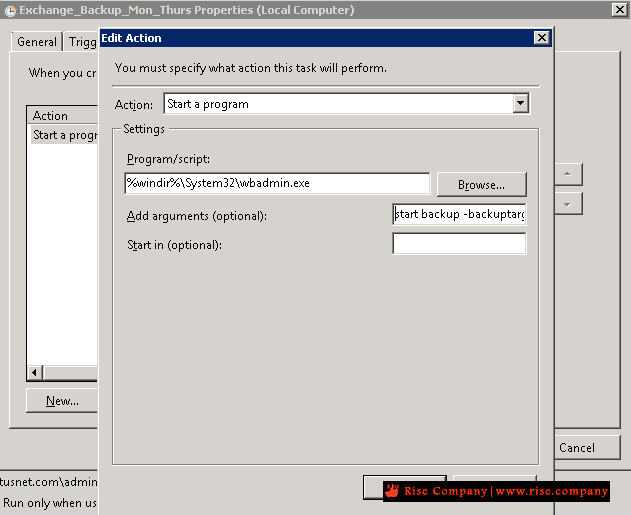
x amount of scheduled tasks in the Task Scheduler with the action setup as such:
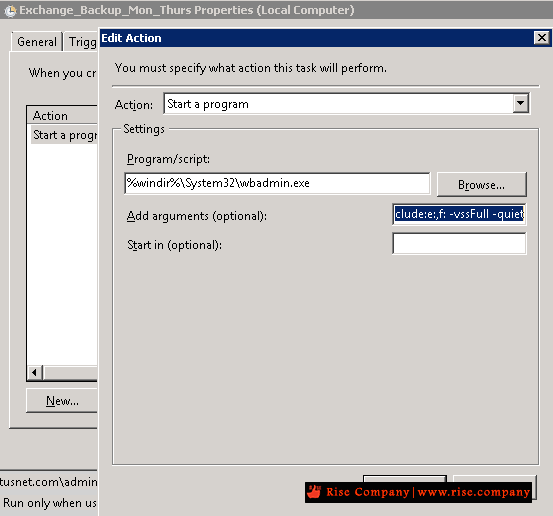
كود:start backup -backuptarget:\\backupServer\f$\Backup_Mon_Thurs -include:e:,f: -vssFull -quiet start backup -backuptarget:\\backupServer\f$\Backup_Tues_Fri -include:e:,f: -vssFull -quiet start backup -backuptarget:\\backupServer\f$\Backup_Wed_Sat -include:e:,f: -vssFull –quiet
In my example, the e: and f: drives are my database and log drives and therefore was included into the parameters. The -vssFull switch is important for Exchange 2010 backups so that the job can flush the logs so make sure you include it into the parameters.
+ إنشاء موضوع جديد
النتائج 1 إلى 3 من 3
-
15-10-2020, 03:00 #1Status
- Offline

- تاريخ التسجيل
- Apr 2014
- الدولة
- Egypt
- المشاركات
- 4,703
 Engineering and Technology
- معدل تقييم المستوى
- 10
 ويندوز سيرفر Windows Server عمل اكثر من باك اب create multiple schedules
------------------------------------------------------------------------
ويندوز سيرفر Windows Server عمل اكثر من باك اب create multiple schedules
------------------------------------------------------------------------
شركة رايز للهندسة و التكنولوجيا Rise Company for Engineering & Technology
------------------------------------------------------------------------
Web Hosting | Web Designing | E-Marketing
رقم # 1 فى خدمات الشركات Business Services
استضافة مواقع Web Hosting - عمل ايميل شركة Business Emails
تصميم موقع شركة Web Design - تسويق الكترونى على جوجل Google Adwords
www.rise.company | www.rise.company/emails
ملحوظة : جميع خدماتنا مخصصة للشركات فقط وغير متاحة للافراد
وليس لنا اى منتجات او صيانة نهائيا! يرجى الانتباه الى ذلك.
-
15-10-2020, 04:04 #2Status
- Offline
- تاريخ التسجيل
- Apr 2014
- الدولة
- Egypt
- المشاركات
- 4,703
Engineering and Technology
- معدل تقييم المستوى
- 10
رد: ويندوز سيرفر Windows Server عمل اكثر من باك اب create multiple schedules
كود:start backup -backupTarget:\192.168.1.5\server\monthly -include:C: -allCritical -quiet
------------------------------------------------------------------------
شركة رايز للهندسة و التكنولوجيا Rise Company for Engineering & Technology
------------------------------------------------------------------------
Web Hosting | Web Designing | E-Marketing
رقم # 1 فى خدمات الشركات Business Services
استضافة مواقع Web Hosting - عمل ايميل شركة Business Emails
تصميم موقع شركة Web Design - تسويق الكترونى على جوجل Google Adwords
www.rise.company | www.rise.company/emails
ملحوظة : جميع خدماتنا مخصصة للشركات فقط وغير متاحة للافراد
وليس لنا اى منتجات او صيانة نهائيا! يرجى الانتباه الى ذلك.
-
15-10-2020, 15:03 #3Status
- Offline

- تاريخ التسجيل
- Oct 2020
- الدولة
- Blank
- المشاركات
- 2
عضو
- معدل تقييم المستوى
- 0
رد: ويندوز سيرفر Windows Server عمل اكثر من باك اب create multiple schedules
شكرا لك علي هذا الموضوع ...

 رد مع اقتباس
المواضيع المتشابهه
-
ويندوز سيرفر Window Server الترقية الى upgrade windows server to 2019
بواسطة Rise Company في المنتدى قسم الويندوز سيرفر Windows Serverمشاركات: 0آخر مشاركة: 20-03-2020, 01:43 -
ويندوز سيرفر Windows Server شرح Windows server 2016 Installation
بواسطة Rise Company في المنتدى قسم الويندوز سيرفر Windows Serverمشاركات: 0آخر مشاركة: 23-05-2019, 01:37 -
ويندوز سيرفر Windows Server شرح Roaming profile | Home folder | Create group and ou
بواسطة Rise Company في المنتدى قسم الويندوز سيرفر Windows Serverمشاركات: 0آخر مشاركة: 23-05-2019, 01:35 -
تنزيل سيكول سيرفر SQL Server 2017 ويندوز سيرفر windows server 2016
بواسطة Rise Company في المنتدى قسم الويندوز سيرفر Windows Serverمشاركات: 0آخر مشاركة: 04-08-2018, 23:54 -
تنزيل Feature الباك اب Windows Server Backup ويندوز سيرفر windows server 2016
بواسطة Rise Company في المنتدى قسم الويندوز سيرفر Windows Serverمشاركات: 0آخر مشاركة: 04-08-2018, 02:26

المفضلات