

ويندوز سيرفر Windows Server حذف كونكشن مسجل rdp remove saved Connections login
How to Clear RDP Connections History - Windows Remote Desktop Connection (RDP) client
Delete Saved Credentials of Remote Desktop Connection
How to Clear RDP Connections History in Windows?
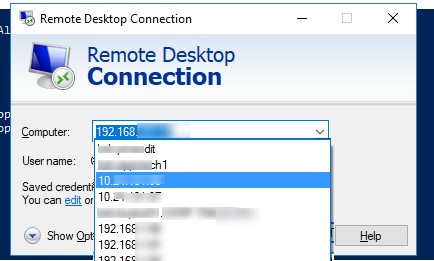
The built-in Windows Remote Desktop Connection (RDP) client (mstsc.exe) saves the remote computer name (or IP address) and the username that is used to login after each successful connection to the remote computer. On the next start, the RDP client offers the user to select one of the connections that was used previously. The user can select the name of the RDS/RDP host from the list, and the client automatically fills the username used earlier for login.
This is convenient from the end-user perspective, but unsafe from the security point of view. Especially when you connect to your RDP server from a public or untrusted computer. Information about all RDP (terminal) sessions is stored individually in the registry hive of each user, i.e. a non-admin won’t be able to view the RDP connection history of another user. In this article we will show where Windows stores the history and saved credentials of Remote Desktop connections, how to remove entries from the mstsc window, and clear RDP logs.
How to Remove RDP Connection Cache from the Registry?
Information about all RDP connections is stored in the registry of each user. It’s impossible to remove a computer (or computers) from the list of RDP connection history using built-in Windows tools. You will have to manually clear some registry keys.
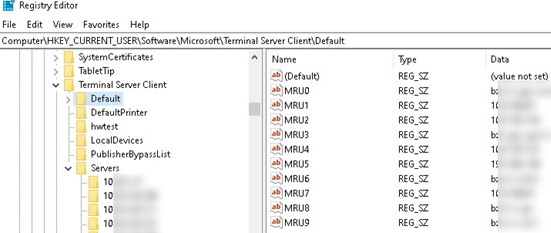
- Run the Registry Editor (regedit.exe) and browse to the registry key HKEY_CURRENT_USER\Software\Microsoft\Terminal Server Client;
- You need two registry keys in this section: Default (stores the history of the last 10 RDP connections) and Servers (contains the list of all RDP servers and usernames used previously to login);
باختصار اذهب الى هنا
ثم هتجد بداخله جميع التسجيلات التى قمت بها, قم بحذف منها ما تريد حذفه.كود:HKEY_CURRENT_USER\Software\Microsoft\Terminal Server Client\Default
المرجع:
http://woshub.com/how-to-clear-rdp-connections-history/
https://docs.microsoft.com/en-us/tro...ction-computer
+ إنشاء موضوع جديد
النتائج 1 إلى 2 من 2
-
18-11-2020, 03:16 #1Status
- Offline

- تاريخ التسجيل
- Apr 2014
- الدولة
- Egypt
- المشاركات
- 4,703
 Engineering and Technology
- معدل تقييم المستوى
- 10
 ويندوز سيرفر Windows Server حذف كونكشن مسجل rdp remove saved Connections login
------------------------------------------------------------------------
ويندوز سيرفر Windows Server حذف كونكشن مسجل rdp remove saved Connections login
------------------------------------------------------------------------
شركة رايز للهندسة و التكنولوجيا Rise Company for Engineering & Technology
------------------------------------------------------------------------
Web Hosting | Web Designing | E-Marketing
رقم # 1 فى خدمات الشركات Business Services
استضافة مواقع Web Hosting - عمل ايميل شركة Business Emails
تصميم موقع شركة Web Design - تسويق الكترونى على جوجل Google Adwords
www.rise.company | www.rise.company/emails
ملحوظة : جميع خدماتنا مخصصة للشركات فقط وغير متاحة للافراد
وليس لنا اى منتجات او صيانة نهائيا! يرجى الانتباه الى ذلك.
-
18-11-2020, 03:22 #2Status
- Offline
- تاريخ التسجيل
- Apr 2014
- الدولة
- Egypt
- المشاركات
- 4,703
Engineering and Technology
- معدل تقييم المستوى
- 10
رد: ويندوز سيرفر Windows Server حذف كونكشن مسجل rdp remove saved Connections login
حل اخر
------------------------------------------------------------------------
شركة رايز للهندسة و التكنولوجيا Rise Company for Engineering & Technology
------------------------------------------------------------------------
Web Hosting | Web Designing | E-Marketing
رقم # 1 فى خدمات الشركات Business Services
استضافة مواقع Web Hosting - عمل ايميل شركة Business Emails
تصميم موقع شركة Web Design - تسويق الكترونى على جوجل Google Adwords
www.rise.company | www.rise.company/emails
ملحوظة : جميع خدماتنا مخصصة للشركات فقط وغير متاحة للافراد
وليس لنا اى منتجات او صيانة نهائيا! يرجى الانتباه الى ذلك.

 رد مع اقتباس
المواضيع المتشابهه
-
ويندوز سيرفر Window Server الترقية الى upgrade windows server to 2019
بواسطة Rise Company في المنتدى قسم الويندوز سيرفر Windows Serverمشاركات: 0آخر مشاركة: 20-03-2020, 01:43 -
ويندوز سيرفر Windows Server شرح Windows server 2016 Installation
بواسطة Rise Company في المنتدى قسم الويندوز سيرفر Windows Serverمشاركات: 0آخر مشاركة: 23-05-2019, 01:37 -
ويندوز سيرفر 2008 windows server واضافة DHCP على Server manager
بواسطة Rise Company في المنتدى قسم الويندوز سيرفر Windows Serverمشاركات: 0آخر مشاركة: 23-10-2018, 21:33 -
تنزيل سيكول سيرفر SQL Server 2017 ويندوز سيرفر windows server 2016
بواسطة Rise Company في المنتدى قسم الويندوز سيرفر Windows Serverمشاركات: 0آخر مشاركة: 04-08-2018, 23:54 -
تنزيل Feature الباك اب Windows Server Backup ويندوز سيرفر windows server 2016
بواسطة Rise Company في المنتدى قسم الويندوز سيرفر Windows Serverمشاركات: 0آخر مشاركة: 04-08-2018, 02:26

المفضلات