


كلاود فلير CloudFlare توقف AutoSSL عند التوليد التلقائي للشهادة
An error occurred the last time AutoSSL - AutoSSL not working with CloudFlare
How to Repair the DNS DCV Error in cPanel - How to Use AutoSSL with Cloudflare
How to solve problem renewing SSL certificate when using cPanel AutoSSL and Cloudflare
how to use SSL and Cloudflare at the same time.
------------------------------------------------------------------
المشكلة :
------------------------------------------------------------------
شهادة ssl تولد تلقائيا بشرط ان يكون dns موجه الى اي بي السيرفر
ولكن كلاود فلير يستخدم بروكسي اى يخفى الاي بي ويضع اى بى اخر
وبالتالى لا يمكن توليد شهادة تلقائيا
وهيتطلب كل 3 شهور عمل pause للكلاود فلير على شان البروكسي يقف
ثم من داخل السي بانيل تولد الشهادة مرة اخري وهيعمل 100 %
وكرر ذلك كل 3 شهور
الحل الدائم :
- هو ترقية الجساب المجانى الى المدفوع من كلاود فلير
- يوجد داخل الكلاود فلير الغاء اجبار https فى التوجيه وهو الحل الوحيد المجانى
وهيفضل الحماية تعمل ولكن روابط http لن تحول تلقائيا الى https
وخاصة اذا كان لديك مقالات بها صور بالامتداد http
وايضا اذا كان لديك فايروول قد يوقف autossl
- او عدم استخدام شهادة السي بانيل !!!
نعم يمكنك ذلك حيث ان الكلاود فلير يستخدم شهادة مقدمه من خلاله تلقائيا
ولا يستخدم السي بانيل اطلاقا , ولكن المشكلة الى هتواجهك هى فى الايميلات
وحلها وضع فى اعدادات الخادم اسم موقع السيرفر الى به شهادة ssl من السي بانيل
--------------------------------------------------------------------------
Im using CloudFlare and WHM AutoSSL can not verify domain name.
I have errors like:
A temporary solution is to "Pause Cloudflare on Site" (Cloudflare), run again "AutoSSL" (cPanel), and then "Enable Cloudflare on Site" (Cloudflare).DNS DCV: The DNS query to “_cpanel-dcv-test-record.companyname.com” for the DCV challenge returned no “TXT” record that matches the value “_cpanel-dcv-test-record=zDMyqFvxp3hhaPE”.; HTTP DCV: “cPanel (powered by Sectigo)” forbids DCV HTTP redirections.
Any better solution with AutoSSL and CloudFlare?
Notes:
Iam using Full encryption mode at Cloudflare (Encrypts end-to-end, using a self signed certificate on the server)
------------------------------------------------------------------
حل المشكلة دائم " لكن احيانا لا يعمل "
------------------------------------------------------------------
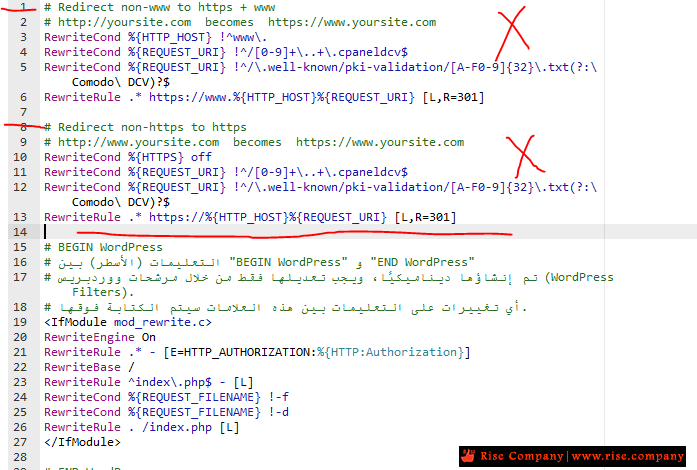
لماذا احيانا لا يعمل ؟ لانه اذا كان لديك ملف htaccess بداخله كود يقوم بعمل Force HTTPS Redirect
مثل : اضافة الووردبريس All In One WP Security تضع اكواد تمنع التحويل فى htaccess
لذلك هتتوقف شهادة ssl عن التوليد لتوقف اتصالها http فى هذه الحالة مع الكلاود فلير
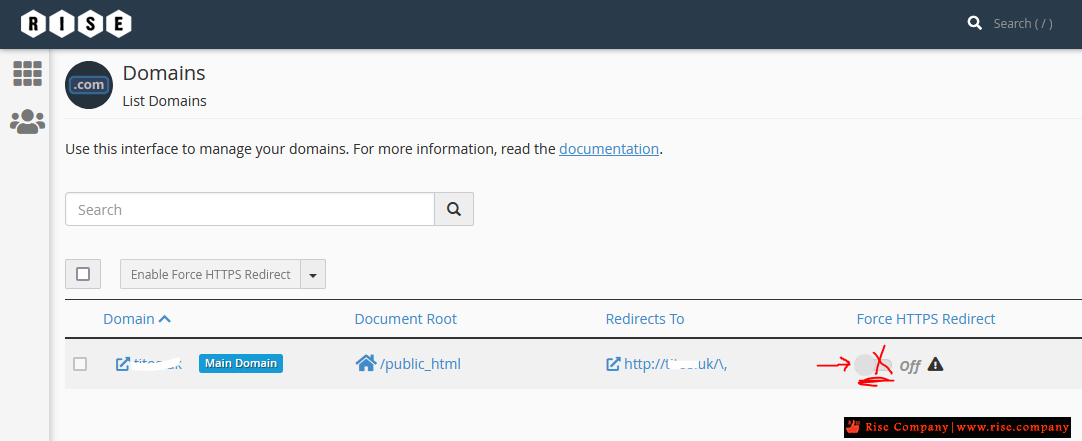
1- قم بالغاء Force HTTPS Redirect فهى تمنع من توليد الشهادة بالاتصال مع كلاود فلير
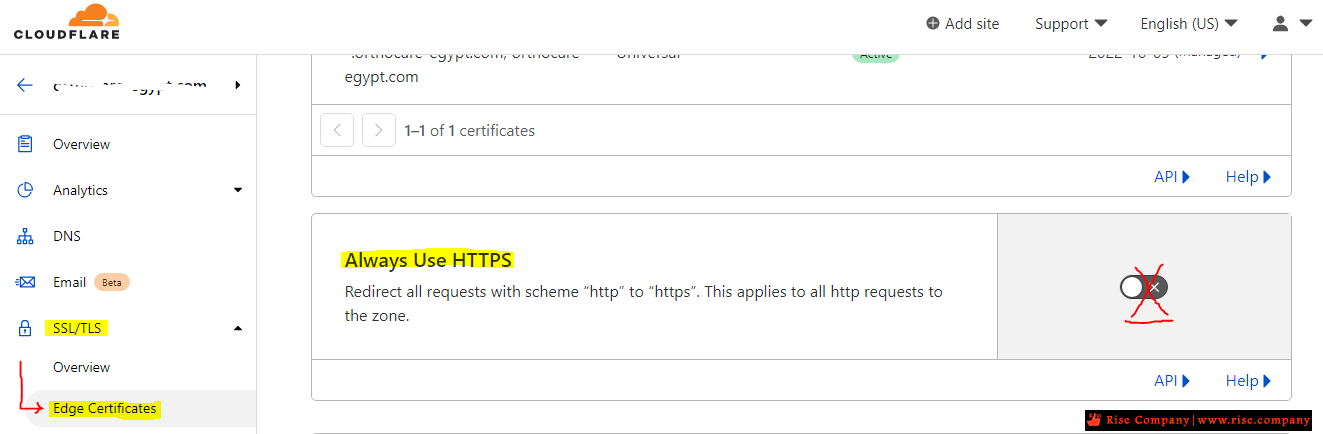
2- قم بالغاء Always Use HTTPS من المسار Edge Certificates tab -> SSL/TLS
Click the slider to disable the Always Use HTTPS option
You should leave this option disabled permanently. If you want to enforce HTTPS usage on your site, you can use .htaccess redirects as described in this article. Alternatively, if you are using WordPress, you can enforce HTTPS usage as described in this article.
SSL certificate renewals should now complete successfully. However, if they still fail, check the following settings in Cloudflare:
- Automatic HTTPS Rewrites: This option is located on the Edge Certificates tab of the SSL/TLS section in Cloudflare. If it is enabled, disable it temporarily for SSL renewals.
- SSL/TLS encryption mode: This option is located on the Overview tab of the SSL/TLS section in Cloudflare. If Full (strict) mode is enabled, set it instead to Full mode temporarily for SSL renewals.
https://www.hostens.com/knowledgebas...ssl-on-cpanel/
https://www.hostens.com/knowledgebas...osting-cpanel/
------------------------------------------------------------------
حل المشكلة الدائم فعال " تثبيت شهادة كلاود فلير 15 سنة " :
------------------------------------------------------------------
Installing Cloudflare SSL on cPanel
If you do not want to purchase a commercial certificate or use the free Let’s Encrypt SSL, you can install Cloudflare SSL on your hosting plan. In this lesson, you will learn how to do this.
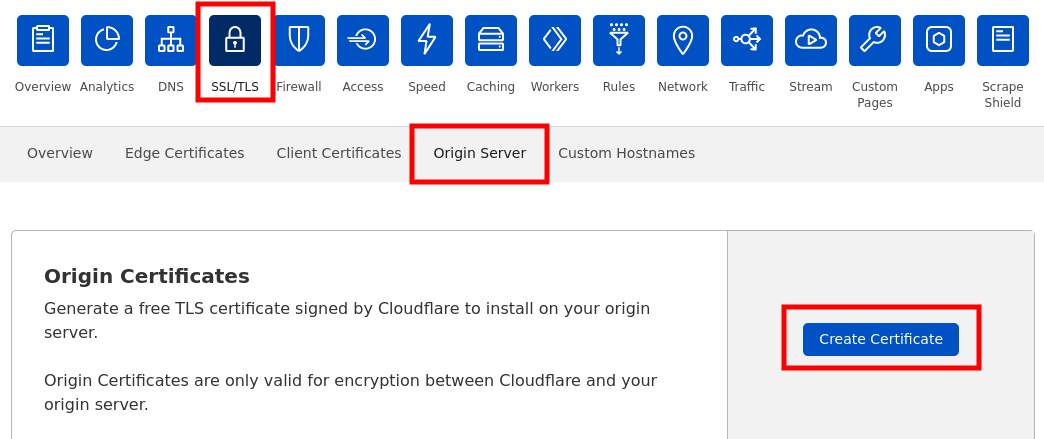
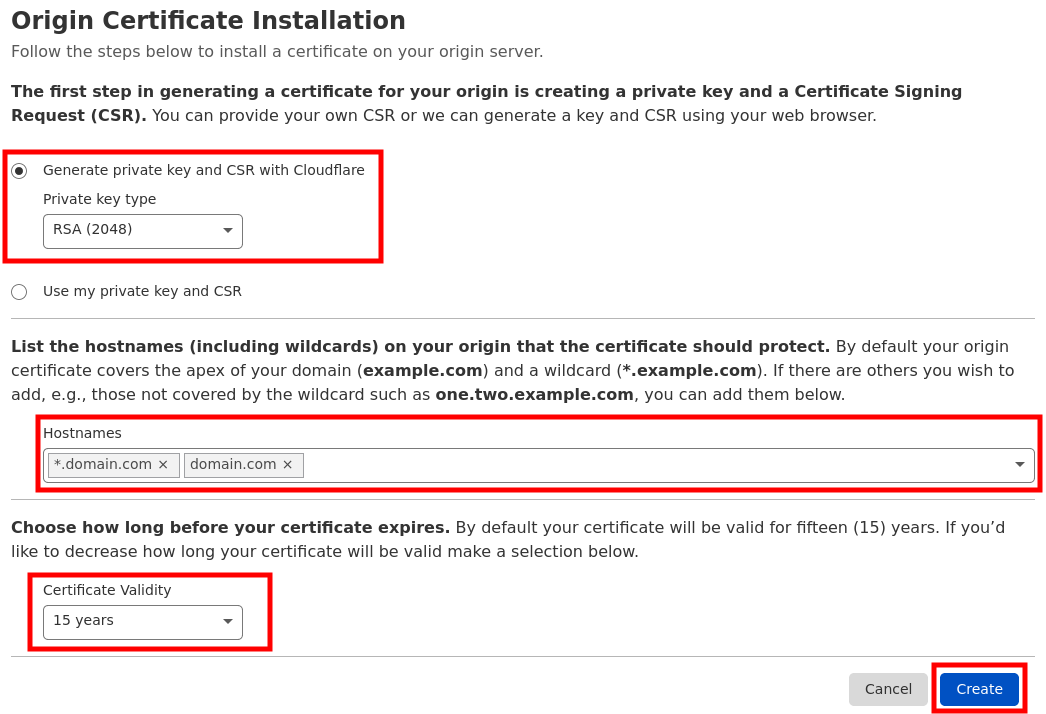
1) Log in to your Cloudflare system, select your domain. Click on the SSL/TLS icon -> Pick Origin Server tab -> Click Create button:
2) Settings should be the following:
– Generate private key and CSR with Cloudflare;
– Make sure your domain is indicated in Hostnames;
– Certificate Validity 15 years (Optional).
Click Create button:
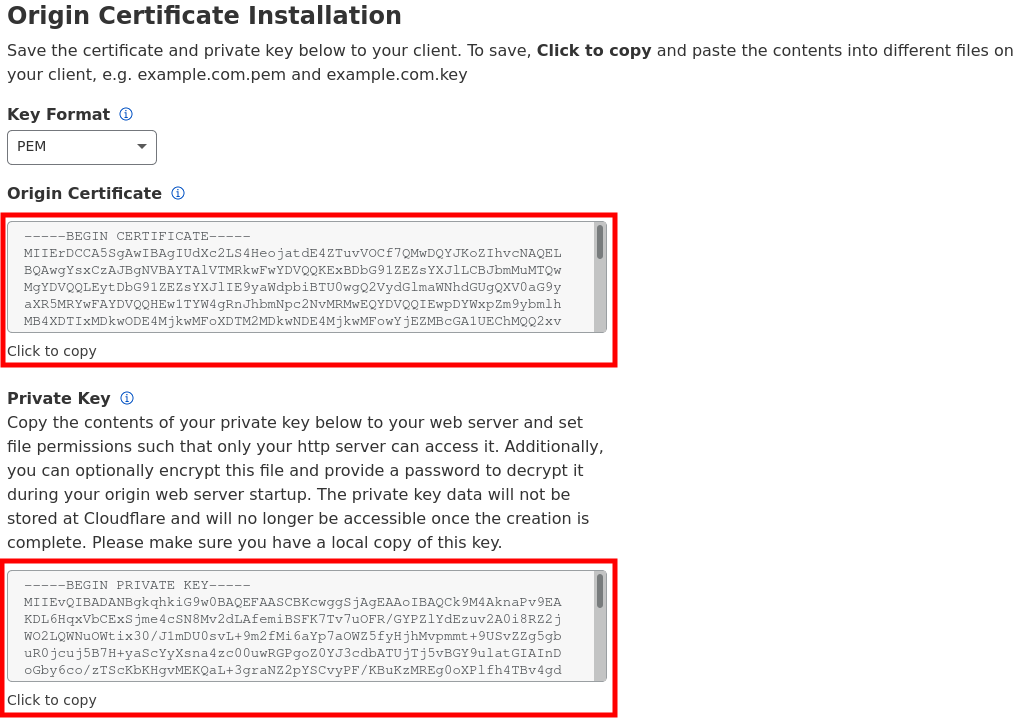
3) Copy-paste Origin Certificate and Private Key. You will need this information to install SSL on your server. The Key format should be PEM:
4) You will also need CA Bundle to establish the full chain of trust. You can download the Cloudflare CA root certificate on this page. You will see two options there:
– Cloudflare Origin ECC PEM (do not use with Apache cPanel)
– Cloudflare Origin RSA PEM <- THIS IS THE ONE YOU NEED TO DOWNLOAD
As a result, you will have 3 pieces of SSL:
1) Private Key;
2) Certificate or CRT (Origin Certificate);
3) Certificate Authority Bundle or CABUNDLE (Cloudflare Origin RSA PEM).
The SSL installation on cPanel takes place according to this tutorial.
IMPORTANT
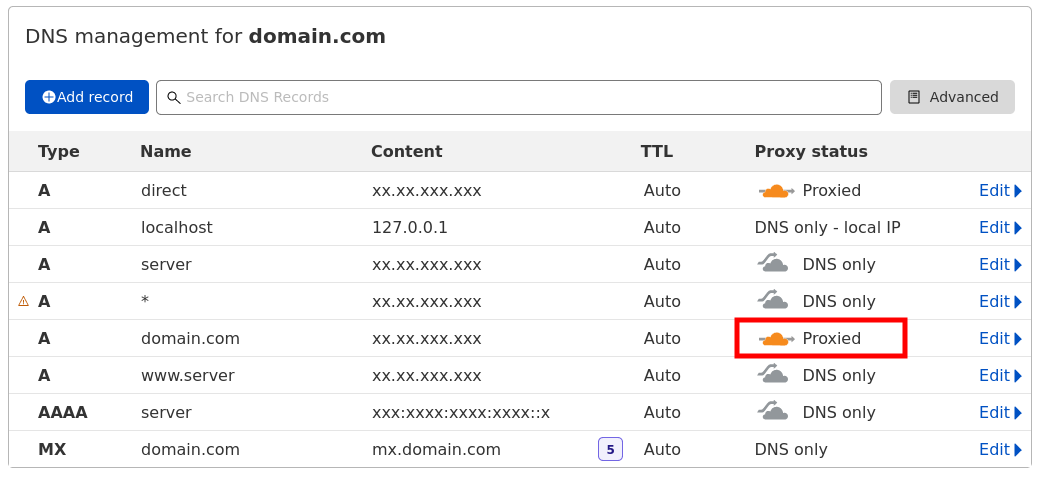
For SSL to work correctly, you will need to make sure that your domain’s type A record is Proxied on your Cloudflare DNS zone:
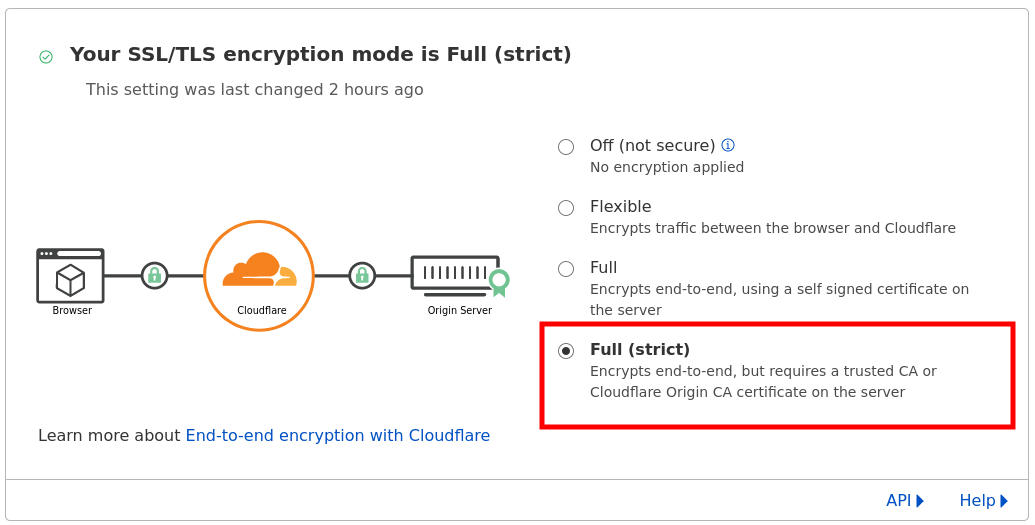
Also, you will need to enable Full (strict) SSL/TLS encryption in Cloudflare SSL/TLS -> Overview section:
That’s it! Congrats on installing Cloudflare SSL for your domain:
ملحوظة هامة : لا انصح بتفعيل Full Strict لانها تعطل الموقع فىا كثير من الاوقات
اذا وجدتها تعمل !!! قم بفتح الموقع لمدة اسبوع على اوقات مختلفة هتجده تعطل وتوقف لذلك انتبه منها !!!
لذلك اجعلها full فقط
Installing a certificate on the shared hosting
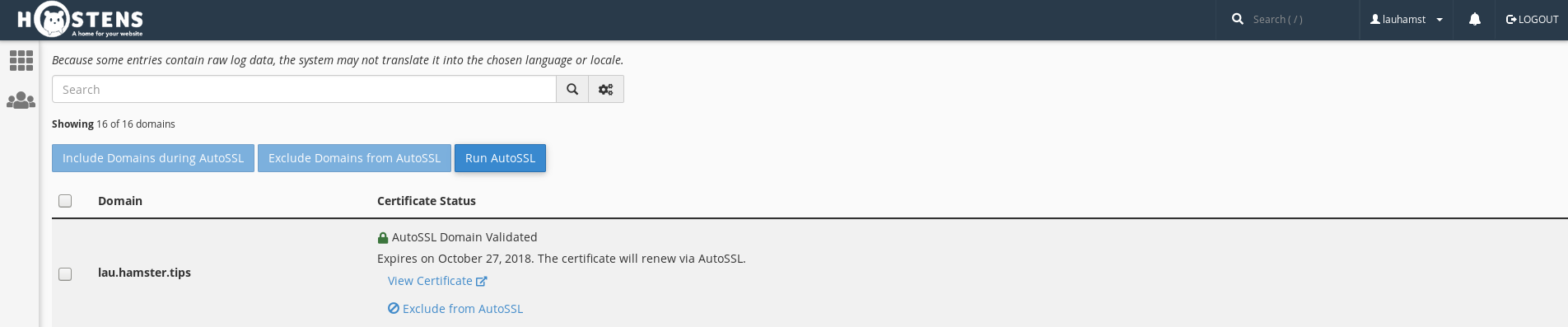
1. Choose Services > Web Hosting and then choose your Shared Hosting package and select “SSL/TTL Status”. If any certificate is already installed, press “Exclude from AutoSSL”:
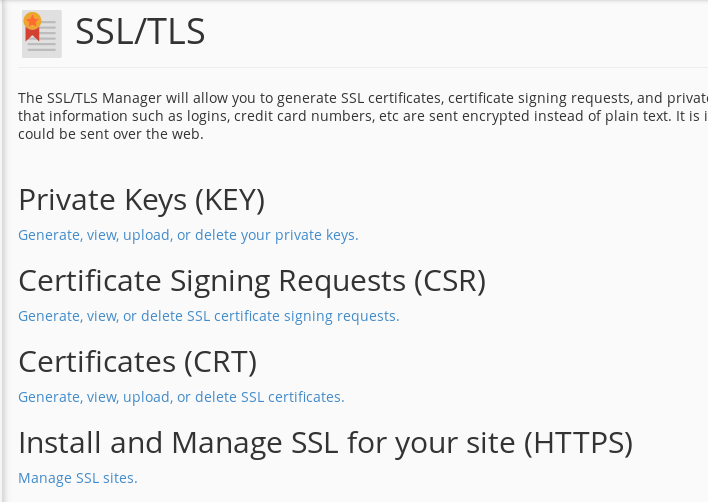
2. Go back to the main menu and select “SSL/TTL”. Click on the last link “Manage SSL sites” and select a domain:
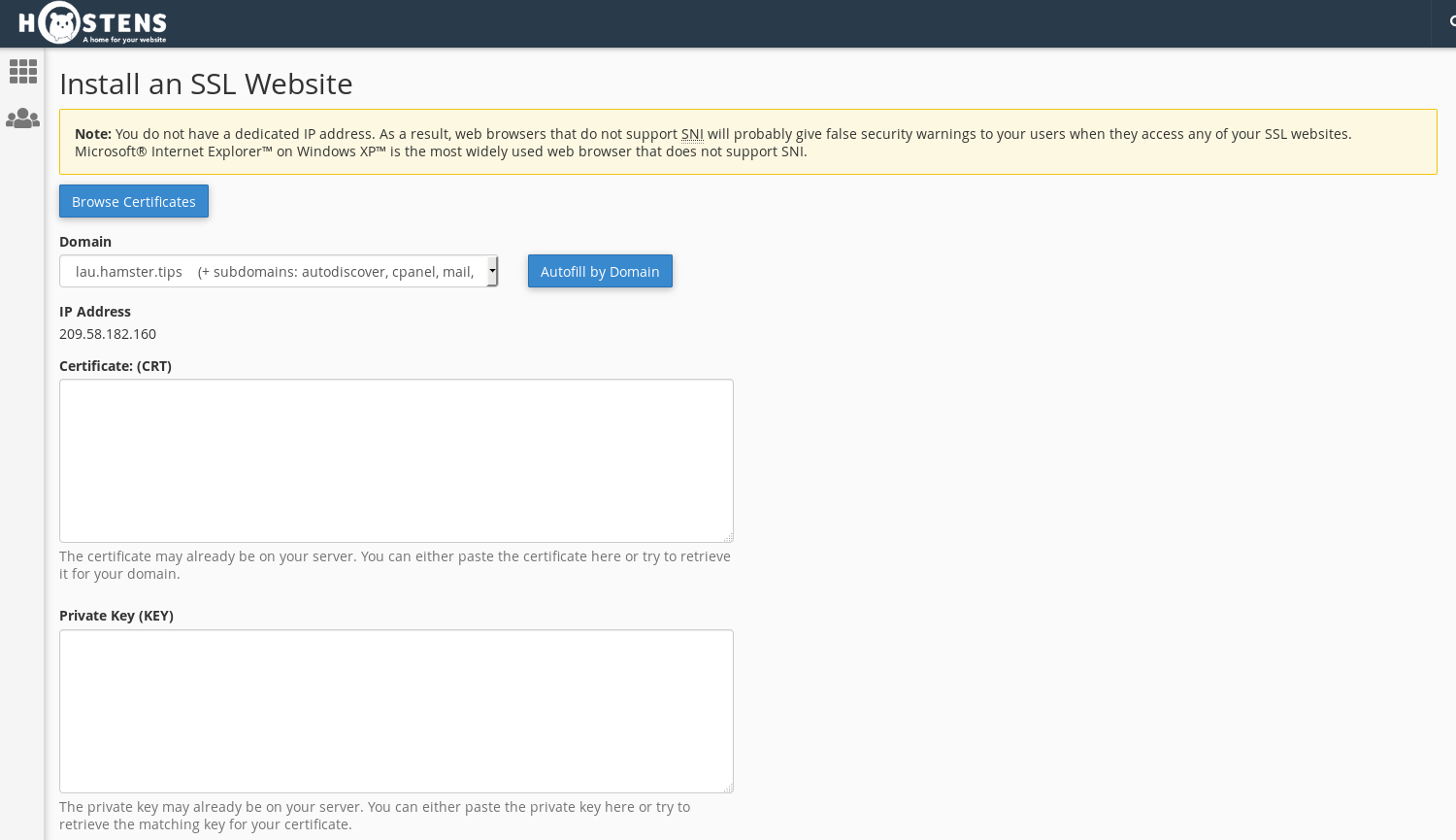
3. Go down to the paragraph “Install an SSL Website”:
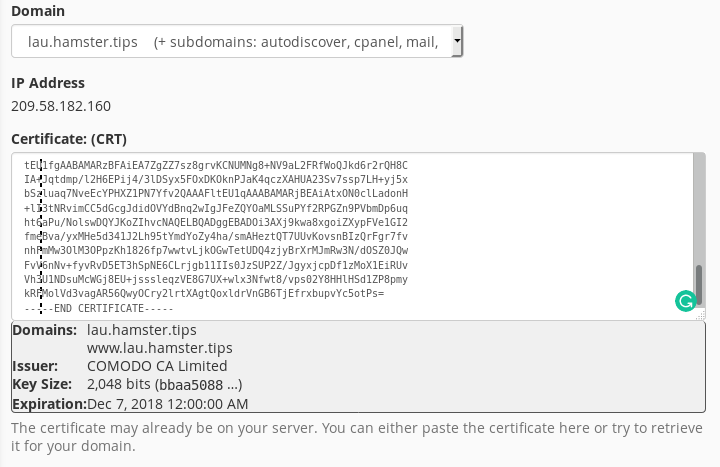
4. Paste all saved keys. If CRT is correct you will see this notification:
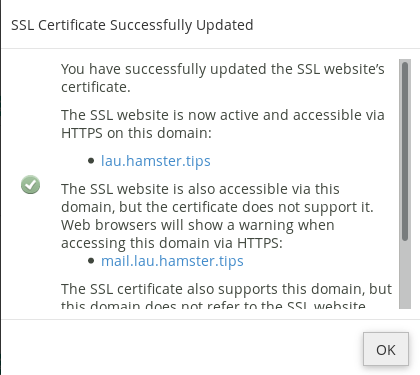
5. After pasting just press a button “Install Certificate”. If everything goes correctly, you see this message:
Once this is done, you will have to wait a bit and your certificate will be installed.
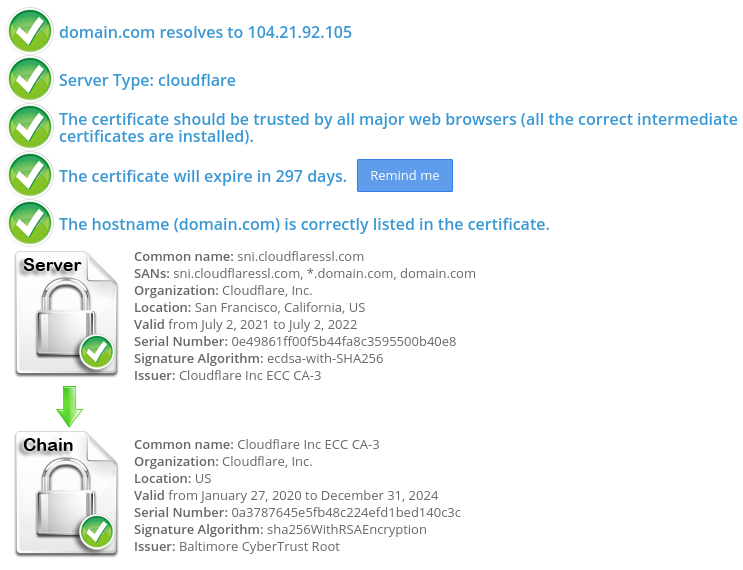
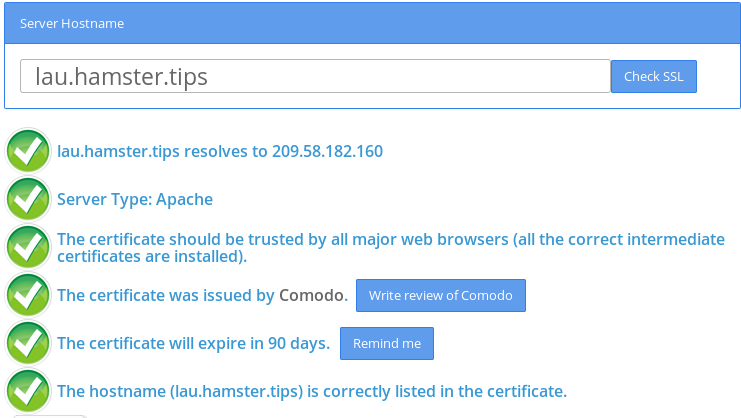
You will be able to check it with 3rd party tools like
https://www.sslshopper.com/ssl-checker.html
------------------------------------------------------------------
حل المشكلة " المؤقت" :
------------------------------------------------------------------
الباقة المجانية من كلاود فلير لا تسمح لك باستخدام شهادة ssl مدمجة
الا فى الباقة المدفوعة , والبديل عمل pause للكلاود فلير ثم الذهاب الى cpanel
والضغط على autossl وبعد توليد الشهادة رجع الكلاود فلير للعمل مرة اخري.
* ملحوظة توليد الشهادة بيكون كل 3 شهور
يمكنك عمل Pause او تحويل الايقونات البرتقالى الى الرمادي
وهنا هيكون جميعها وهى تقريبا 10 يجب جعلها dns only اى وضع الرمادي
حيث شهادة ssl تولد الكثير من subdomains معها ايضا ويجب جميعها ان يتم عمل ssl
ملحوظة : سواء جعل الايقونة رمادى او عمل pause
كلاهم يوقف البروكسي وبالتالى يظهر الاى بى الحقيقى وهيشوف السيرفر
لا يوجد انتظار 24 ساعة ولا تغيير dns ولا توقف الموقع ... فقط توقف البروكسي
وجعل الموقع موجه للدى ان اس مباشر الخاص بك وعمل من نفسه تعطيل مؤقت لجميع اعدادت cf
وفى الحالى اذهب اعمل auto renew ثم ارجع اعمل resume فى كلاود فلير
فى منتهى السهولة.
------------------------------------------------------------------
How to Address the Error
------------------------------------------------------------------
We have several options in addressing this problem.
We can purchase a stand-alone SSL certificate
We can use Cloudflare’s SSL Option without AutoSSL
We can use the cPanel SSL option without Cloudflare
We can temporarily pause Cloudflare and then update the AutoSSL certificate
We choose option 4 in this case. Addressing this problem is pretty straightforward.
Step 1. Pause Cloudflare
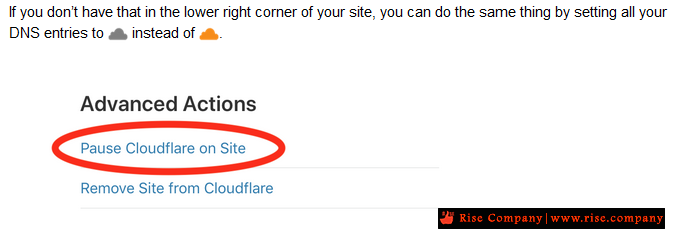
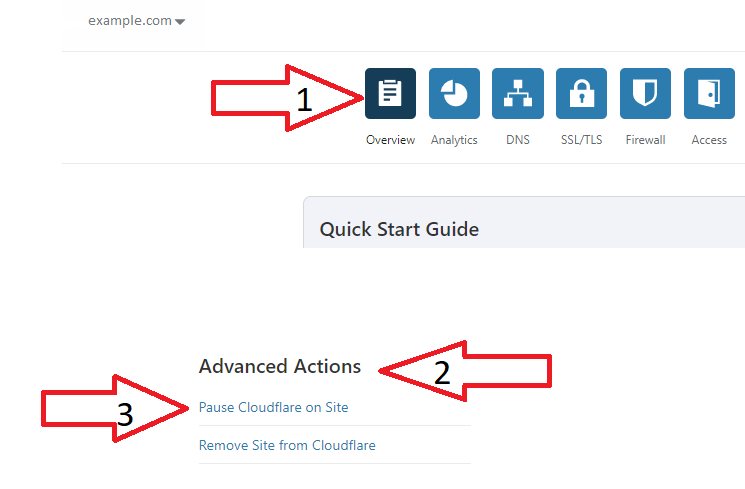
We begin by logging into the cloudflare.com dashboard that controls the DNS for the domain and pauses Cloudflare for a moment.
In the top left, go to “Overview.” Then find the “Advanced Options” section, and in the bottom right, click on “Pause Cloudflare on Site.”
Step 2. Run AutoSSL
Once we have accomplished this, we can rerun AutoSSL to issues the certificate. This will ensure our domain passes Domain Control Validation.
Using AutoSSL in WHM-Cpanel
While we are on this topic, we will demonstrate how to use the AutoSSL feature in WHM.
- First login to your server WHM.
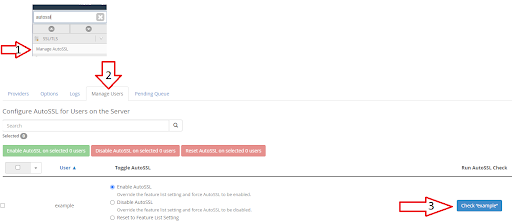
2. In the search bar type “autossl” and click on “Manage AutoSSL”
3. This will take us to a new screen. In that screen locate the “Manage Users” tab.
4. Find the cPanel user for your domain on the right and click on check “example” in blue.
5. It will now issue an SSL for the domain.
Great! We just renewed the SSL.
Verify SSL
So, where do we go to verify it actually worked? We will check the logs, of course!
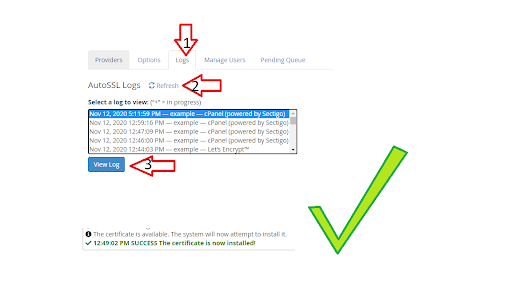
- Go back to the “Manage AutoSSL” option in WHM.
2. Click on the “Logs” tab in the middle.
3. Click on “Refresh” so you can see the latest logs.
4. Click on the latest log available.
5. Click on “View Log”, to view the log you selected.
The output of the log is usually long, but it will show an entry something akin to the following entry at the very bottom of the log.
The certificate is available. The system will now attempt to install it.
12:49:02 PM SUCCESS The certificate is now installed!
ماذا يحدث اذا لم تجدد شهادة ssl ؟
هيظل التشفير كما هو يعمل بين العميل و كلاود فلير منا ناحية
ولكن من ناحية الكلاود فلير و السيرفر لا يعمل التشفير
وبالتالى اذا كان التشفير هام طبق الشرح فى الاعلى
ولا يوجد حل اخر الا بالدفع باقة business وهى غالية
Conclusion
The free SSL from WHM should be renewed every 3 months. The other workaround would be ordering a paid SSL for one year. If we choose to order an SSL to avoid having to do this every 3 months we have 2 options.
- Standard SSL that covers your domain.com and the subdomain www.domain.com for $50/Year.
- A Wildcard SSL. This SSL will cover your main domain and any subdomain for $150/Year.
https://www.sslshopper.com/ssl-checker.html
المرجع:
https://www.a2hosting.com/kb/add-on-...nabled-domains
https://support.cpanel.net/hc/en-us/...PS-Redirection
https://forums.cpanel.net/threads/au...dflare.678069/
https://www.liquidweb.com/kb/how-to-...ror-in-cpanel/
https://maevelander.net/how-to-solve...nd-cloudflare/
https://www.namecheap.com/support/kn...led-in-cpanel/
https://webmasters.stackexchange.com...loudflares-ssl
https://www.indowhiz.com/articles/en...-cdn-problems/
https://community.cloudflare.com/t/h...dflare/68798/3
https://support.cpanel.net/hc/en-us/...PS-Redirection
+ إنشاء موضوع جديد
النتائج 1 إلى 8 من 8
مشاهدة المواضيع
-
10-01-2021, 00:09 #1Status
- Offline

- تاريخ التسجيل
- Apr 2014
- الدولة
- Egypt
- المشاركات
- 4,703
 Engineering and Technology
- معدل تقييم المستوى
- 10
 كلاود فلير CloudFlare توقف AutoSSL عند التوليد التلقائي للشهادة كل 3 شهور
------------------------------------------------------------------------
كلاود فلير CloudFlare توقف AutoSSL عند التوليد التلقائي للشهادة كل 3 شهور
------------------------------------------------------------------------
شركة رايز للهندسة و التكنولوجيا Rise Company for Engineering & Technology
------------------------------------------------------------------------
Web Hosting | Web Designing | E-Marketing
رقم # 1 فى خدمات الشركات Business Services
استضافة مواقع Web Hosting - عمل ايميل شركة Business Emails
تصميم موقع شركة Web Design - تسويق الكترونى على جوجل Google Adwords
www.rise.company | www.rise.company/emails
ملحوظة : جميع خدماتنا مخصصة للشركات فقط وغير متاحة للافراد
وليس لنا اى منتجات او صيانة نهائيا! يرجى الانتباه الى ذلك.


 رد مع اقتباس
المواضيع المتشابهه
-
سكريبت Whmcs حل مشكلة AUTO LOGOUT عند تفعيل كلاود فلير CloudFlare
بواسطة Rise Company في المنتدى قسم ادارة الاستضافة Whmcsمشاركات: 0آخر مشاركة: 21-12-2020, 02:03 -
كلاود فلير CloudFlare توقف الايميل عن العمل email stopped working
بواسطة Rise Company في المنتدى قسم الكلاود فلير CloudFlareمشاركات: 0آخر مشاركة: 16-12-2020, 06:25 -
كلاود فلير CloudFlare يتعارض مع فايروول CSF ويتوقف بسبب اختفاء visitor’s original IP
بواسطة Rise Company في المنتدى قسم الكلاود فلير CloudFlareمشاركات: 0آخر مشاركة: 16-12-2020, 01:33 -
كلاود فلير CloudFlare تثبيت بديل mod_cloudflare وهو mod_remoteip لاظهار ip الحقيقي
بواسطة Rise Company في المنتدى قسم الكلاود فلير CloudFlareمشاركات: 0آخر مشاركة: 16-12-2020, 00:46 -
كلاود فلير CloudFlare طريقة إعداد و تركيب CDN على موقعك مع ربط الدومين
بواسطة Rise Company في المنتدى قسم الكلاود فلير CloudFlareمشاركات: 0آخر مشاركة: 14-12-2020, 16:21

المفضلات