

كلاود فلير CloudFlare توقف AutoSSL عند التوليد التلقائي للشهادة
An error occurred the last time AutoSSL - AutoSSL not working with CloudFlare
How to Repair the DNS DCV Error in cPanel - How to Use AutoSSL with Cloudflare
How to solve problem renewing SSL certificate when using cPanel AutoSSL and Cloudflare
how to use SSL and Cloudflare at the same time.
------------------------------------------------------------------
المشكلة :
------------------------------------------------------------------
شهادة ssl تولد تلقائيا بشرط ان يكون dns موجه الى اي بي السيرفر
ولكن كلاود فلير يستخدم بروكسي اى يخفى الاي بي ويضع اى بى اخر
وبالتالى لا يمكن توليد شهادة تلقائيا
وهيتطلب كل 3 شهور عمل pause للكلاود فلير على شان البروكسي يقف
ثم من داخل السي بانيل تولد الشهادة مرة اخري وهيعمل 100 %
وكرر ذلك كل 3 شهور
الحل الدائم :
- هو ترقية الجساب المجانى الى المدفوع من كلاود فلير
- يوجد داخل الكلاود فلير الغاء اجبار https فى التوجيه وهو الحل الوحيد المجانى
وهيفضل الحماية تعمل ولكن روابط http لن تحول تلقائيا الى https
وخاصة اذا كان لديك مقالات بها صور بالامتداد http
وايضا اذا كان لديك فايروول قد يوقف autossl
- او عدم استخدام شهادة السي بانيل !!!
نعم يمكنك ذلك حيث ان الكلاود فلير يستخدم شهادة مقدمه من خلاله تلقائيا
ولا يستخدم السي بانيل اطلاقا , ولكن المشكلة الى هتواجهك هى فى الايميلات
وحلها وضع فى اعدادات الخادم اسم موقع السيرفر الى به شهادة ssl من السي بانيل
--------------------------------------------------------------------------
Im using CloudFlare and WHM AutoSSL can not verify domain name.
I have errors like:
A temporary solution is to "Pause Cloudflare on Site" (Cloudflare), run again "AutoSSL" (cPanel), and then "Enable Cloudflare on Site" (Cloudflare).DNS DCV: The DNS query to “_cpanel-dcv-test-record.companyname.com” for the DCV challenge returned no “TXT” record that matches the value “_cpanel-dcv-test-record=zDMyqFvxp3hhaPE”.; HTTP DCV: “cPanel (powered by Sectigo)” forbids DCV HTTP redirections.
Any better solution with AutoSSL and CloudFlare?
Notes:
Iam using Full encryption mode at Cloudflare (Encrypts end-to-end, using a self signed certificate on the server)
------------------------------------------------------------------
حل المشكلة دائم " لكن احيانا لا يعمل "
------------------------------------------------------------------
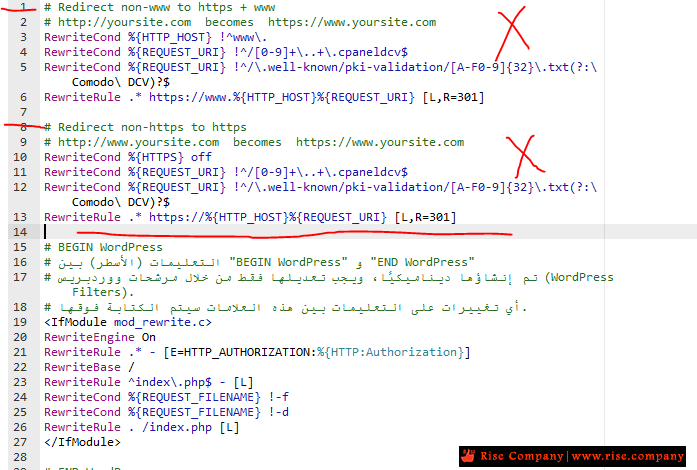
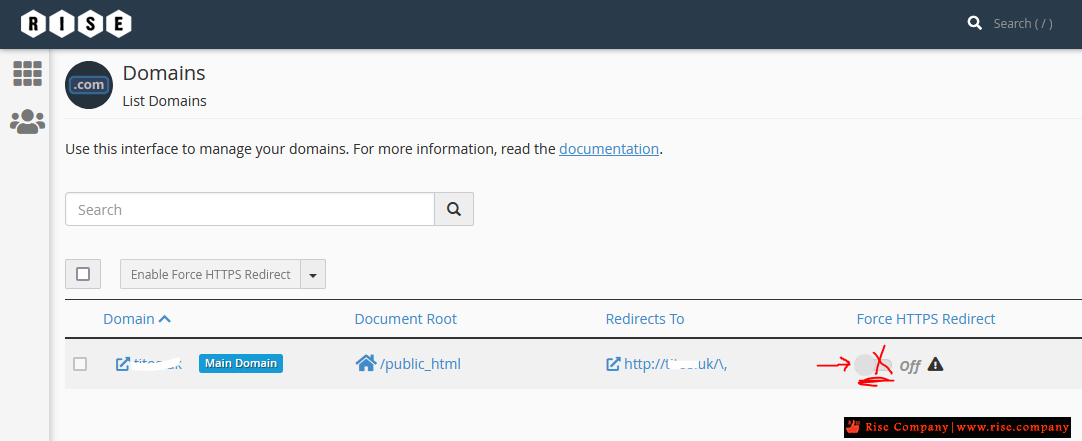
لماذا احيانا لا يعمل ؟ لانه اذا كان لديك ملف htaccess بداخله كود يقوم بعمل Force HTTPS Redirect
مثل : اضافة الووردبريس All In One WP Security تضع اكواد تمنع التحويل فى htaccess
لذلك هتتوقف شهادة ssl عن التوليد لتوقف اتصالها http فى هذه الحالة مع الكلاود فلير
1- قم بالغاء Force HTTPS Redirect فهى تمنع من توليد الشهادة بالاتصال مع كلاود فلير
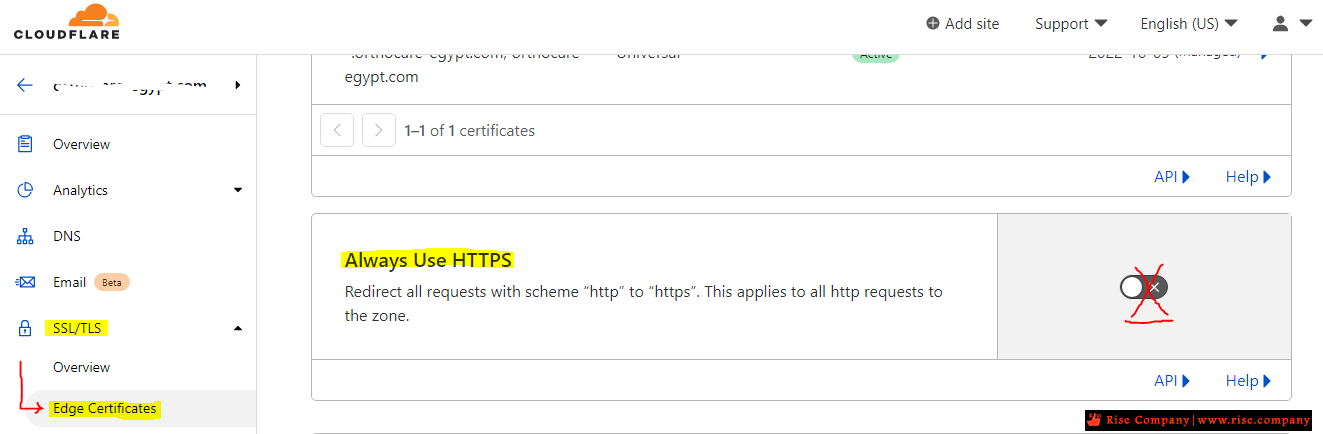
2- قم بالغاء Always Use HTTPS من المسار Edge Certificates tab -> SSL/TLS
Click the slider to disable the Always Use HTTPS option
You should leave this option disabled permanently. If you want to enforce HTTPS usage on your site, you can use .htaccess redirects as described in this article. Alternatively, if you are using WordPress, you can enforce HTTPS usage as described in this article.
SSL certificate renewals should now complete successfully. However, if they still fail, check the following settings in Cloudflare:
- Automatic HTTPS Rewrites: This option is located on the Edge Certificates tab of the SSL/TLS section in Cloudflare. If it is enabled, disable it temporarily for SSL renewals.
- SSL/TLS encryption mode: This option is located on the Overview tab of the SSL/TLS section in Cloudflare. If Full (strict) mode is enabled, set it instead to Full mode temporarily for SSL renewals.
https://www.hostens.com/knowledgebas...ssl-on-cpanel/
https://www.hostens.com/knowledgebas...osting-cpanel/
------------------------------------------------------------------
حل المشكلة الدائم فعال " تثبيت شهادة كلاود فلير 15 سنة " :
------------------------------------------------------------------
Installing Cloudflare SSL on cPanel
If you do not want to purchase a commercial certificate or use the free Let’s Encrypt SSL, you can install Cloudflare SSL on your hosting plan. In this lesson, you will learn how to do this.
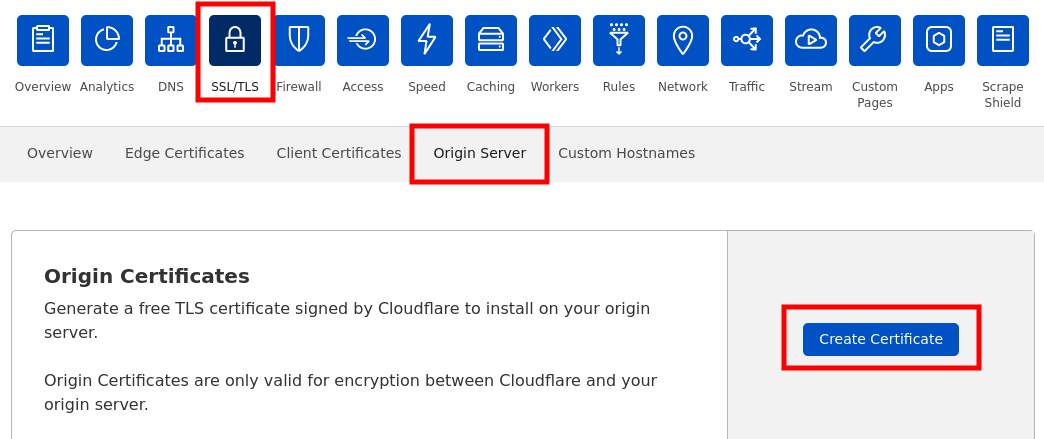
1) Log in to your Cloudflare system, select your domain. Click on the SSL/TLS icon -> Pick Origin Server tab -> Click Create button:
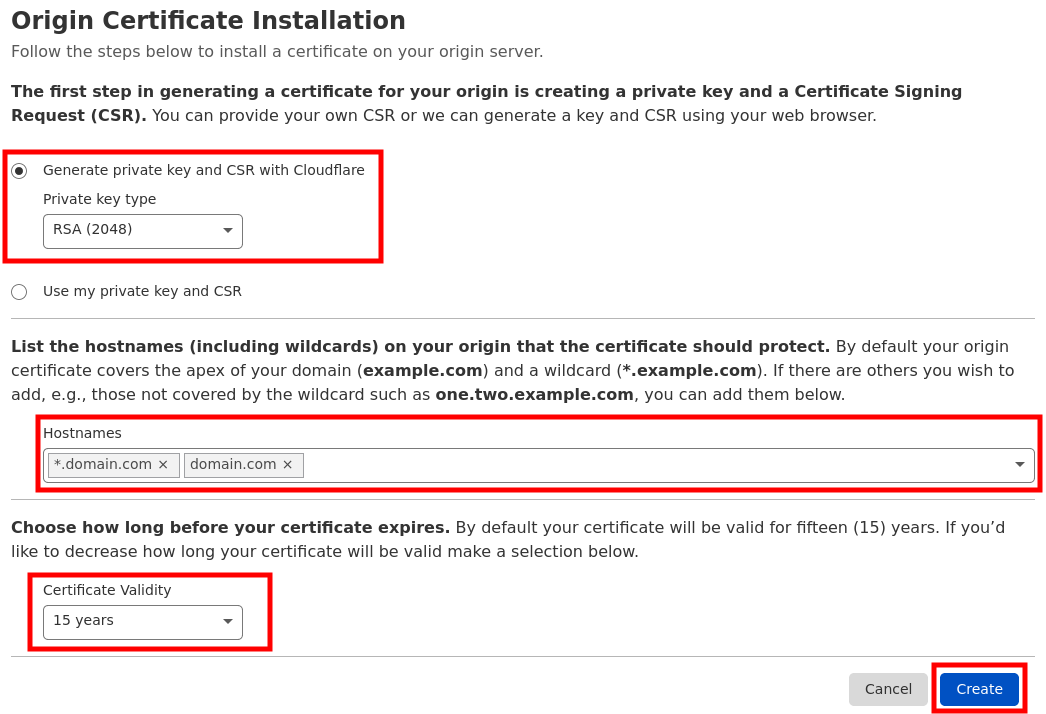
2) Settings should be the following:
– Generate private key and CSR with Cloudflare;
– Make sure your domain is indicated in Hostnames;
– Certificate Validity 15 years (Optional).
Click Create button:
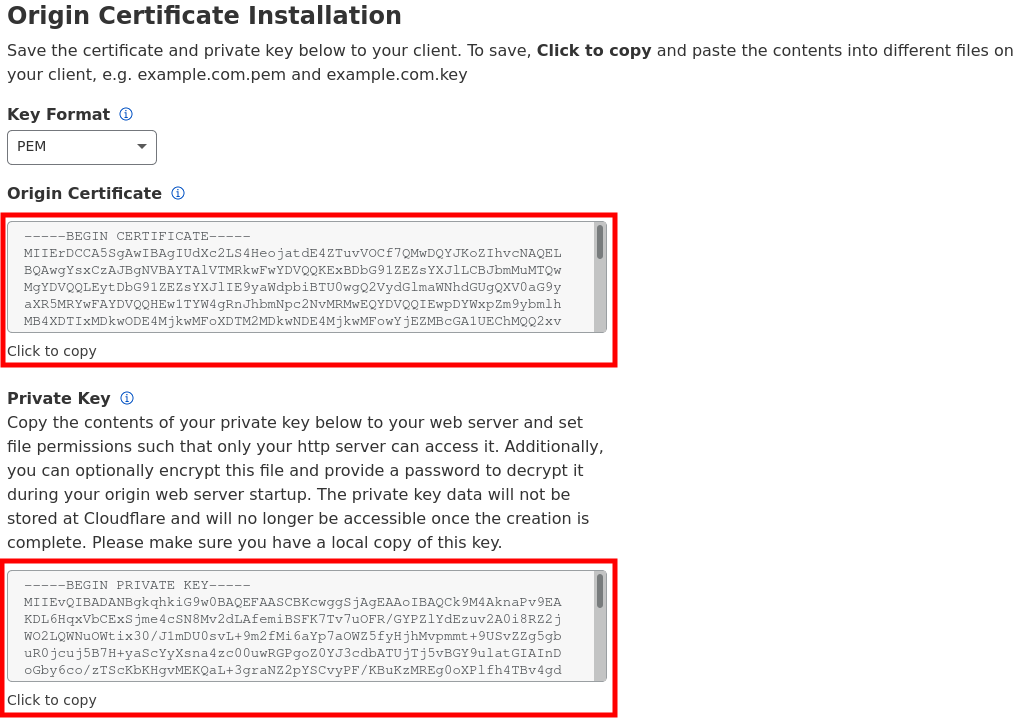
3) Copy-paste Origin Certificate and Private Key. You will need this information to install SSL on your server. The Key format should be PEM:
4) You will also need CA Bundle to establish the full chain of trust. You can download the Cloudflare CA root certificate on this page. You will see two options there:
– Cloudflare Origin ECC PEM (do not use with Apache cPanel)
– Cloudflare Origin RSA PEM <- THIS IS THE ONE YOU NEED TO DOWNLOAD
As a result, you will have 3 pieces of SSL:
1) Private Key;
2) Certificate or CRT (Origin Certificate);
3) Certificate Authority Bundle or CABUNDLE (Cloudflare Origin RSA PEM).
The SSL installation on cPanel takes place according to this tutorial.
IMPORTANT
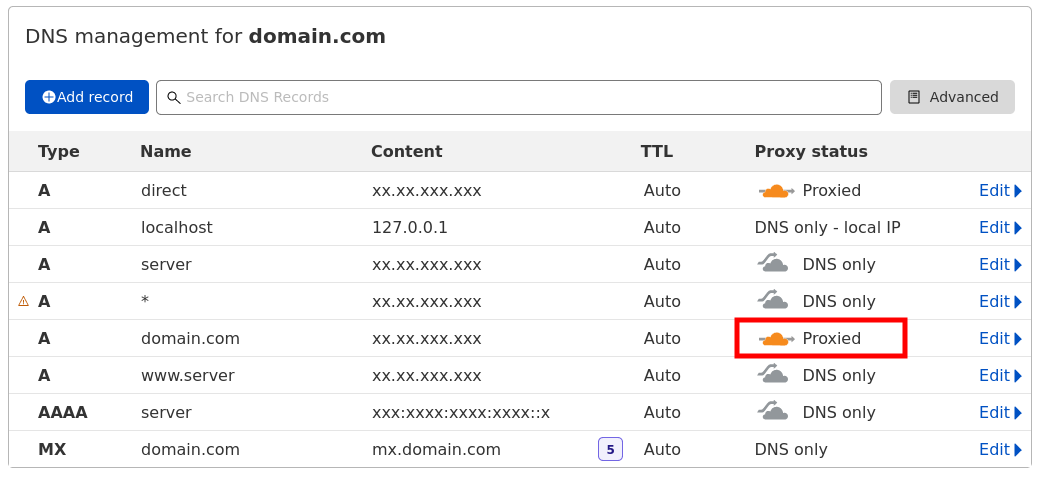
For SSL to work correctly, you will need to make sure that your domain’s type A record is Proxied on your Cloudflare DNS zone:
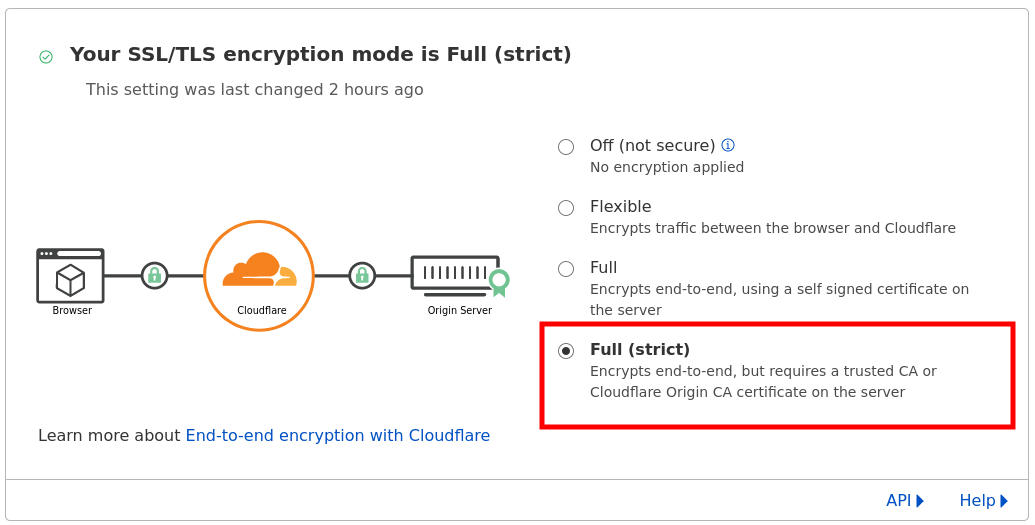
Also, you will need to enable Full (strict) SSL/TLS encryption in Cloudflare SSL/TLS -> Overview section:
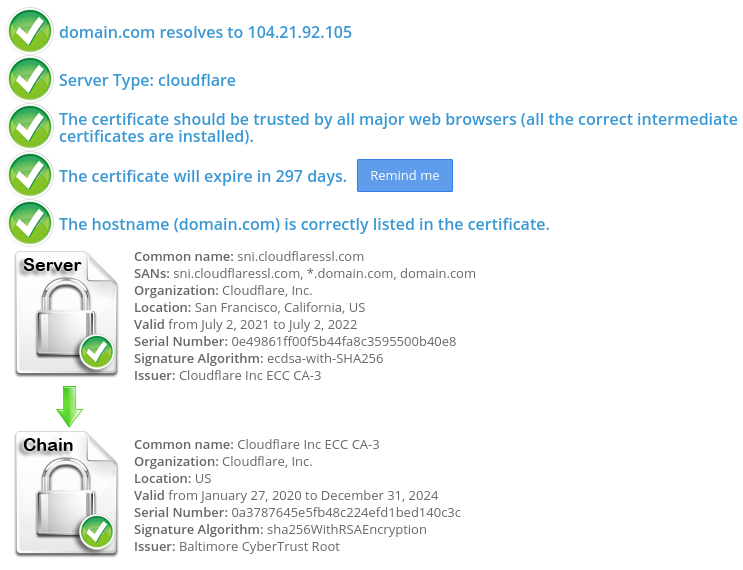
That’s it! Congrats on installing Cloudflare SSL for your domain:
ملحوظة هامة : لا انصح بتفعيل Full Strict لانها تعطل الموقع فىا كثير من الاوقات
اذا وجدتها تعمل !!! قم بفتح الموقع لمدة اسبوع على اوقات مختلفة هتجده تعطل وتوقف لذلك انتبه منها !!!
لذلك اجعلها full فقط
Installing a certificate on the shared hosting
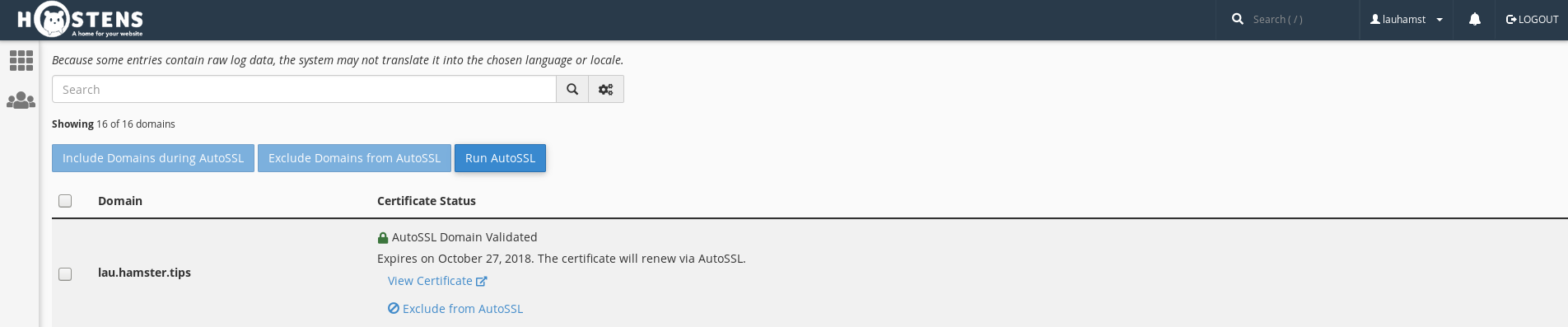
1. Choose Services > Web Hosting and then choose your Shared Hosting package and select “SSL/TTL Status”. If any certificate is already installed, press “Exclude from AutoSSL”:
2. Go back to the main menu and select “SSL/TTL”. Click on the last link “Manage SSL sites” and select a domain:
3. Go down to the paragraph “Install an SSL Website”:
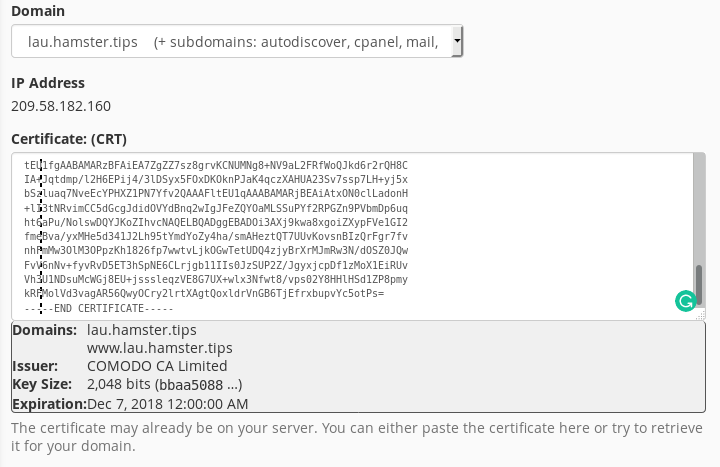
4. Paste all saved keys. If CRT is correct you will see this notification:
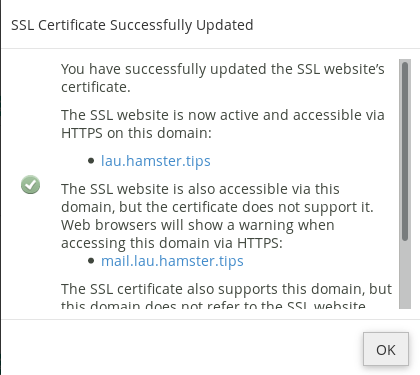
5. After pasting just press a button “Install Certificate”. If everything goes correctly, you see this message:
Once this is done, you will have to wait a bit and your certificate will be installed.
You will be able to check it with 3rd party tools like
https://www.sslshopper.com/ssl-checker.html
------------------------------------------------------------------
حل المشكلة " المؤقت" :
------------------------------------------------------------------
الباقة المجانية من كلاود فلير لا تسمح لك باستخدام شهادة ssl مدمجة
الا فى الباقة المدفوعة , والبديل عمل pause للكلاود فلير ثم الذهاب الى cpanel
والضغط على autossl وبعد توليد الشهادة رجع الكلاود فلير للعمل مرة اخري.
* ملحوظة توليد الشهادة بيكون كل 3 شهور
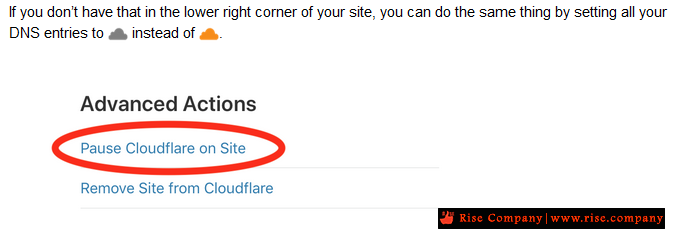
يمكنك عمل Pause او تحويل الايقونات البرتقالى الى الرمادي
وهنا هيكون جميعها وهى تقريبا 10 يجب جعلها dns only اى وضع الرمادي
حيث شهادة ssl تولد الكثير من subdomains معها ايضا ويجب جميعها ان يتم عمل ssl
ملحوظة : سواء جعل الايقونة رمادى او عمل pause
كلاهم يوقف البروكسي وبالتالى يظهر الاى بى الحقيقى وهيشوف السيرفر
لا يوجد انتظار 24 ساعة ولا تغيير dns ولا توقف الموقع ... فقط توقف البروكسي
وجعل الموقع موجه للدى ان اس مباشر الخاص بك وعمل من نفسه تعطيل مؤقت لجميع اعدادت cf
وفى الحالى اذهب اعمل auto renew ثم ارجع اعمل resume فى كلاود فلير
فى منتهى السهولة.
------------------------------------------------------------------
How to Address the Error
------------------------------------------------------------------
We have several options in addressing this problem.
We can purchase a stand-alone SSL certificate
We can use Cloudflare’s SSL Option without AutoSSL
We can use the cPanel SSL option without Cloudflare
We can temporarily pause Cloudflare and then update the AutoSSL certificate
We choose option 4 in this case. Addressing this problem is pretty straightforward.
Step 1. Pause Cloudflare
We begin by logging into the cloudflare.com dashboard that controls the DNS for the domain and pauses Cloudflare for a moment.
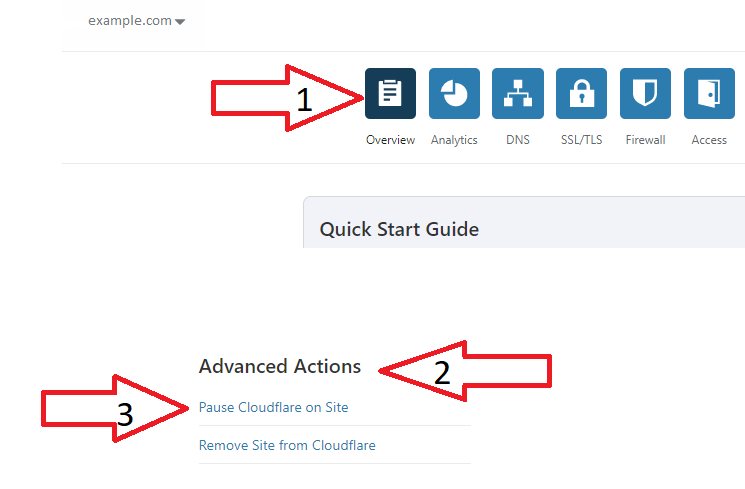
In the top left, go to “Overview.” Then find the “Advanced Options” section, and in the bottom right, click on “Pause Cloudflare on Site.”
Step 2. Run AutoSSL
Once we have accomplished this, we can rerun AutoSSL to issues the certificate. This will ensure our domain passes Domain Control Validation.
Using AutoSSL in WHM-Cpanel
While we are on this topic, we will demonstrate how to use the AutoSSL feature in WHM.
- First login to your server WHM.
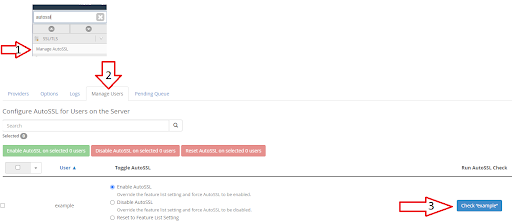
2. In the search bar type “autossl” and click on “Manage AutoSSL”
3. This will take us to a new screen. In that screen locate the “Manage Users” tab.
4. Find the cPanel user for your domain on the right and click on check “example” in blue.
5. It will now issue an SSL for the domain.
Great! We just renewed the SSL.
Verify SSL
So, where do we go to verify it actually worked? We will check the logs, of course!
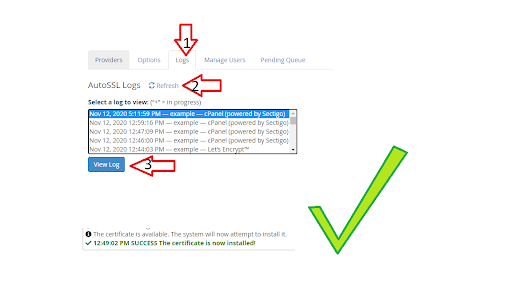
- Go back to the “Manage AutoSSL” option in WHM.
2. Click on the “Logs” tab in the middle.
3. Click on “Refresh” so you can see the latest logs.
4. Click on the latest log available.
5. Click on “View Log”, to view the log you selected.
The output of the log is usually long, but it will show an entry something akin to the following entry at the very bottom of the log.
The certificate is available. The system will now attempt to install it.
12:49:02 PM SUCCESS The certificate is now installed!
ماذا يحدث اذا لم تجدد شهادة ssl ؟
هيظل التشفير كما هو يعمل بين العميل و كلاود فلير منا ناحية
ولكن من ناحية الكلاود فلير و السيرفر لا يعمل التشفير
وبالتالى اذا كان التشفير هام طبق الشرح فى الاعلى
ولا يوجد حل اخر الا بالدفع باقة business وهى غالية
Conclusion
The free SSL from WHM should be renewed every 3 months. The other workaround would be ordering a paid SSL for one year. If we choose to order an SSL to avoid having to do this every 3 months we have 2 options.
- Standard SSL that covers your domain.com and the subdomain www.domain.com for $50/Year.
- A Wildcard SSL. This SSL will cover your main domain and any subdomain for $150/Year.
https://www.sslshopper.com/ssl-checker.html
المرجع:
https://www.a2hosting.com/kb/add-on-...nabled-domains
https://support.cpanel.net/hc/en-us/...PS-Redirection
https://forums.cpanel.net/threads/au...dflare.678069/
https://www.liquidweb.com/kb/how-to-...ror-in-cpanel/
https://maevelander.net/how-to-solve...nd-cloudflare/
https://www.namecheap.com/support/kn...led-in-cpanel/
https://webmasters.stackexchange.com...loudflares-ssl
https://www.indowhiz.com/articles/en...-cdn-problems/
https://community.cloudflare.com/t/h...dflare/68798/3
https://support.cpanel.net/hc/en-us/...PS-Redirection
+ إنشاء موضوع جديد
النتائج 1 إلى 8 من 8
-
10-01-2021, 00:09 #1Status
- Offline

- تاريخ التسجيل
- Apr 2014
- الدولة
- Egypt
- المشاركات
- 4,703
 Engineering and Technology
- معدل تقييم المستوى
- 10
 كلاود فلير CloudFlare توقف AutoSSL عند التوليد التلقائي للشهادة كل 3 شهور
------------------------------------------------------------------------
كلاود فلير CloudFlare توقف AutoSSL عند التوليد التلقائي للشهادة كل 3 شهور
------------------------------------------------------------------------
شركة رايز للهندسة و التكنولوجيا Rise Company for Engineering & Technology
------------------------------------------------------------------------
Web Hosting | Web Designing | E-Marketing
رقم # 1 فى خدمات الشركات Business Services
استضافة مواقع Web Hosting - عمل ايميل شركة Business Emails
تصميم موقع شركة Web Design - تسويق الكترونى على جوجل Google Adwords
www.rise.company | www.rise.company/emails
ملحوظة : جميع خدماتنا مخصصة للشركات فقط وغير متاحة للافراد
وليس لنا اى منتجات او صيانة نهائيا! يرجى الانتباه الى ذلك.
-
10-01-2021, 00:47 #2Status
- Offline
- تاريخ التسجيل
- Apr 2014
- الدولة
- Egypt
- المشاركات
- 4,703
Engineering and Technology
- معدل تقييم المستوى
- 10
رد: كلاود فلير CloudFlare توقف AuotSSL عند التوليد التلقائي للشهادة
Use Cloudflare with AutoSSL
While we’ll use Cloudflare’s free account as a specific example, the general principle should apply to any CDN/Website Firewall where you cannot allow AutoSSL to view the actual IP address.
- Rely on Cloudflare’s shared SSL certificate and set your SSL level to Full or lower. This will keep the connection between visitors and Cloudflare encrypted but may leave the connection between Cloudflare and your web host unencrypted. If you’re fine with that then there’s nothing left to do.
- Use AutoSSL and disable Cloudflare (or allow traffic to simply pass through Cloudflare). This will allow you to use the SSL Certificate generated by AutoSSL but you will unfortunately lose all the benefits that Cloudflare brings (such as caching, minification etc…). If you only want to use Cloudflare as a DNS manager, then this might be the solution for you.
- Temporarily disable Cloudflare when you need to issue/renew the SSL Certificate via AutoSSL. This will be troublesome because Let’s Encrypt requires renewal every 90 days. But if you insist on using Full (Strict) SSL on Cloudflare, this may be your only choice unless you…
- Upgrade to a Cloudflare Business account which allows you to install your own SSL Certificate. If money is no object this would be the best solution.
------------------------------------------------------------------------
شركة رايز للهندسة و التكنولوجيا Rise Company for Engineering & Technology
------------------------------------------------------------------------
Web Hosting | Web Designing | E-Marketing
رقم # 1 فى خدمات الشركات Business Services
استضافة مواقع Web Hosting - عمل ايميل شركة Business Emails
تصميم موقع شركة Web Design - تسويق الكترونى على جوجل Google Adwords
www.rise.company | www.rise.company/emails
ملحوظة : جميع خدماتنا مخصصة للشركات فقط وغير متاحة للافراد
وليس لنا اى منتجات او صيانة نهائيا! يرجى الانتباه الى ذلك.
-
10-01-2021, 00:53 #3Status
- Offline
- تاريخ التسجيل
- Apr 2014
- الدولة
- Egypt
- المشاركات
- 4,703
Engineering and Technology
- معدل تقييم المستوى
- 10
رد: كلاود فلير CloudFlare توقف AuotSSL عند التوليد التلقائي للشهادة
Are you having problems renewing an SSL certificate using cPanel’s AutoSSL feature on a domain which is also using Cloudflare? Read on for a solution, and an explanation for why this happens.
The Symptoms
Typically, you’ll be alerted to the fact that your SSL certificate is having problems renewing or has expired when you receive an automated email from cPanel. It looks something like this:
The “cPanel” AutoSSL provider could not renew the SSL certificate without a reduction of coverage because of the following problems:If your SSL certificate has expired you’ll also be seeing problems when you navigate to your website – either a nasty red lock instead of the nice green one, a scary SSL warning notice, or a Cloudflare error page. Bad times.
â›” yourdomain.com [ Last AutoSSL Run at “2018-03-25 at 10:24:15 UTC” ]
“yourdomain.com” does not resolve to any IPv4 addresses on the internet.
The Solution
Temporarily deactivate Cloudflare then renew the certificate. You’ll find AutoSSL will renew perfectly fine once traffic is set to bypass Cloudflare and you can switch Cloudflare straight back on again once the certificate is safely renewed.
For those wanting a detailed step by step:
- Log in to Cloudflare
- Navigate to the ‘DNS’ area for the domain
- You’ll see some lines with orange clouds. Click on those orange clouds to bypass Cloudflare services (this is effectively turning Cloudflare off except for DNS routing)
- Log in to cPanel or WHM (whichever you use to manage your AutoSSL)
- Renew the SSL certificate – instructions here.
- Visit your website and confirm that everything is now back to green, safe, happy normality. Celebrate!
- Go back to Cloudflare and re-enable the orange clouds
- Voila!
SSL certificates generated using AutoSSL are valid for 90 days. So if you run AutoSSL and Cloudflare, you’re going to encounter this every 90 days. 😐 It’s really annoying… but there is not currently a better solution if you wish to use free AutoSSL + free Cloudflare. If it really bugs you then the best solution would be to purchase a premium SSL certificate which will last for up to a few years (depending what you pay).
Why Does this Happen?
AutoSSL will fail for your site if a CDN like Cloudflare is enabled because AutoSSL requires that the domain resolves to your local cPanel server for Domain Control Validation (DCV) to succeed. If you use Cloudflare, it can’t do that.
Stuff that is often suggested by hosts which usually doesn’t work:
- Apply firewall rules to allow the DCV server to bypass Cloudflare
- Modify .htaccess to match on the user agent and let it through.
- Add URL rules in Cloudflare to allow anything looking for *yourdomain.com/.well-known/pki-validation/* can pass through.
I say again… in my experience the only reliable solution is to temporarily disable Cloudflare and renew the certificate.
------------------------------------------------------------------------
شركة رايز للهندسة و التكنولوجيا Rise Company for Engineering & Technology
------------------------------------------------------------------------
Web Hosting | Web Designing | E-Marketing
رقم # 1 فى خدمات الشركات Business Services
استضافة مواقع Web Hosting - عمل ايميل شركة Business Emails
تصميم موقع شركة Web Design - تسويق الكترونى على جوجل Google Adwords
www.rise.company | www.rise.company/emails
ملحوظة : جميع خدماتنا مخصصة للشركات فقط وغير متاحة للافراد
وليس لنا اى منتجات او صيانة نهائيا! يرجى الانتباه الى ذلك.
-
10-01-2021, 01:00 #4Status
- Offline
- تاريخ التسجيل
- Apr 2014
- الدولة
- Egypt
- المشاركات
- 4,703
Engineering and Technology
- معدل تقييم المستوى
- 10
رد: كلاود فلير CloudFlare توقف AuotSSL عند التوليد التلقائي للشهادة
The SSL installation issues caused by Cloudflare enabled in cPanel
Cloudflare is a system for website performance optimization, traffic routing and attacks prevention. Among the variety of services and features the Cloudflare offers, there is an SSL/TLS encryption as well.
After the setup, the www subdomain will use Cloudflare nameservers, while the bare domain will still be on our web hosting DNS. To route the website traffic via Cloudflare, you need to set up automatic redirect from domain.com to www.domain.com.
So, let’s see how to use SSL and Cloudflare at the same time.
Cloudflare offers four SSL modes for all plans:
- Off - only http:// connection to the website is possible.
- Flexible SSL - the secure connection between the site visitor and Cloudflare, but no SSL between Cloudflare and your web server. You don't need to have an SSL certificate on the web server, but the site visitors will still access the site via HTTPS without any warnings.
- Full SSL - SSL works between the visitor and Cloudflare, and SSL is on between Cloudflare and the web server. You will need to have a trusted SSL certificate or a self-signed one installed on the server.
- Full SSL (Strict) - similar to the Full SSL option, but the certificate installed on your web server must be issued for a hostname by a trusted Certificate Authority, installed fully on the server, and have an expiration date in the future.
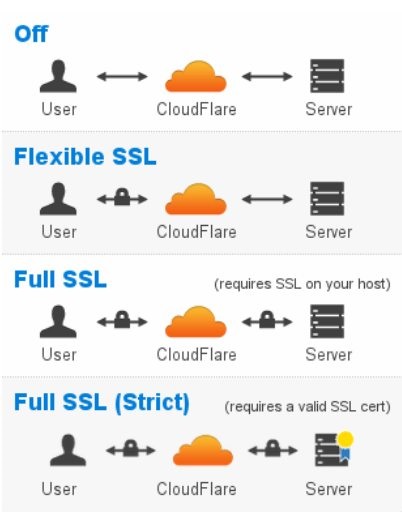
Here we can distinguish two types of SSL certificates: custom SSL and UniversalSSL. The custom certificate is issued for a specific domain name by a trusted Certificate Authority and installed on the web server. UniversalSSL is a free certificate which works between your website visitors and the Cloudflare.
You can get UniversalSSL for free within 24 hours. The certificate will secure the root domain as well as a wildcard entry for all first-level subdomains (e.g., www.example.com , blog.example.com, etc.). It is recognized by all modern browsers supporting Elliptic Curve Digital Signature Algorithm (ECDSA). This slightly reduces the range of the web browsers able to connect via https:// , as some older web clients do not support ECDSA. For Cloudflare paid plans (Business or Enterprise) this restriction is not applied, both modern and older browsers can connect through https://. The next part of our post will explain how it works for domains hosted on Namecheap shared servers.
SSL + Cloudflare issues
Can I use a custom SSL certificate on a Free Cloudflare plan?
Unfortunately, Free Cloudflare plan does not allow using a custom SSL certificate. Even if the certificate is properly configured on the server, browsers will show “common name mismatch” errors. Acting as a proxy, Cloudflare hides real NS records of the domain, so the web client cannot reach and check the valid SSL certificate installed on the web server, but gets the SSL issued for Cloudflare. There are two ways to fix the mismatch: either upgrade to the paid Business or Enterprise plan, or disable the Cloudflare. By disabling the Cloudflare you will change the NS records back to hosting DNS; then the clients will be able to reach the server directly and verify your certificate as trusted. A paid plan will let you upload the custom certificate to the Cloudflare account.
As an option, you can enable the Full SSL Strict mode on a Free plan and use your trusted certificate together with UniversalSSL from Cloudflare.
Why are images/css/js files missing when loading HTTPS?
After the SSL certificate is up, the webpage loaded via https:// may be corrupted or miss some images. It is caused by objects that load via an insecure HTTP protocol on HTTPS page. Most modern browsers are blocking HTTP requests for security reasons. To fix it, the links should be loaded both via HTTP and HTTPS relatively. It is similar to the insecure content issue and can be fixed by installing the plugins or modules on the CMS or modifying the links manually. In order to create relative URLs referring to other websites the http:// protocols are replaced with double slashes // in the links, for instance:
//domain.com/path/to/picture.jpg
If the link refers to a directory or a file on the same website, one can omit the domain name at all, but use the path to the resource, e.g.

More details can be found here.
What do 52X errors mean?
There are two kinds of these errors: 525 and 526.
525 or SSL Handshake Failed appears when the Full SSL (Strict) mode is enabled, but the custom SSL certificate or the web server are not configured properly:
- the origin server does not support SNI or is not configured properly for it,
- the cipher suites that Cloudflare accepts and the cipher suites that the origin server uses do not match,
- the origin server is not configured to use SSL and Full SSL is enabled in the Cloudflare settings.
526 or Invalid SSL certificate returns for the Full SSL (Strict) mode and means that Cloudflare cannot validate the certificate as a trusted one. The possible reasons may be:
- the certificate on the server expired,
- the certificate installed on the end server is a self-signed one,
- the requested domain name (hostname) is not included as a Subject Alternative Name of the certificate,
- the certificate is installed without the CA certificates chain on the server.
Redirect loop after enabling Flexible SSL with WordPress.
The redirect loop may occur for WordPress sites after enabling UniversalSSL Flexible mode. The issue is caused by WordPress refusing to serve HTTPS connection, while the automatic redirect works at Cloudflare side. It is recommended to use Cloudflare plugin for WordPress to fix the issue. Alternatively, Cloudflare suggests using Cloudflare Flexible SSL WordPress plugin or WordPress HTTPS plugin.------------------------------------------------------------------------
شركة رايز للهندسة و التكنولوجيا Rise Company for Engineering & Technology
------------------------------------------------------------------------
Web Hosting | Web Designing | E-Marketing
رقم # 1 فى خدمات الشركات Business Services
استضافة مواقع Web Hosting - عمل ايميل شركة Business Emails
تصميم موقع شركة Web Design - تسويق الكترونى على جوجل Google Adwords
www.rise.company | www.rise.company/emails
ملحوظة : جميع خدماتنا مخصصة للشركات فقط وغير متاحة للافراد
وليس لنا اى منتجات او صيانة نهائيا! يرجى الانتباه الى ذلك.
-
10-01-2021, 01:13 #5Status
- Offline
- تاريخ التسجيل
- Apr 2014
- الدولة
- Egypt
- المشاركات
- 4,703
Engineering and Technology
- معدل تقييم المستوى
- 10
رد: كلاود فلير CloudFlare توقف AuotSSL عند التوليد التلقائي للشهادة
All of the websites I manage use cPanel, which also offers free SSL certificates. However, some of these domains use Cloudflare for their DNS, and they also get their SSL certificates from Cloudflare itself.
For these websites, cPanel's AutoSSL feature normally fails at renewal time. I see several questions online that ask how to make sure AutoSSL works when Cloudflare is in the picture (and the solution require either editing the .htaccess file for the website, or temporarily disable Cloudflare's SSL so the AutoSSL feature can complete successfully).
My question is a different one: if I get an SSL certificate from Cloudflare already, do I even need cPanel's AutoSSL feature? Is there any scenario where I would benefit from making sure that cPanel's AutoSSL correctly renews all certificates anyway?
When you use cloudflare there are two connections to your website because Cloudflare acts as a proxy in the middle:
User ------> Cloudflare ------> Origin (cPanel)
Cloudflare will enable SSL between the user and Cloudflare but may leave the connection to the origin unencrypted:
User ======> Cloudflare ------> Origin
If you have SSL on the origin as well, both connections will be encrypted:
User ======> Cloudflare ======> Origin
You have several options for encrypting traffic to the origin:
- Use AutoSSL to get a LetsEncrypt certificate. These certificates expires every few months but get auto-renewed and re-installed.
- Get an origin certificate from CloudFlare that it trusts (but which users may not trust.) These certificates expire every 10 years and need to be manually installed.
- Use a self signed certificate which doesn't allow you enable strict SSL mode at Cloudflare and could be vulnerable to a forgery attack.
AutoSSL is LetsEncrypt for cPanel. LetsEncrypt uses an automatic challenge response to verify that you are the owner of the domain:
- cPanel contacts LetsEncrypt and requests a certificate for a domain
- LetsEncrypt gives cPanel unique data to publish at a specific URL (under /.wellknown/acme-challenge/
- cPanel publishes the data
- LetsEncrypt validates that the data has been published, sees that you have control over domain, and gives cPanel the certificate.
When you have Cloudflare, all the requests first hit Cloudflare before hitting your website. Cloudflare should pass through the Acme Challenge requests and you should be able to get a LetsEncrypt certificate, even when Cloudflare is in the middle.------------------------------------------------------------------------
شركة رايز للهندسة و التكنولوجيا Rise Company for Engineering & Technology
------------------------------------------------------------------------
Web Hosting | Web Designing | E-Marketing
رقم # 1 فى خدمات الشركات Business Services
استضافة مواقع Web Hosting - عمل ايميل شركة Business Emails
تصميم موقع شركة Web Design - تسويق الكترونى على جوجل Google Adwords
www.rise.company | www.rise.company/emails
ملحوظة : جميع خدماتنا مخصصة للشركات فقط وغير متاحة للافراد
وليس لنا اى منتجات او صيانة نهائيا! يرجى الانتباه الى ذلك.
-
10-01-2021, 01:47 #6Status
- Offline
- تاريخ التسجيل
- Apr 2014
- الدولة
- Egypt
- المشاركات
- 4,703
Engineering and Technology
- معدل تقييم المستوى
- 10
رد: كلاود فلير CloudFlare توقف AuotSSL عند التوليد التلقائي للشهادة
Pausing would take the same time. There is no difference between pausing and unproxying. The change on Cloudflare would actually be pretty instantaneous, a delay would be because of third party resolvers.However, changes in DNS settings may take up to 24 hours to go through and is therefore not really a suitable option.
It’s immediately.
“Pausing Cloudflare” essentially unproxies all records without actually changing their settings. Everything in your account will be unchanged, including the records’ proxy status, however ever record will resolve to its actual address and not the proxy addresses (even if ). Because no request will go via the proxies, none of the other settings will apply either.
It’s a quick way to switch Cloudflare to DNS-only.
You can temporarily pause Cloudflare by:
- Going to the Overview tab in the Cloudflare dashboard.
- At the bottom right of this page there is a link under Advanced Actions.
- Click Pause Cloudflare on Site
Pausing Cloudflare will cause your origin IP address to be returned by Cloudflare's nameservers, sending traffic directly to it rather than through Cloudflare's reverse proxy. No Cloudflare services such as SSL or WAF will be enabled on that domain or subdomains while the site is paused. An alternative to pausing Cloudflare would be to use Development Mode, which will only bypass Cloudflare's cache, but still provide other services such as SSL.
We do not recommend changing away your name servers as that can have a delay of several hours whereas pausing Cloudflare takes 5 minutes or less to temporarily resolve whatever issue you may be having.
Pausing Cloudflare will cause your origin IP address to be returned by Cloudflare’s nameservers, sending traffic directly to it rather than through Cloudflare’s reverse proxy. No Cloudflare services such as SSL or WAF will be enabled on that domain or subdomains while the site is paused.
To make sure that Cloudflare is off you can enter your Site URL at whatsmydns if you are seeing your origin server IP instead of Cloudflare then Cloudflare is not enabled on your site anymore.
المرجع:
https://community.cloudflare.com/t/pause-duration/35876
https://community.cloudflare.com/t/h...dflare/68798/2
https://support.exabytes.com.my/en/s...se-cloudflare-
https://www.thecloudkeeper.io/how-to...are-temporary/
------------------------------------------------------------------------
شركة رايز للهندسة و التكنولوجيا Rise Company for Engineering & Technology
------------------------------------------------------------------------
Web Hosting | Web Designing | E-Marketing
رقم # 1 فى خدمات الشركات Business Services
استضافة مواقع Web Hosting - عمل ايميل شركة Business Emails
تصميم موقع شركة Web Design - تسويق الكترونى على جوجل Google Adwords
www.rise.company | www.rise.company/emails
ملحوظة : جميع خدماتنا مخصصة للشركات فقط وغير متاحة للافراد
وليس لنا اى منتجات او صيانة نهائيا! يرجى الانتباه الى ذلك.
-
06-12-2021, 05:09 #7Status
- Offline
- تاريخ التسجيل
- Apr 2014
- الدولة
- Egypt
- المشاركات
- 4,703
Engineering and Technology
- معدل تقييم المستوى
- 10
رد: كلاود فلير CloudFlare توقف AutoSSL عند التوليد التلقائي للشهادة كل 3 شهور
Installing Cloudflare SSL on cPanel
If you do not want to purchase a commercial certificate or use the free Let’s Encrypt SSL, you can install Cloudflare SSL on your hosting plan. In this lesson, you will learn how to do this.
1) Log in to your Cloudflare system, select your domain. Click on the SSL/TLS icon -> Pick Origin Server tab -> Click Create button:
2) Settings should be the following:
– Generate private key and CSR with Cloudflare;
– Make sure your domain is indicated in Hostnames;
– Certificate Validity 15 years (Optional).
Click Create button:
3) Copy-paste Origin Certificate and Private Key. You will need this information to install SSL on your server. The Key format should be PEM:
4) You will also need CA Bundle to establish the full chain of trust. You can download the Cloudflare CA root certificate on this page. You will see two options there:
– Cloudflare Origin ECC PEM (do not use with Apache cPanel)
– Cloudflare Origin RSA PEM <- THIS IS THE ONE YOU NEED TO DOWNLOAD
As a result, you will have 3 pieces of SSL:
1) Private Key;
2) Certificate or CRT (Origin Certificate);
3) Certificate Authority Bundle or CABUNDLE (Cloudflare Origin RSA PEM).
The SSL installation on cPanel takes place according to this tutorial.
IMPORTANT
For SSL to work correctly, you will need to make sure that your domain’s type A record is Proxied on your Cloudflare DNS zone:
Also, you will need to enable Full (strict) SSL/TLS encryption in Cloudflare SSL/TLS -> Overview section:
That’s it! Congrats on installing Cloudflare SSL for your domain:
Installing a certificate on the shared hosting
1. Choose Services > Web Hosting and then choose your Shared Hosting package and select “SSL/TTL Status”. If any certificate is already installed, press “Exclude from AutoSSL”:
2. Go back to the main menu and select “SSL/TTL”. Click on the last link “Manage SSL sites” and select a domain:
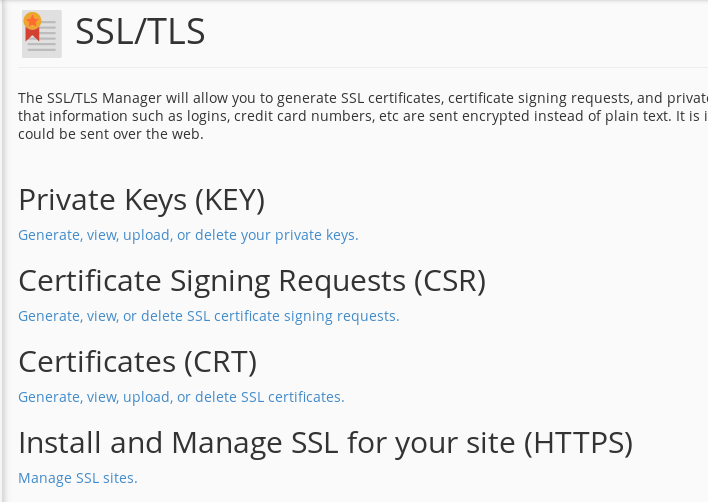
3. Go down to the paragraph “Install an SSL Website”:
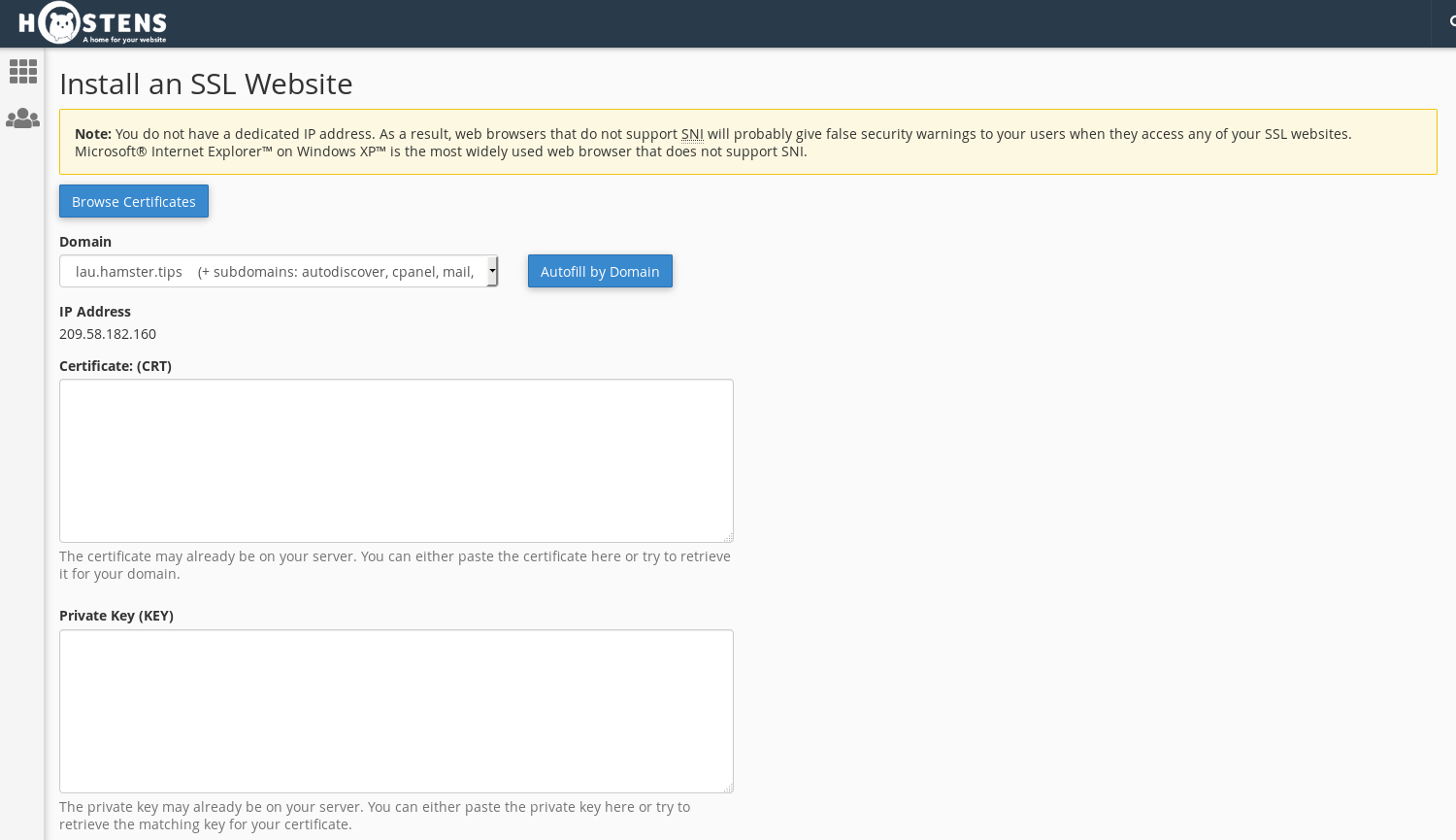
4. Paste all saved keys. If CRT is correct you will see this notification:
5. After pasting just press a button “Install Certificate”. If everything goes correctly, you see this message:
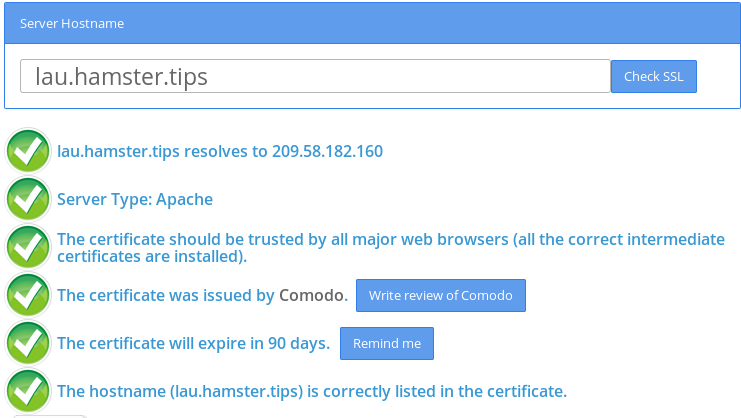
6. Once this is done, you will have to wait a bit and your certificate will be installed. You will be able to check it with 3rd party tools like https://www.sslshopper.com/ssl-checker.html
------------------------------------------------------------------------
شركة رايز للهندسة و التكنولوجيا Rise Company for Engineering & Technology
------------------------------------------------------------------------
Web Hosting | Web Designing | E-Marketing
رقم # 1 فى خدمات الشركات Business Services
استضافة مواقع Web Hosting - عمل ايميل شركة Business Emails
تصميم موقع شركة Web Design - تسويق الكترونى على جوجل Google Adwords
www.rise.company | www.rise.company/emails
ملحوظة : جميع خدماتنا مخصصة للشركات فقط وغير متاحة للافراد
وليس لنا اى منتجات او صيانة نهائيا! يرجى الانتباه الى ذلك.
-
30-03-2022, 14:07 #8Status
- Offline
- تاريخ التسجيل
- Apr 2014
- الدولة
- Egypt
- المشاركات
- 4,703
Engineering and Technology
- معدل تقييم المستوى
- 10
رد: كلاود فلير CloudFlare توقف AutoSSL عند التوليد التلقائي للشهادة كل 3 شهور
Procedure
To resolve this error, you would need to disable "Always Use HTTPS" in Cloudflare. This option is in the Edge Certificates tab of the Cloudflare SSL/TLS tab. Once disabled, you can then renew your certificate. After you have replaced the SSL certificate, you may re-enable the option if you wish.
Additionally, you may need to disable the "Automatic HTTPS Rewrites" on this same page.
You can find more on Cloudflare's HTTPS Redirection here:
https://support.cloudflare.com/hc/en...8-7edd8e40d156
To avoid the requirement to disable this once each month, you should consider using an alternative method to redirect to HTTPS more selectively.
Additionally, you can also install SSL certificates via Let's Encrypt as Let's Encrypt allows for redirections. More on installing Let's Encrypt can be found here:
https://docs.cpanel.net/knowledge-ba...ypt-plugin/86/------------------------------------------------------------------------
شركة رايز للهندسة و التكنولوجيا Rise Company for Engineering & Technology
------------------------------------------------------------------------
Web Hosting | Web Designing | E-Marketing
رقم # 1 فى خدمات الشركات Business Services
استضافة مواقع Web Hosting - عمل ايميل شركة Business Emails
تصميم موقع شركة Web Design - تسويق الكترونى على جوجل Google Adwords
www.rise.company | www.rise.company/emails
ملحوظة : جميع خدماتنا مخصصة للشركات فقط وغير متاحة للافراد
وليس لنا اى منتجات او صيانة نهائيا! يرجى الانتباه الى ذلك.


 رد مع اقتباس
المواضيع المتشابهه
-
سكريبت Whmcs حل مشكلة AUTO LOGOUT عند تفعيل كلاود فلير CloudFlare
بواسطة Rise Company في المنتدى قسم ادارة الاستضافة Whmcsمشاركات: 0آخر مشاركة: 21-12-2020, 02:03 -
كلاود فلير CloudFlare توقف الايميل عن العمل email stopped working
بواسطة Rise Company في المنتدى قسم الكلاود فلير CloudFlareمشاركات: 0آخر مشاركة: 16-12-2020, 06:25 -
كلاود فلير CloudFlare يتعارض مع فايروول CSF ويتوقف بسبب اختفاء visitor’s original IP
بواسطة Rise Company في المنتدى قسم الكلاود فلير CloudFlareمشاركات: 0آخر مشاركة: 16-12-2020, 01:33 -
كلاود فلير CloudFlare تثبيت بديل mod_cloudflare وهو mod_remoteip لاظهار ip الحقيقي
بواسطة Rise Company في المنتدى قسم الكلاود فلير CloudFlareمشاركات: 0آخر مشاركة: 16-12-2020, 00:46 -
كلاود فلير CloudFlare طريقة إعداد و تركيب CDN على موقعك مع ربط الدومين
بواسطة Rise Company في المنتدى قسم الكلاود فلير CloudFlareمشاركات: 0آخر مشاركة: 14-12-2020, 16:21

المفضلات