


Introduction
How to create and manage mailing lists in cPanel
Mailing lists allow you to send emails to multiple recipients in one go. This feature is very useful when you need to send a newsletter or another update to a group of people.
If you’ve ever wanted to have a list of your very own, you’re in luck. I’m about to show you how to set up a mailing list in cPanel.
Creating a mailing list in cPanel:
1. Log into your cPanel
How to Access/Login WHM/cPanel and Webmail
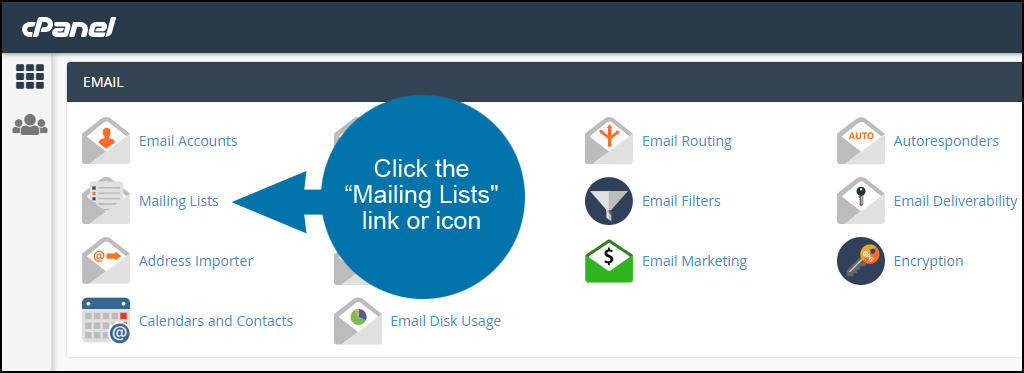
2. navigate to the Email section and click on Mailing Lists:
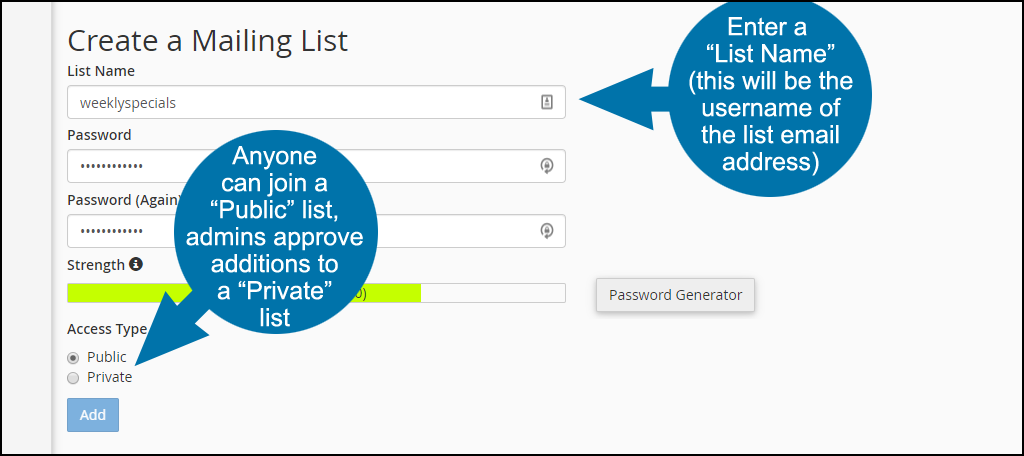
3. In the next window:
- Enter the mailing list name in the List Name text box
- Select a domain from the Domain menu
- Enter a strong password for your mailing list
- Select one of the following access types:
Public: subscriptions are open
Private: the administrator must approve subscriptions
Click on Add:
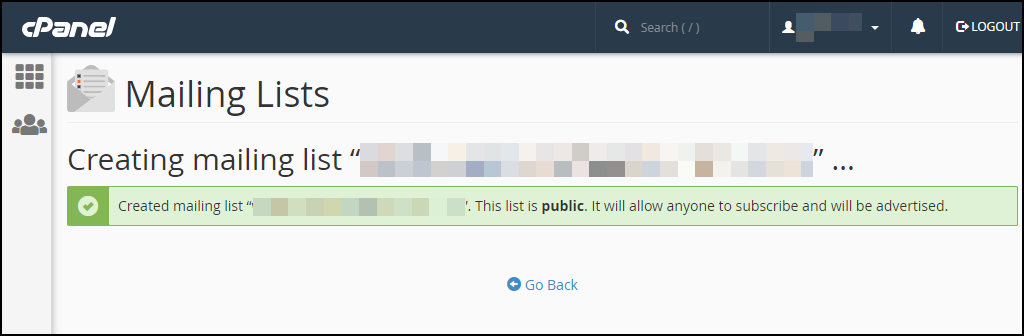
When the mailing list is created, you will see a success message.
The list is now up and running. Yes, that’s really all it takes to set up a mailing list in cPanel.
Managing mailing lists
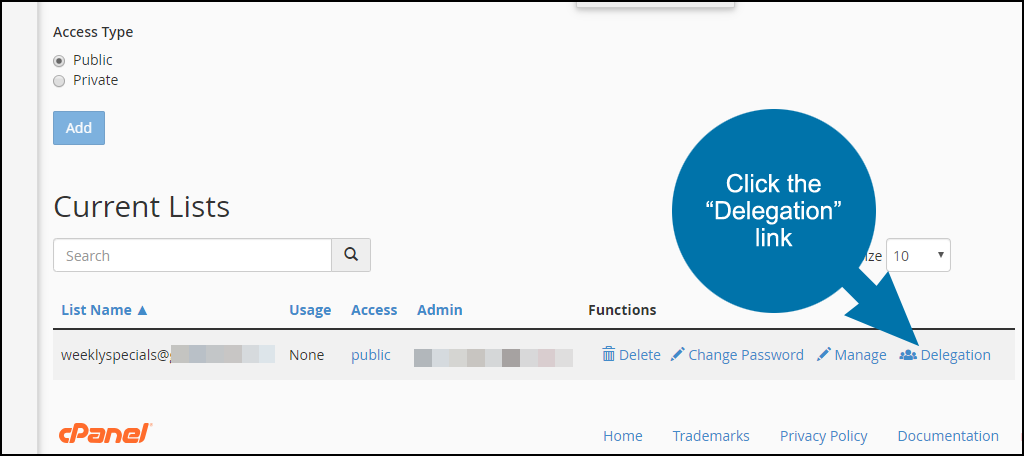
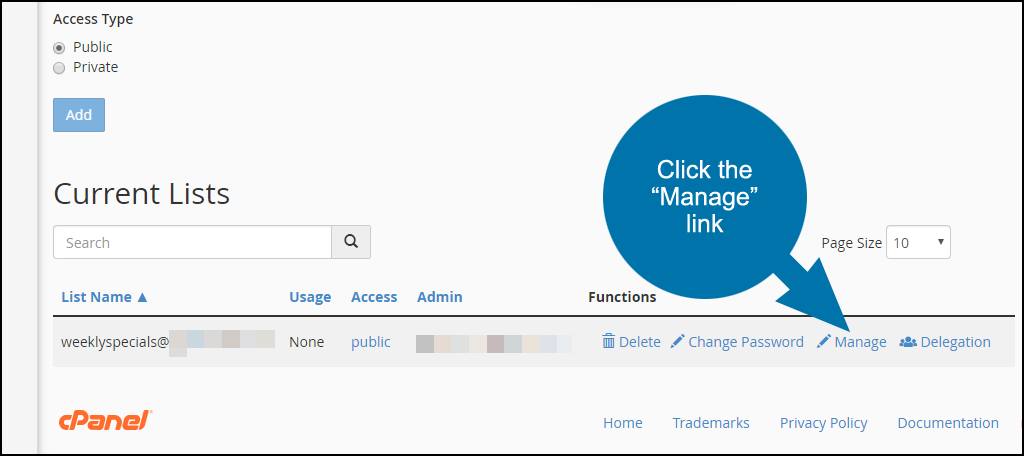
All the mailing lists you’ve created can be found in the Current Lists section:
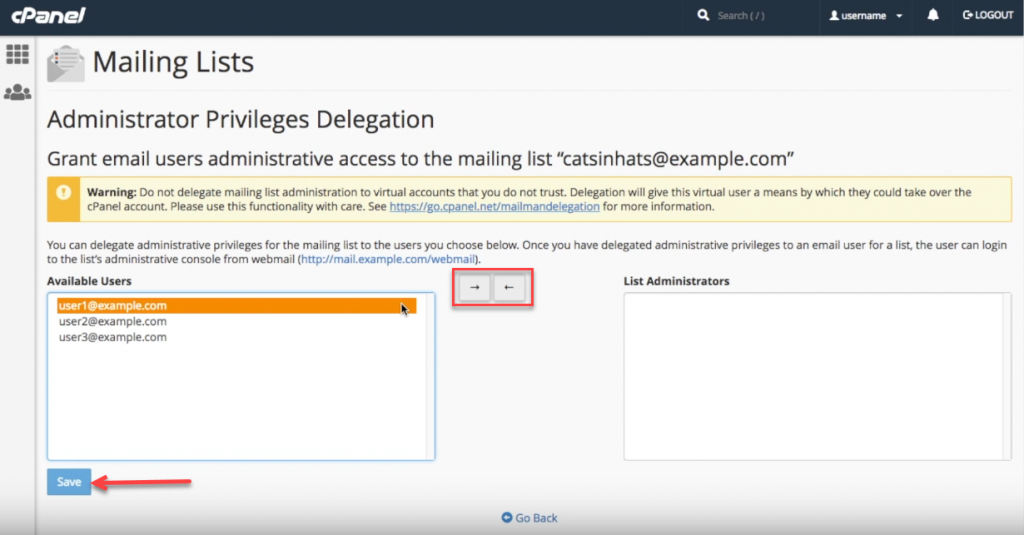
Click the “Delegation” link if you want to add or remove another address on your domain as a mailing list administrator.
Click the “Manage” link, to go to the Mailman list management page.
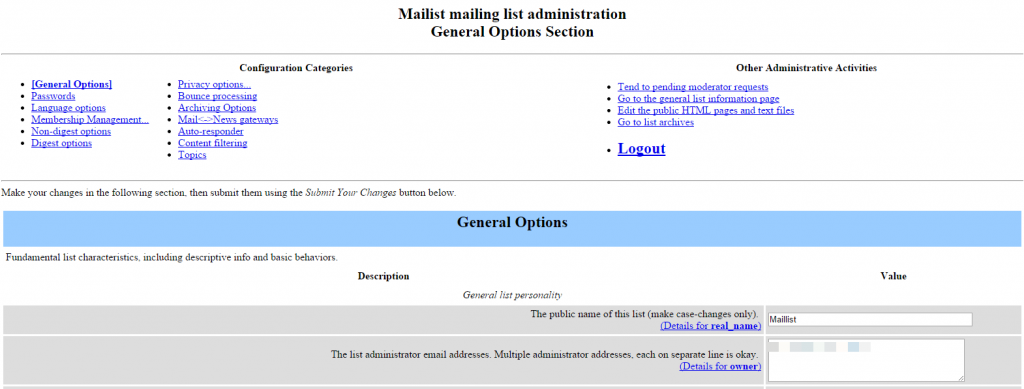
The Mailman list management page:
- List Name: name of your Mailing List
- Usage: amount of the disk space that the mailing list uses
- Access: private or public
- Administrator: mailing list administrators
- Functions: administrative functions for the mailing list:
- Delete: the mailing list will be removed
- Change Password: allows changing the mailing list password without having to fill in the old one
- Manage: redirects to the mailing list management dashboard
Delegation assigns administrative rights to available users. Use arrows to add/exclude selected users from the list of administrators and click Save:
Among the most common tools to manage your mailing lists with, you can find the following ones:
General options
- Passwords: change list ownership passwords
- Language options: set default and supported languages for your mailing lists
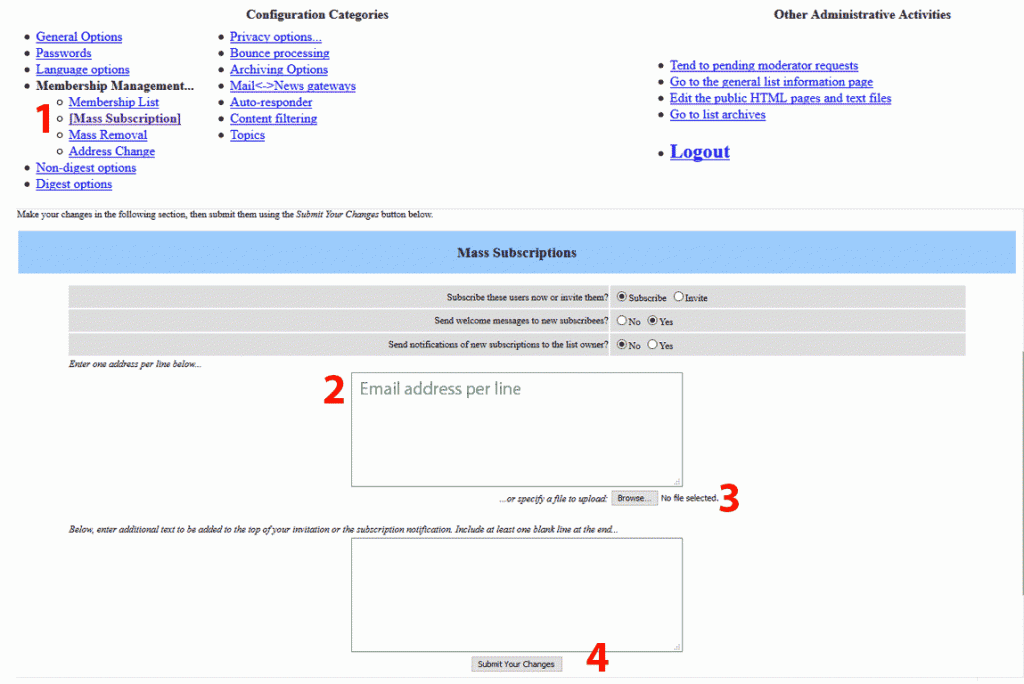
Membership Management
- Membership List: list of currently subscribed users
- Mass Subscription: subscribe new users or send invitations. You should only add a required email address into a corresponding field (2) or import it from a file (3). Once done, click Submit Your Changes (4).
Mass Removal option removes users from your mailing list
Privacy options
- Subscription rules: this section allows you to configure subscription and membership exposure policy
- Sender filters: this section contains the controls for moderation of both member and non-member postings
- Recipient filters: this section allows you to configure various filters based on the recipient of the message
- Spam filters: this section allows you to configure various anti-spam filters posting filters, which can help reduce the amount of spam your list members end up receiving
How to create and manage mailing lists in cPanel
+ إنشاء موضوع جديد
النتائج 1 إلى 2 من 2
العرض المتطور
-
29-03-2021, 17:43 #1Status
- Offline

- تاريخ التسجيل
- Apr 2014
- الدولة
- Egypt
- المشاركات
- 4,703
 Engineering and Technology
- معدل تقييم المستوى
- 10
 رد: السي بانال CPanel ارسال ايميل الى جميع الايميلات mailing list
------------------------------------------------------------------------
رد: السي بانال CPanel ارسال ايميل الى جميع الايميلات mailing list
------------------------------------------------------------------------
شركة رايز للهندسة و التكنولوجيا Rise Company for Engineering & Technology
------------------------------------------------------------------------
Web Hosting | Web Designing | E-Marketing
رقم # 1 فى خدمات الشركات Business Services
استضافة مواقع Web Hosting - عمل ايميل شركة Business Emails
تصميم موقع شركة Web Design - تسويق الكترونى على جوجل Google Adwords
www.rise.company | www.rise.company/emails
ملحوظة : جميع خدماتنا مخصصة للشركات فقط وغير متاحة للافراد
وليس لنا اى منتجات او صيانة نهائيا! يرجى الانتباه الى ذلك.

 رد مع اقتباس
المواضيع المتشابهه
-
السي بانال CPanel تثبيت install ImageMagick
بواسطة Rise Company في المنتدى رايز للاستضافة Rise Hostمشاركات: 4آخر مشاركة: 10-02-2021, 19:51 -
السي بانال CPanel حل مشكلة امتلاء مساحة WHM Swap Used 100%
بواسطة Rise Company في المنتدى رايز للاستضافة Rise Hostمشاركات: 0آخر مشاركة: 10-01-2021, 22:47 -
السي بانال CPanel امر اخذ باك اب حالي للسيرفر How to run a manual whm backup
بواسطة Rise Company في المنتدى رايز للاستضافة Rise Hostمشاركات: 0آخر مشاركة: 30-10-2020, 00:51 -
السي بانال CPanel اخذ باك اب كامل خارج السيرفر whm backup to Amazon S3
بواسطة Rise Company في المنتدى رايز للاستضافة Rise Hostمشاركات: 0آخر مشاركة: 29-10-2020, 15:46 -
السي بانال CPanel خاصية cpu and concurrent connection usage
بواسطة Rise Company في المنتدى رايز للاستضافة Rise Hostمشاركات: 0آخر مشاركة: 23-06-2020, 21:45

المفضلات