


أني ديسك AnyDesk كيفية تفعيل الشات الصوتي voice call / enable calls
How do I talk with my PC Mic, to the remote PC?
How to enable voice chat in Anydesk?
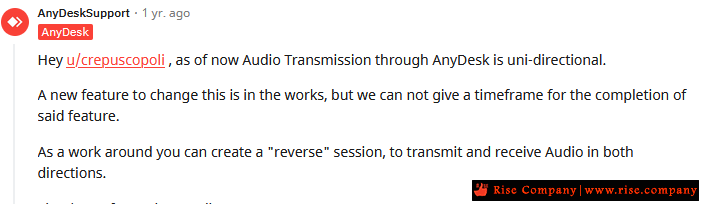
as of now Audio transmission is uni-directional. If you want to have bi-directional Audio Transmission a reverse session has to be created.For general information on "Audio", please check out the corresponding Help Center article as well:
https://support.anydesk.com/Audio
قبل الدخول Session من بعد على الجهاز الاخر !
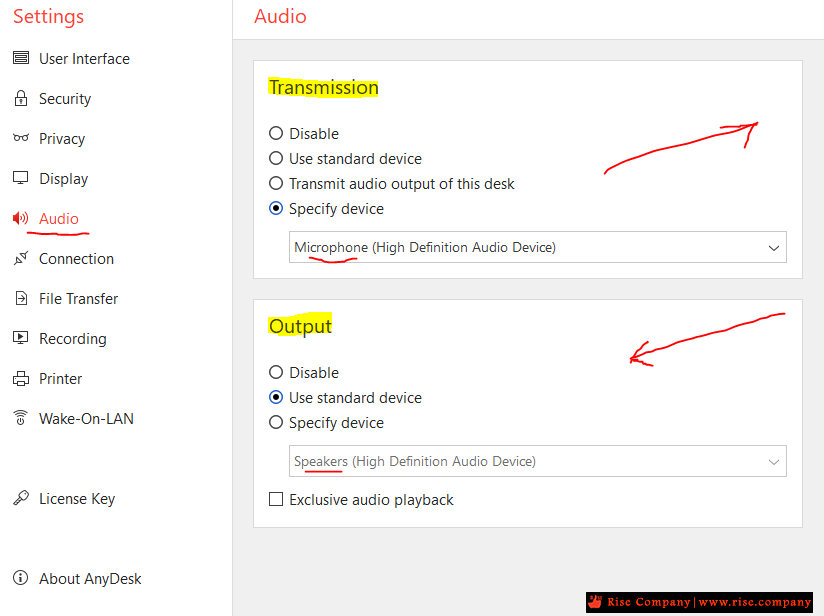
كل ما عليك فعله هو داخل settings اختر Specify device ثم اختر المايك
ثم هيسمعك الجهاز الاخر ولكن انت لن تسمعه.
لكى يسمعك الجهاز الاخر اعكس Session اى اجعل الطرف الاخر يعمل نفس الخطوات
ويدخل على جهاز ايضا وهذا هو الرد الرسمي من شركة Anydesk
وهذه هى الطريقة المتاحة لهم فى الوقت الحالى.
The AnyDesk Audio feature allows users to transmit sound from the remote device to the local device.
Warning: Please note that due to macOS security restrictions, users cannot transmit audio from a remote macOS device.
Nevertheless, AnyDesk for macOS clients can still receive audio from non-macOS AnyDesk clients.
While in a session, the local connecting client can enable or disable this feature in the Permissions menu for Windows and Menu for macOS and Linux in the AnyDesk toolbar.
----------------------------------------------
1- الصوت الداخل Setting up Audio Transmission
----------------------------------------------
هنا حدد MIC وهو الصوت الى عايزه يطلع الى الجهاز الاخر
واجعل الجهاز الاخر يعمل مثلك
Transmission" sets up which audio device the client transmits when it receives an incoming connection. The default setting will be to use the standard audio device that has been selected in the computer's settings.
Disable No audio transmission Use standard device Transmits the default audio device set in the computer's settings. Transmit audio output of this desk Transmits the audio output of all devices on this computer. Specify device A specific device can be selected for transmission.
It is possible to select a microphone here.----------------------------------------------
2- الصوت الخارج Setting up the Audio Output
----------------------------------------------
هنا اعداد غير هام وهو يخبرك الصوت الى هتسمعه عايزه على سماعات الاساسية
ام لديك SUB Speaker ام لديك سماعات اذن تريد الصوت يخرج منها
لكى تسمع الصوت الى ياتى لك والافتراضى هو السماعات الاساسية.
Output” is responsible for which device the audio is played back on when the client starts an outgoing session.
The default setting will use the standard audio device that has been selected in the computer's settings.
Disable No audio output on this device Use standard device Use the default audio output device set in the computer's settings. Specify device A specific device can be selected as audio output Exclusive audio playback Reduces audio latency but will disable any audio output that doesn’t come from AnyDesk.
Windows settings
هناك بديل Setting up the Audio Output هنا بدل ما تعدل settings فى Audio وهى مضبوطه تلقائيا على الافتراضى لك
فاذا كان الافتراضى لك السماعات يمكنك بسهولة بالطريقة العادية تحديد السماعة المناسبة لك لكى تسمع الصوت.
When using audio transmission, the Windows system settings need to be set up properly.
In case of issues with the transmission, these should be checked first.
The correct default audio devices need to be set up, as this is what AnyDesk uses in its standard configuration.
The windows audio settings are found in
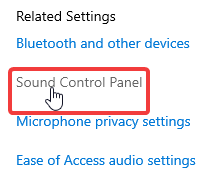
"Windows System Settings" > "System" > "Sounds" and then under "Related Settings"
to the right "Sound Control Panel".
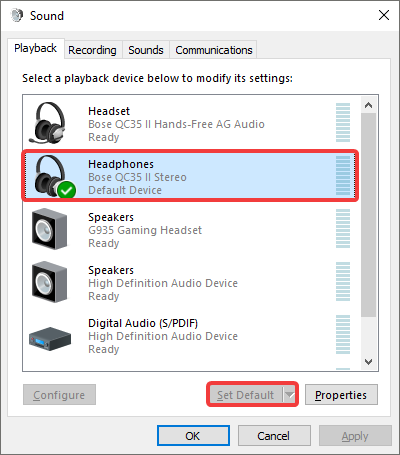
In the "Sound Control Panel" under the "Playback" tab,
it is important the device that is intended to be used for audio output is set as default, by clicking "Set Default".
المرجع:
https://www.reddit.com/r/AnyDesk/com...at_in_anydesk/
https://support.anydesk.com/knowledge/audio
https://www.reddit.com/r/AnyDesk/com...the_remote_pc/
https://www.reddit.com/r/AnyDesk/com...audio/hh38lza/
+ إنشاء موضوع جديد
النتائج 1 إلى 1 من 1
مشاهدة المواضيع
-
13-03-2022, 15:37 #1Status
- Offline

- تاريخ التسجيل
- Apr 2014
- الدولة
- Egypt
- المشاركات
- 4,703
 Engineering and Technology
- معدل تقييم المستوى
- 10
 أني ديسك AnyDesk كيفية تفعيل الشات الصوتي voice call / enable calls
------------------------------------------------------------------------
أني ديسك AnyDesk كيفية تفعيل الشات الصوتي voice call / enable calls
------------------------------------------------------------------------
شركة رايز للهندسة و التكنولوجيا Rise Company for Engineering & Technology
------------------------------------------------------------------------
Web Hosting | Web Designing | E-Marketing
رقم # 1 فى خدمات الشركات Business Services
استضافة مواقع Web Hosting - عمل ايميل شركة Business Emails
تصميم موقع شركة Web Design - تسويق الكترونى على جوجل Google Adwords
www.rise.company | www.rise.company/emails
ملحوظة : جميع خدماتنا مخصصة للشركات فقط وغير متاحة للافراد
وليس لنا اى منتجات او صيانة نهائيا! يرجى الانتباه الى ذلك.

 رد مع اقتباس
المواضيع المتشابهه
-
خدمات التعليق الصوتي voice over
بواسطة ألضياء في المنتدى رايز الإعلانات التجارية Rise Advertiseمشاركات: 0آخر مشاركة: 05-11-2021, 22:10 -
فايروول فورتي جيت FortiGate Firewall حل مشكلة انى ديسك Anydesk وخطا ssl
بواسطة Rise Company في المنتدى قسم فايروول Fortigateمشاركات: 0آخر مشاركة: 14-03-2021, 16:44 -
حل مشكلة أني ديسك AnyDesk لا يقوم بعمل cut / copy / paste مع الجهاز الاخر
بواسطة Rise Company في المنتدى قسم الاي تي IT مشاكل و حلولمشاركات: 0آخر مشاركة: 11-03-2021, 03:56 -
فايروول CSF Firewall تفعيل How to Enable CSF UI
بواسطة Rise Company في المنتدى قسم فايروول CSFمشاركات: 0آخر مشاركة: 04-04-2020, 19:48 -
الموبايل يستقبل ولايتصل you cannot make outgoing calls while call barring is on
بواسطة Rise Company في المنتدى رايز للجوالات Rise Phonesمشاركات: 2آخر مشاركة: 05-06-2017, 15:58

المفضلات