


الاندرويد Android / الاي فون iPhone مزامنة Caldav/Carddav - Calendar & Contacts
Android Device Calendar/CalDav Setup
ما الفرق بين Caldav/Carddav ؟
كلمة Carddav تعني contacts
كلمة Caldav تعني calendar
-----------------------------------
1- اعدادت Caldav / calendar على الاندرويد Android
-----------------------------------
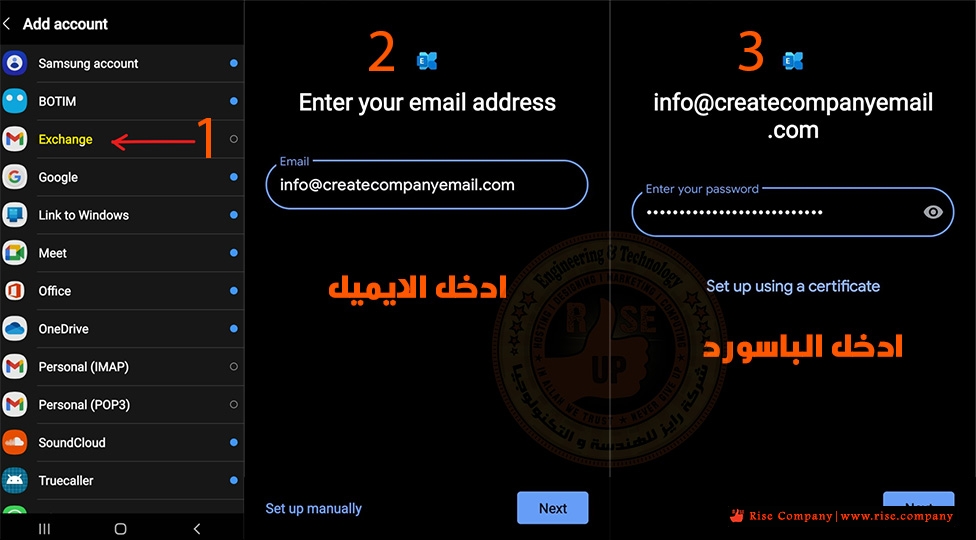
افتح اعدادت الهاتف - ثم اضافة حساب - ثم اختار exchange وهى التابعة الى جوجل
ثم اضف الايميل و الباسورد الذى تريد ربطه بالتقوييم
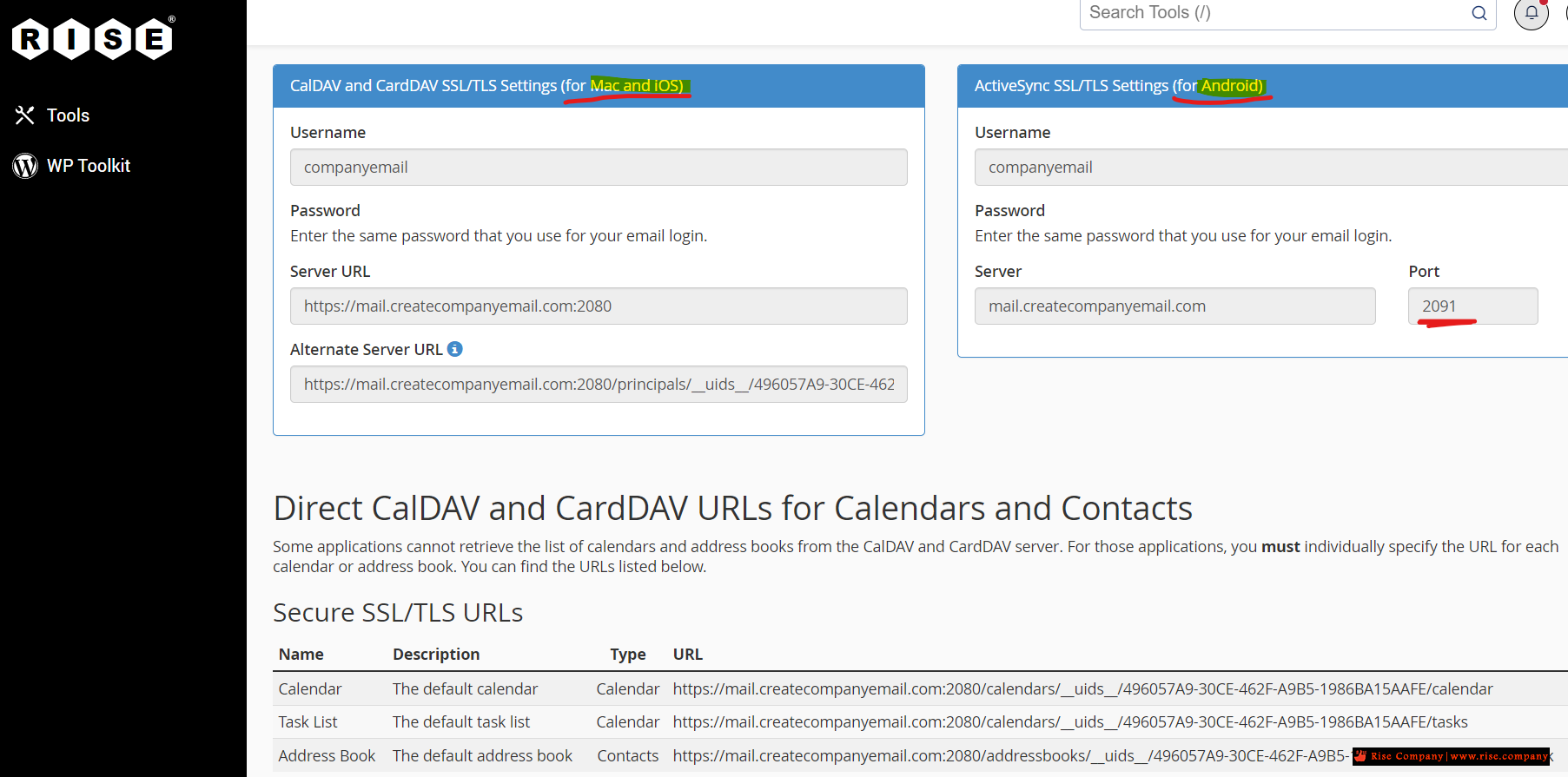
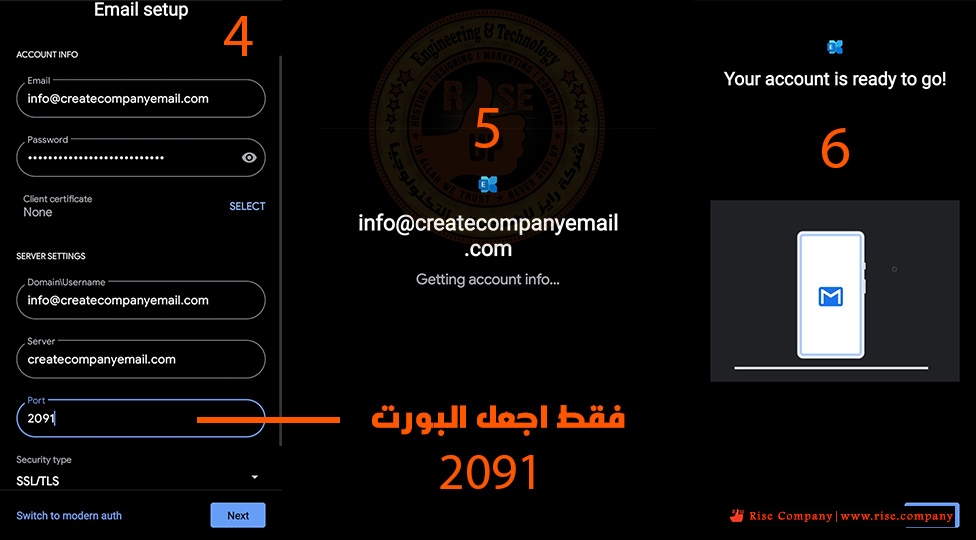
هيظهر لك اعدادت تمت تلقائيا جميعها صحيح عدا البورت port
قم بتغييره من 433 الى 2091 دون تعديل اى شىء اخرنهائيا
هام:
اذا عدلت اى شىء قبل تغيير البورت يجب الخروج ثم الدخول مرة اخري
حيث لن يعمل معك بسبب تذكره للبورت القديم.
بعد التثبيت بنجاح , ماذا افعل ؟ اين اجد التقويم ؟
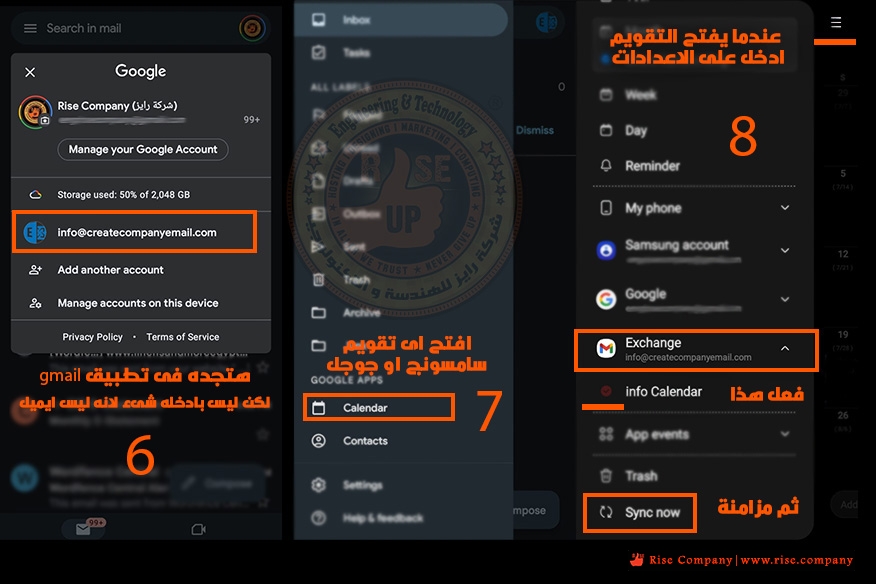
هتجد ان الايميل المضاف داخل تطبيق gmail لكن لا فائدة منه هذا ربط فقط
كل ما عليك فعله هو فتح تقويم calendar الخاص بسامسونج فهو مثبت على جميع الاجهزة
ثم اضغط على 3 شرط التى تصل الى الاعدادت وهتجد بداخلها ان التقويم يعرض
اى ايميل مربوط به فعل الخاص بك ثم اعمل sync فى الاسفل
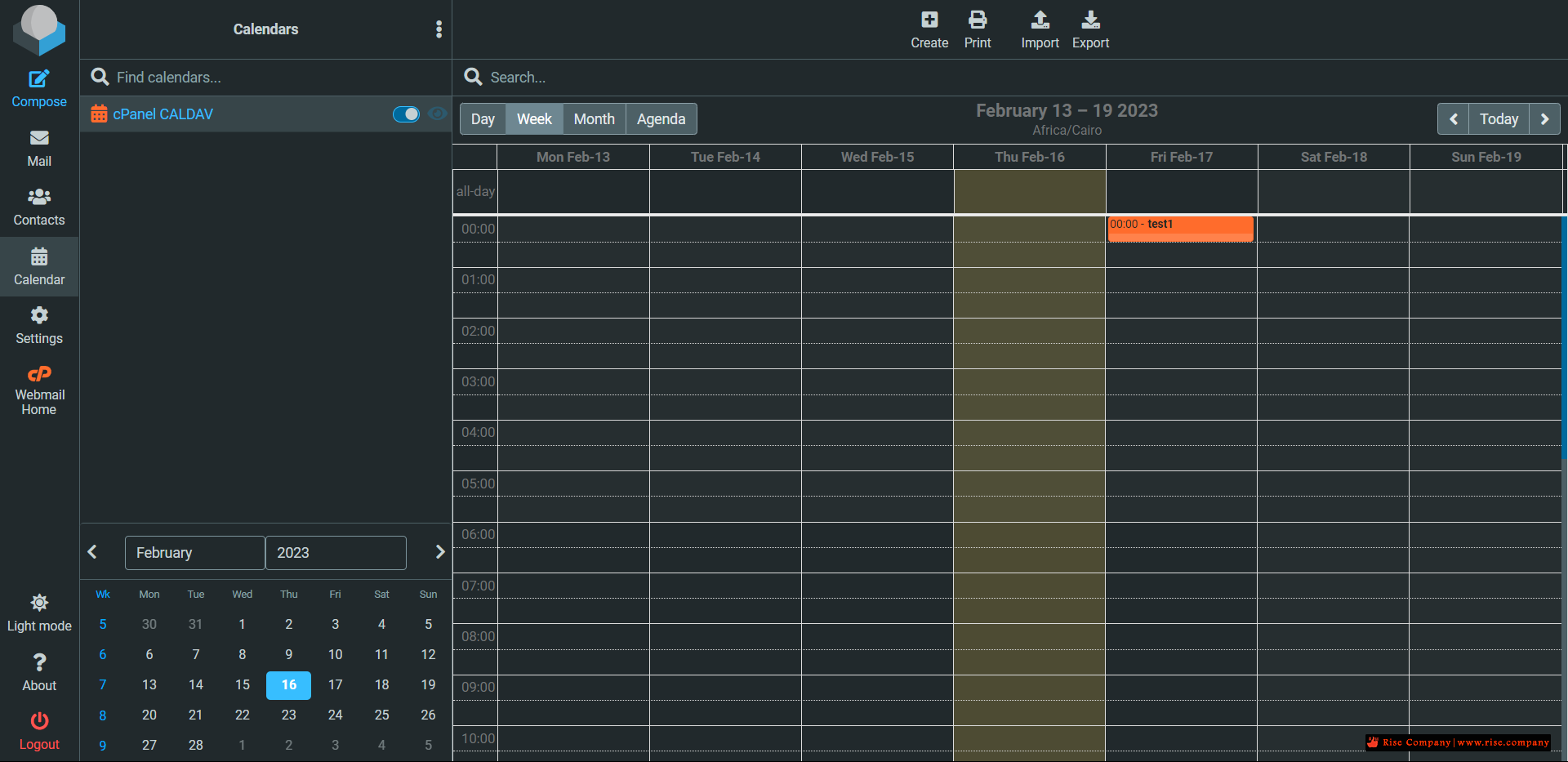
من داخل الويب ميل ثم الضغط على الحقل المطلوب عمل event به
ثم تم ادخال test1 فى يوم 16 من خلال الكمبيوتر
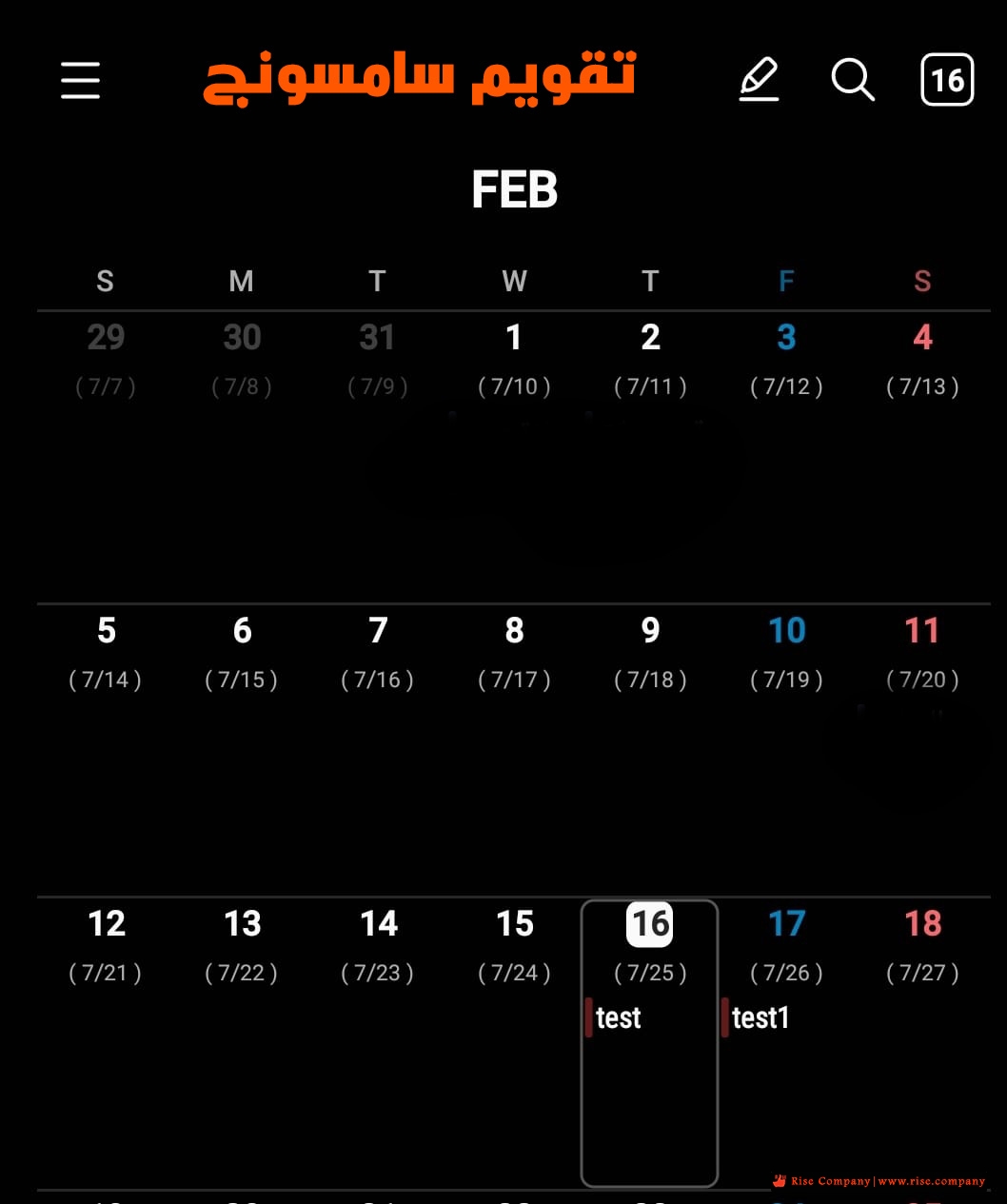
هنا على الهاتف الاندرويد من تطبيق سامسونج الخاص بالتقويم
يظهرالحدث test1 الذى تم انشاءه من الويبميل
ملحوظة :
لابد من استخدام exchange اى تطبيق اخر مثل onecalendar لن يعمل معه
-----------------------------------
2- اعدادت Carddav / contacts على الاندرويد Android
-----------------------------------
-----------------------------------
Here we use the application called
CardDAV Sync
which allows to set up contacts synchronization easily as well.
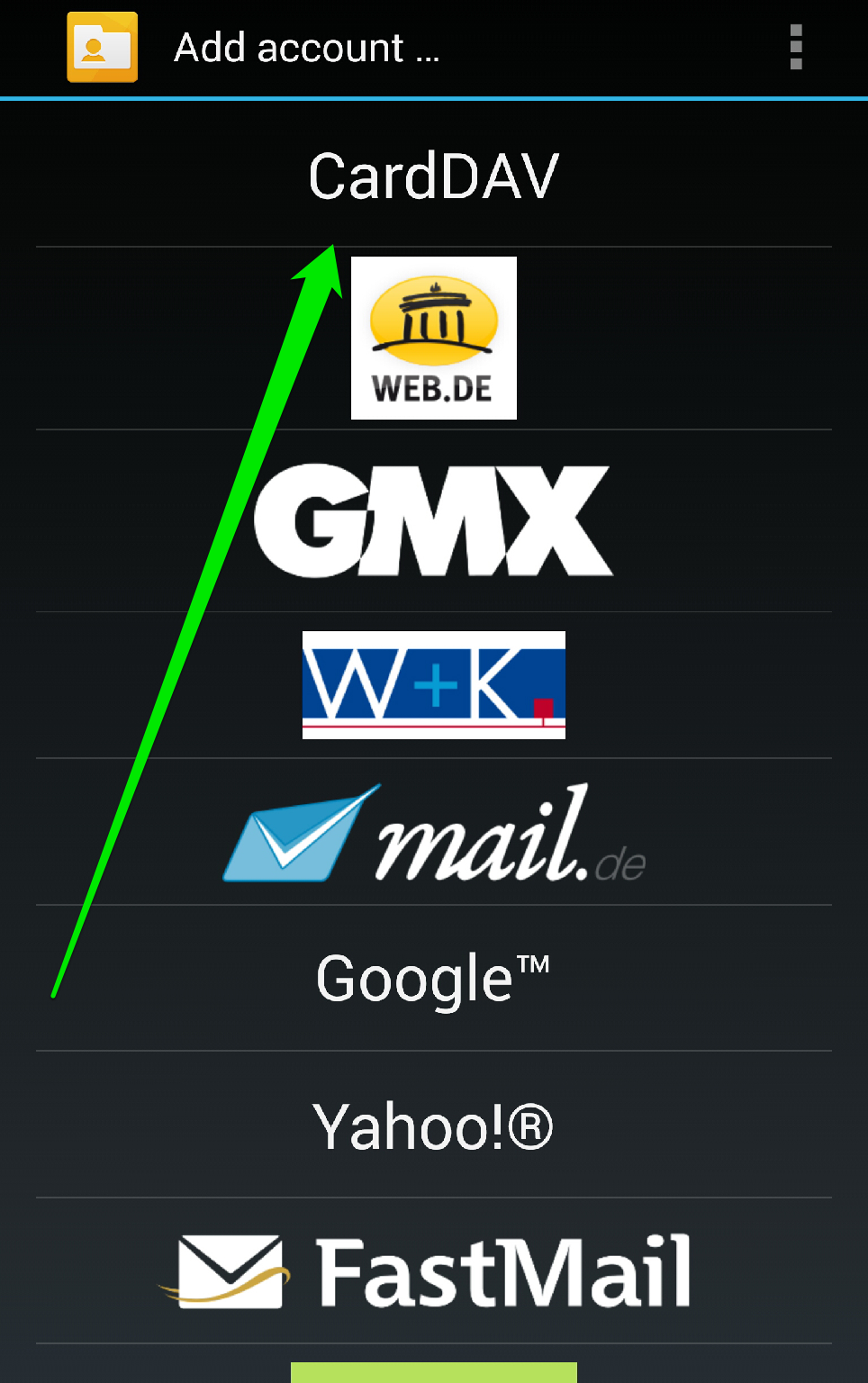
1. Launch the application and tap
CardDAV
option:
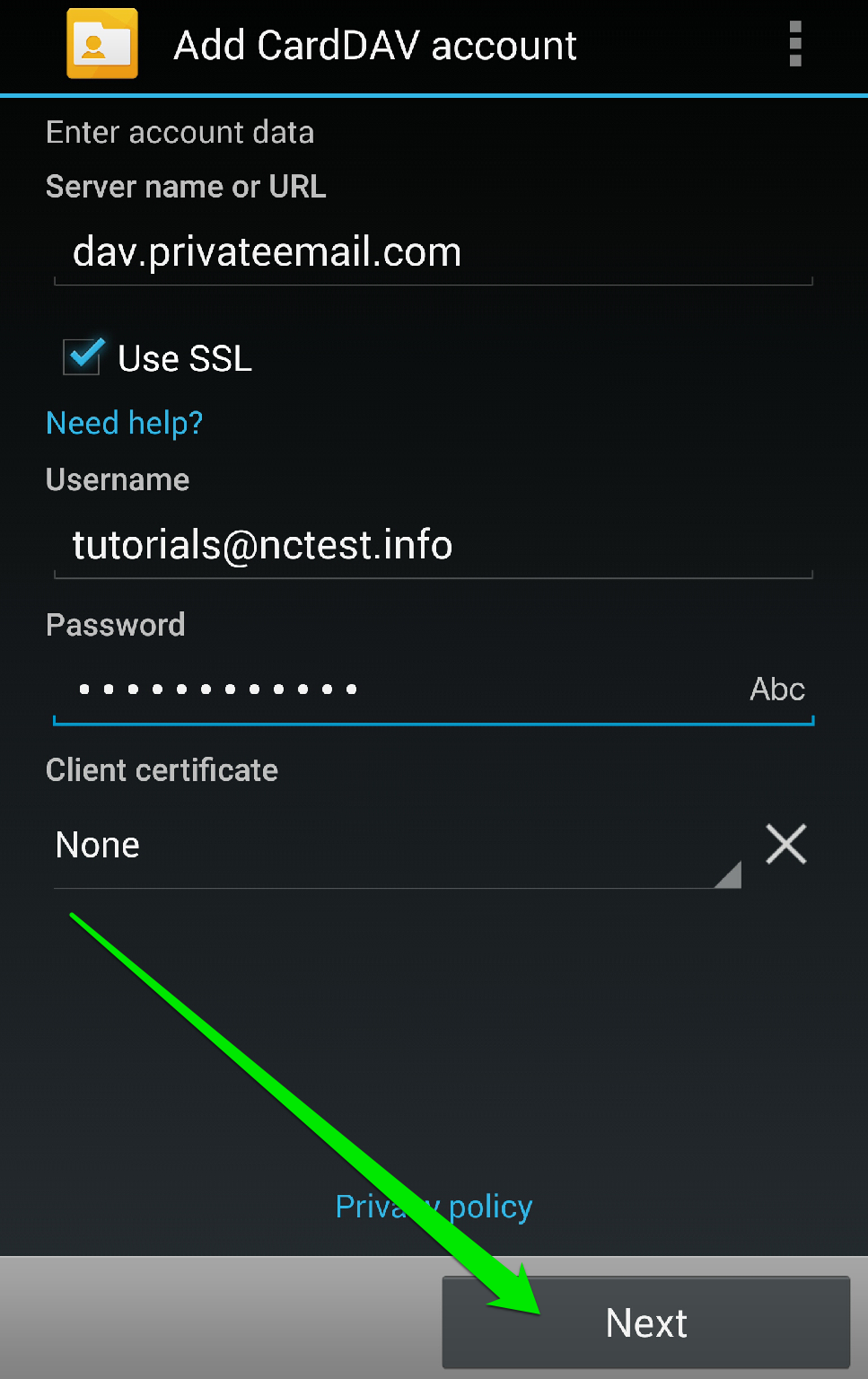
2. In the next window you will need to indicate the server information:
Server Name or URL
: dav.privateemail.com
Use SSL
: should be checked
Username
: full Namecheap Private Email email address
Password
: the password for this email address
Once all the settings are configured, click on
Next
button:
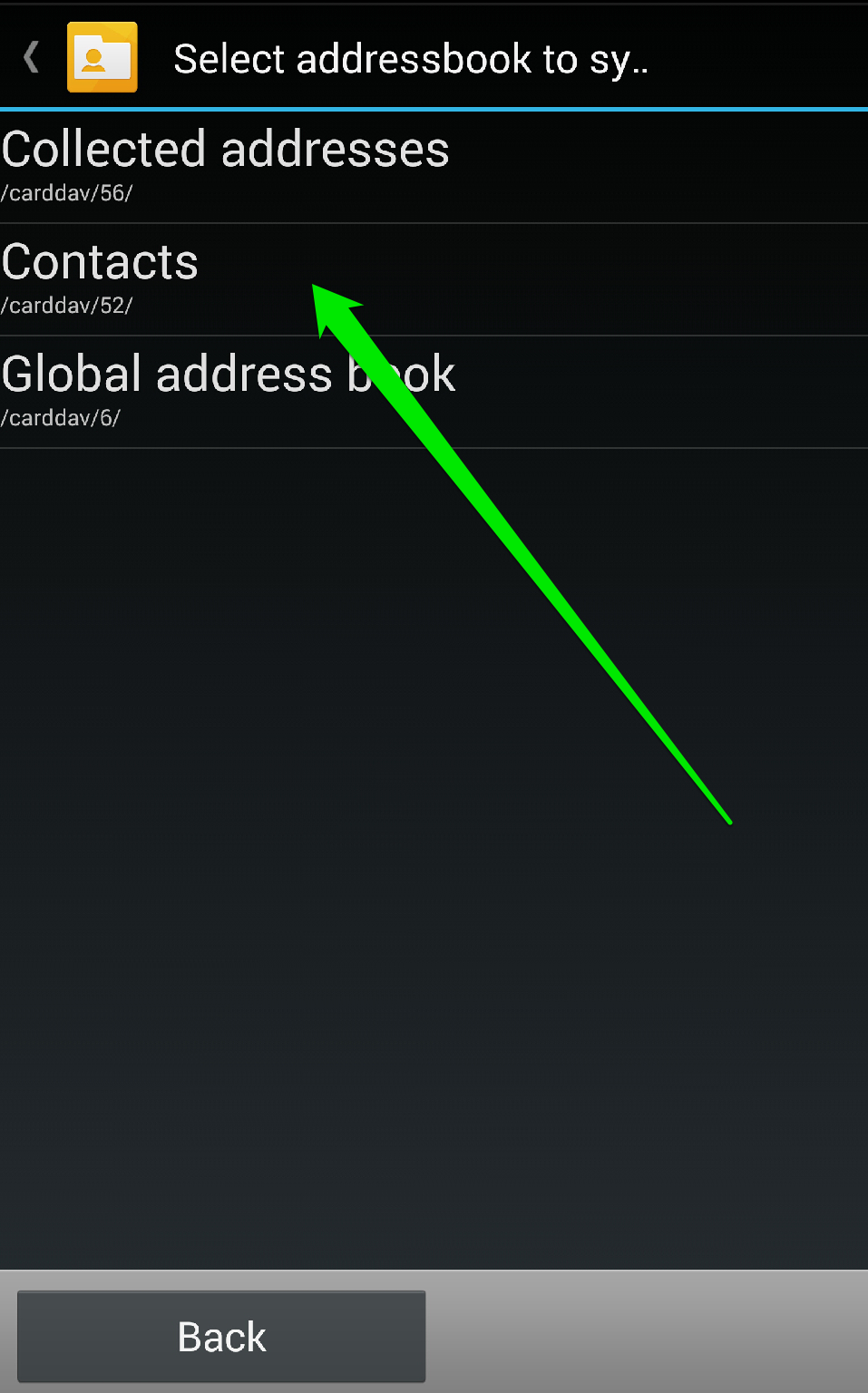
3. Choose
Contacts
option to synchronize all your Namecheap Private Email contacts.
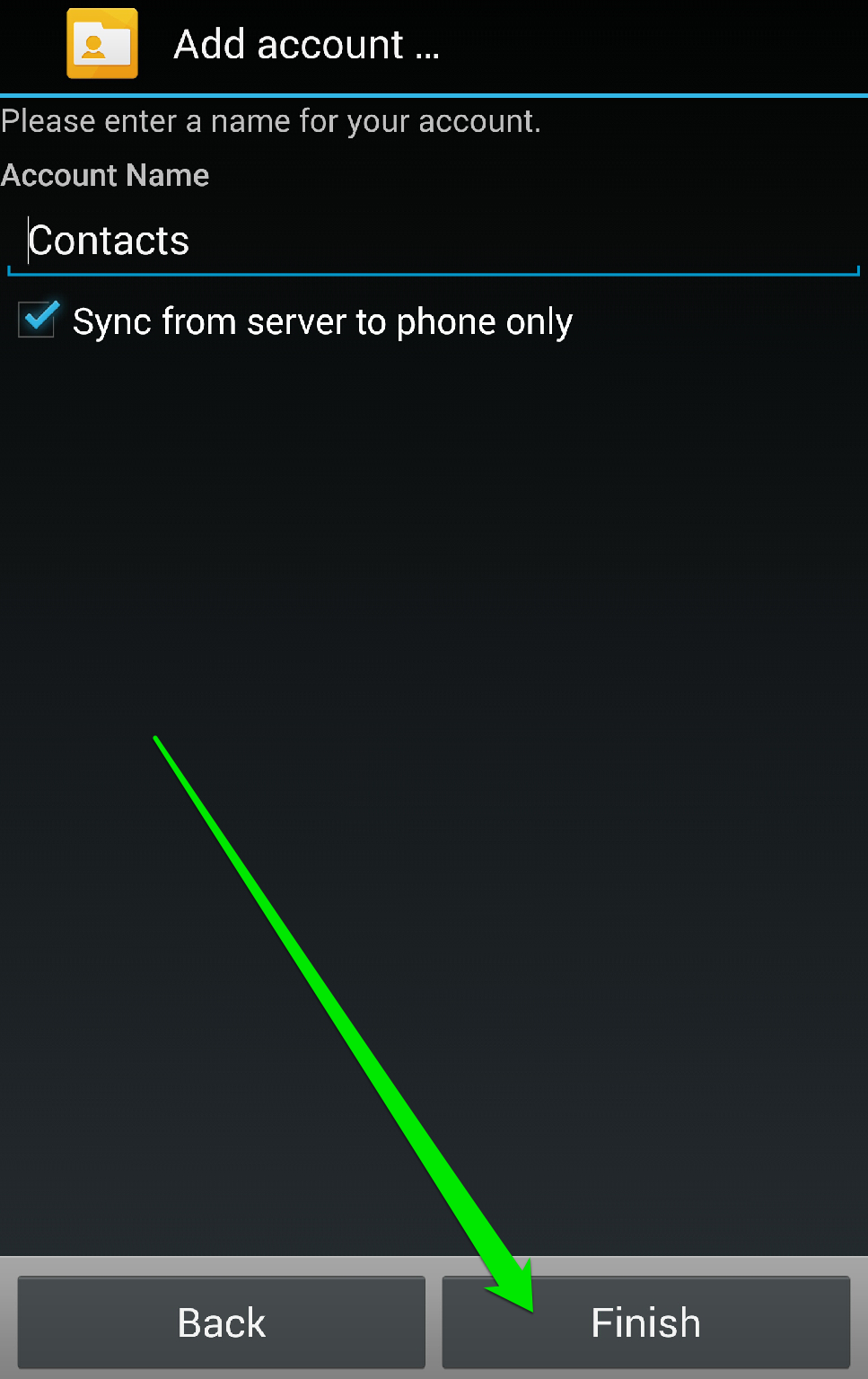
Once done, simply tap
Finish
to complete the configuration of your CardDAV account:
3- اعدادت Caldav / Cardav على الاي فون iPhone
-----------------------------------
Connecting cPanel Calendar and Contacts to iOS and iPadOS®
iOS and iPadOS have excellent CalDAV and CardDAV account support, and it is straightforward to integrate your contacts and calendars with the platform’s native apps.
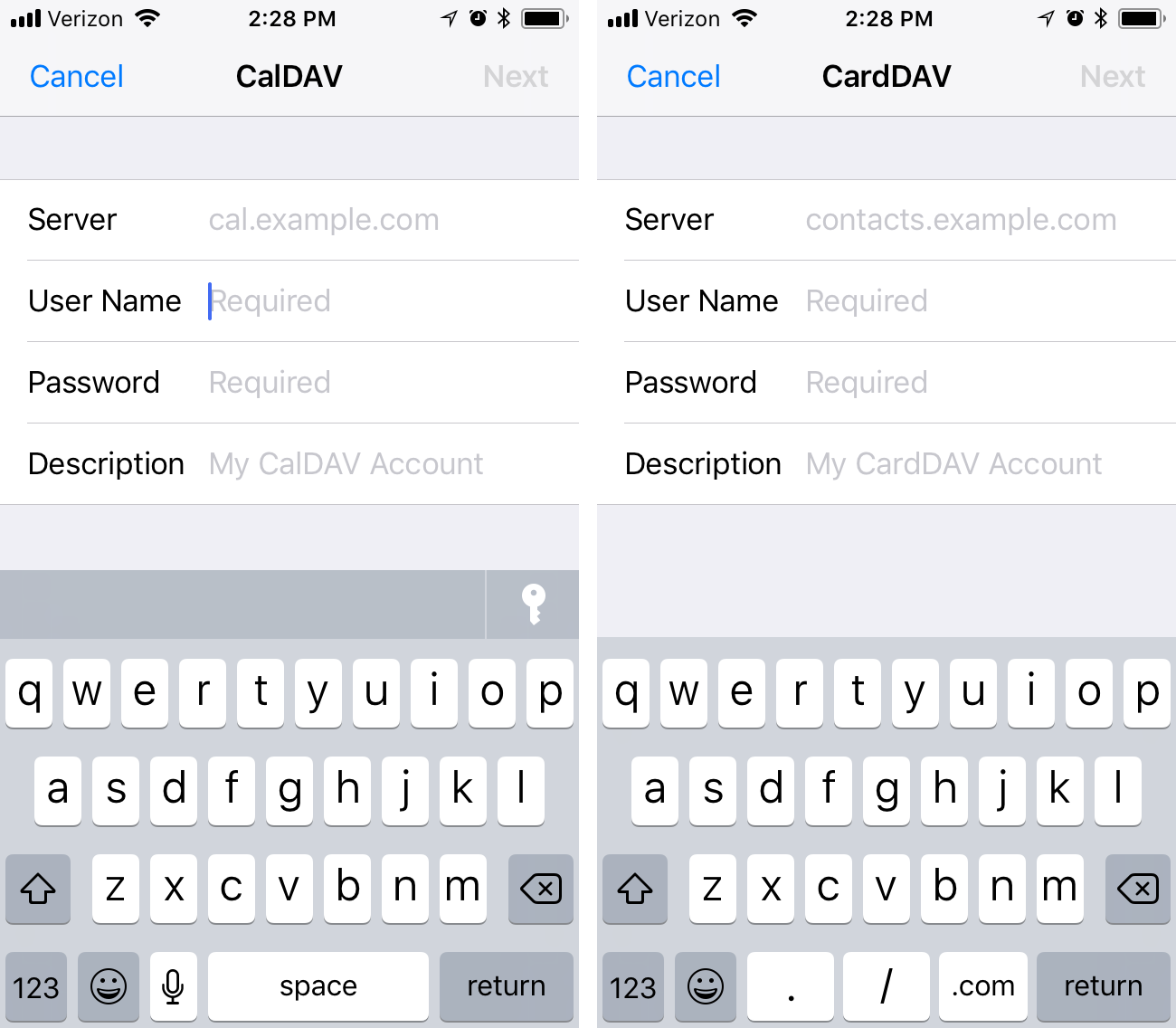
First, open the Settings app on your iPhone or iPad. Select Passwords & Accounts, and then Add Account.
Choose Other at the bottom of the page, and then Add CardDAV Account for contacts or Add CalDAV Account for calendars.
Finally, enter the server and authentication details, as we discussed above. cPanel uses port 2080 for CalDAV and CardDAV, so be sure the URL ends in a port number, like so:
example.com:2080
شاهد ايضا
شرح تفعيل calendar and contact applications فى Cpanel
برنامج الاوتلوك Outlook | عمل Contacts Sync و shared address book و CardDAV
المرجع:
https://docs.cpanel.net/knowledge-ba...-and-contacts/
https://blog.cpanel.com/using-caldav...cts-in-cpanel/
https://www.namecheap.com/support/kn...av-on-android/
https://support.kerioconnect.gfi.com...nts-in-Android
https://www.onecalendar.nl/
+ إنشاء موضوع جديد
النتائج 1 إلى 3 من 3
مشاهدة المواضيع
-
16-02-2023, 13:20 #1Status
- Offline

- تاريخ التسجيل
- Apr 2014
- الدولة
- Egypt
- المشاركات
- 4,703
 Engineering and Technology
- معدل تقييم المستوى
- 10
 الاندرويد Android / الاي فون iPhone مزامنة Caldav/Carddav - Calendar & Contacts
------------------------------------------------------------------------
الاندرويد Android / الاي فون iPhone مزامنة Caldav/Carddav - Calendar & Contacts
------------------------------------------------------------------------
شركة رايز للهندسة و التكنولوجيا Rise Company for Engineering & Technology
------------------------------------------------------------------------
Web Hosting | Web Designing | E-Marketing
رقم # 1 فى خدمات الشركات Business Services
استضافة مواقع Web Hosting - عمل ايميل شركة Business Emails
تصميم موقع شركة Web Design - تسويق الكترونى على جوجل Google Adwords
www.rise.company | www.rise.company/emails
ملحوظة : جميع خدماتنا مخصصة للشركات فقط وغير متاحة للافراد
وليس لنا اى منتجات او صيانة نهائيا! يرجى الانتباه الى ذلك.

 رد مع اقتباس
المواضيع المتشابهه
-
أفضل تطبيقات Apps خاصة بالقران الكريم Quran على الاندرويد Android
بواسطة Rise Company في المنتدى رايز الإعلانات التجارية Rise Advertiseمشاركات: 0آخر مشاركة: 30-11-2019, 03:10 -
أندرويد Android مزامنة الصور لجهات الاتصال sync contacts photos جديد 2019
بواسطة Rise Company في المنتدى رايز للجوالات Rise Phonesمشاركات: 0آخر مشاركة: 09-09-2019, 02:13 -
تحويل الارقام من الاي فون الى الاندرويد convert iphone to android Gmail csv
بواسطة Rise Company في المنتدى رايز للجوالات Rise Phonesمشاركات: 0آخر مشاركة: 05-09-2019, 15:34 -
مقوي الشبكة Signal Booster قياس اشارة الارسال فى الاي فون iPhone dBm
بواسطة Rise Company في المنتدى قسم مقوي الشبكةمشاركات: 0آخر مشاركة: 03-09-2019, 23:11 -
خاصية نطق اسم المتصل فى الاى فون iphone announce calls
بواسطة Rise Company في المنتدى رايز للجوالات Rise Phonesمشاركات: 0آخر مشاركة: 08-04-2018, 17:01

المفضلات