

السي بانال WHM/cPanel رفع قاعدة بيانات من خلال الشل import a Database Over SSH
MariaDB error 1044 – Fix it now - cpanel restore db error 1044
Importing a database using SSH - Not able to import MySQL database using SSH
Error When Importing Database via SSH - SSH Importing a database
ssh import database password wrong - How to Import MySQL Databases in Command Line
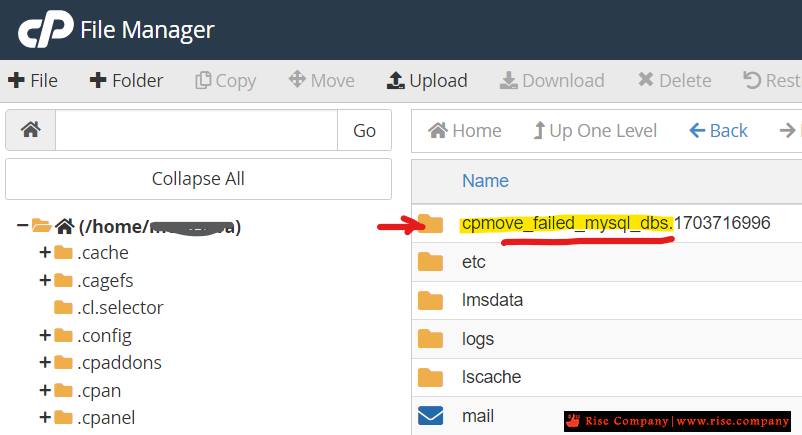
حل مشكلة cpmove_failed_mysql_dbs
المشكلة :
اثناء نقل موقع من سيرفر الى اخر قد يفشل نقل قاعدة البيانات وهتجدها مخزنة فى FIlemanager
داخل فولدر cpmove_failed_mysql_dbs بداخلها قواعد البيانات التى فشل نقللها
او اذا كنت تريد رفع قاعدة بيانات كبيرة الحجم هتلجا الى الشل SSH
we will go over the steps on how to import MySQL databases within your command line interface. Using this method is just as easy as importing via the PHPMyAdmin software. However, the command line interface is preferred when you need to import SQL files over 50MB.
حل المشكلة :
من داخل Cpanel فى mesaseva_forum قم بانشاء قاعدة بيانات بنفس الاسم
وكذلك username بنفس الاسم ثم اعطى له privilege وقم بربطهم ببعض
هنا باسورد اليوز هام الاحتفاظ به ثم افتح الشل من terminal
ثم اول امر ادخله هو ls لكى يظهر لك list المجلدات
ثم ثانى امر cd ثم فراغ ثم اسم المجلد للانتقال اليه
وعند الوصول داخل مجلد قاعدة البيانات
ادخل الامر import مع تغيير ما يلزم
ثم ادخال باسورد يوزر قاعدة البيانات ثم انتهىكود:mysql -p -u mesa_forum mesa_forum < mesa_forum.sql
اذهب الى php وتحقق من الجداول وافتحها لانك قد تجدها فارغة
اذا كنت قاعدة البيانات mariadb وهترفعها على mysql
قد يفشل !!!
------------------------------------------------
Importing a SQL Database via SSH
- Make sure you have your database created and a user attached to it. Please remember to copy or write down the information as you will need it in step 5.
- Upload your SQL file to the server by either using the File Manager or a FTP Client. It does not matter where you upload it, just remember its location as you will need it later in the steps.
- Log into your server via SSH.
- Navigate to where you uploaded the .sql file. For example, if you uploaded the file to your public_html folder, you would run the following command:cd /home/userna5/public_html
- Next, use the command below to import the database. Replace userna5_db with your cPanel username and database name, and replace userna5_user with your cPanel user and database user.mysql -p -u userna5_user userna5_db < yoursqlfile.sql
- This will prompt you for a password, here you will enter the password you used when creating the MySQL user that is associated with the database.
Congratulations you have now imported your SQL file into your database. If you had any issues along the way please let us know by commenting below.
المرجع:
https://www.inmotionhosting.com/supp...-command-line/
https://support.hostinger.com/en/art...-ssh-on-cpanel
https://bobcares.com/blog/mariadb-error-1044/
+ إنشاء موضوع جديد
النتائج 1 إلى 1 من 1
-
28-12-2023, 02:11 #1Status
- Offline

- تاريخ التسجيل
- Apr 2014
- الدولة
- Egypt
- المشاركات
- 4,703
 Engineering and Technology
- معدل تقييم المستوى
- 10
 السي بانال WHM/cPanel رفع قاعدة بيانات من خلال الشل import a Database Over SSH
------------------------------------------------------------------------
السي بانال WHM/cPanel رفع قاعدة بيانات من خلال الشل import a Database Over SSH
------------------------------------------------------------------------
شركة رايز للهندسة و التكنولوجيا Rise Company for Engineering & Technology
------------------------------------------------------------------------
Web Hosting | Web Designing | E-Marketing
رقم # 1 فى خدمات الشركات Business Services
استضافة مواقع Web Hosting - عمل ايميل شركة Business Emails
تصميم موقع شركة Web Design - تسويق الكترونى على جوجل Google Adwords
www.rise.company | www.rise.company/emails
ملحوظة : جميع خدماتنا مخصصة للشركات فقط وغير متاحة للافراد
وليس لنا اى منتجات او صيانة نهائيا! يرجى الانتباه الى ذلك.

 رد مع اقتباس
المواضيع المتشابهه
-
السي بانال WHM/cPanel استيراد الايميلات من ملف Import emails from excel
بواسطة Rise Company في المنتدى قسم الايميلات Emailsمشاركات: 0آخر مشاركة: 10-09-2022, 15:06 -
حل مشكلة استيراد / تصدير قاعدة البيانات import / export mysql database
بواسطة Rise Company في المنتدى قسم قواعد البيانات DataBaseمشاركات: 0آخر مشاركة: 30-01-2019, 12:04 -
شرح حذف قاعدة بيانات Remove All In One WP Security Database
بواسطة Rise Company في المنتدى قسم ووردبريس WordPressمشاركات: 0آخر مشاركة: 22-01-2019, 05:29 -
شرح رفع قاعدة بيانات كبيرة cpanel import huge database
بواسطة Rise Company في المنتدى رايز للاستضافة Rise Hostمشاركات: 0آخر مشاركة: 07-06-2018, 15:44 -
تغيير البريفكس فى قاعدة بيانات جملة change joomla database prefix
بواسطة Rise Company في المنتدى رايز للويب Rise Webمشاركات: 0آخر مشاركة: 18-10-2017, 02:00

المفضلات