

ويندوز سيرفر Windows Server باتش / كراك Remote Desktop للسماح بتعدد users
How To crack Remote Desktop Service on Windows Server 2008 / 2012 / 2016 / 2019
how to remove concurrent sessions on Windows Server - Allow Multiple Remote Desktop Sessions
rdp termsrv.dll - How To crack Remote Desktop Service on Windows Server 2008 R2 / WIndows 7
How To crack Remote Desktop Service on Windows Server 2012 R2
How To crack Remote Desktop Service on Windows Server 2016 / Windows 10
windows server there are too many users signed in - How to Get Unlimited Remote Desktop Connections
RUNNING MULTIPLE REMOTE DESKTOP USERS WITHOUT LOG OFF
How to allow more than two Remote Windows sessions - Simultaneous
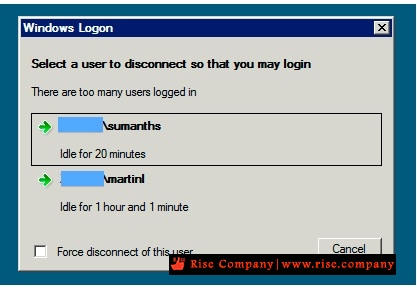
windows logon select a user to disconnect so that you may login
Select a user to disconnect so that you can sign in. There are too many users logged in.
المشكلة :
Normally, by default, 2008 R2 server allows two RDP sessions. If a third remote session tries to connect, it gets a message stating "Select a user to disconnect so that you may login" and it shows you the two current users, and allows you to disconnect one of their sessions. But It returns an error message, "This computer cannot connect to the remote computer" instead of the usual "who do you want to disconnect" message. Kindly Help me out from This.
Normally Server 2008 r2 will accept 2 active connections and one console connection. If 2 users already login in to the server and 3 rd user trying to login then it should return message which user you want to disconnect means it will give chance to us to disconnect current user. But I am getting message ''This computer cannot connect to remote computer try reconnecting again.
The two connections are for administrative use only. If you have people using it for something other than managing the server, you need to install the Terminal Services role and purchase the appropriate licenses.
حل المشكلة :
قم بتفعيل الباتش فهو الذى سيسمح لك بتعدد المستخدمين users ولا تذهب لتفعيل ترخيص من اعدادات السيرفر
فهى مخصصة للتراخيص المدفوعة فحل المشكلة ليس من خلالها لان لا تمتلك ترخيص, الباتش هو
ملف termsrv.dll هيتم استبداله بالملف الاصلى الموجود داخل ملفات الويندوز
ولكن لان RDP يعمل و هناك security فلن تستطيع استبدال الملف
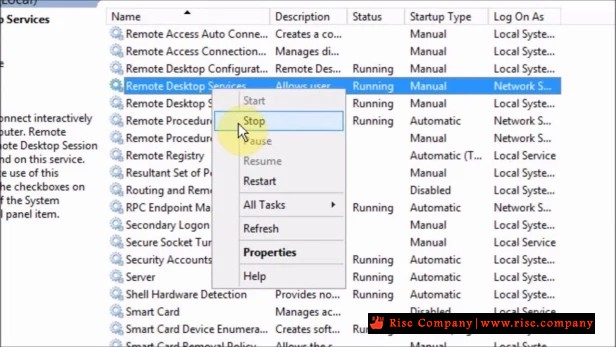
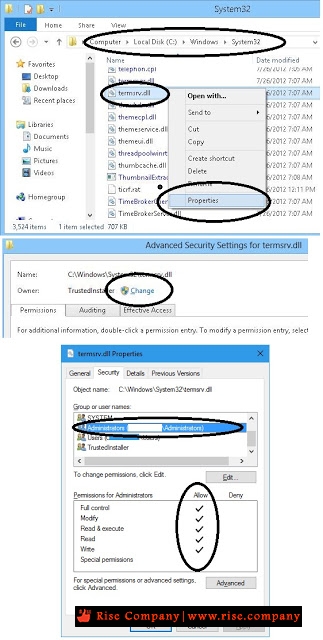
لذلك هيتم وقف RDP من services ثم جعل ملف termsrv.dll الاصلى له صلاحيات كاملة للادمن
او اجعله everyone لكى تستطيع استبداله بالباتش المرفق ثم اعد تشغيل RDP
* ملحوظة : قبل استبدال termsrv.dll خذ نسخة لان الباتش قد لا يعمل و قد يتعطل RDP
لذلك هيتطلب الرجوع الى الباك اب, حيث اختلاف اصدار الباتش قد يرفض RDP عمل Start
او قد يفتح RDP للمستخدم و يخرج فى الحال
* ملحوظة : اذا كان السيرفر مفعل به الباتش مسبقا وتم حذفه نتيجة windows update
او sfc/scannow كل ما عليك فعله هو فتح shadow واسترجاع الملف termsrv.dll
او اذا كان لديك باك اب استجرع الملف الذى كنت تعمل به termsrv.dll بدون مشاكل
الخطوات :
1. Stop services Remote Desktop
من داخل Services
2. Change owner and add administrator to file c:/window/system32/termsrv.dll
لكى تستطيع استبدال الملف دون ظهور عدم وجود صلاحيات لك
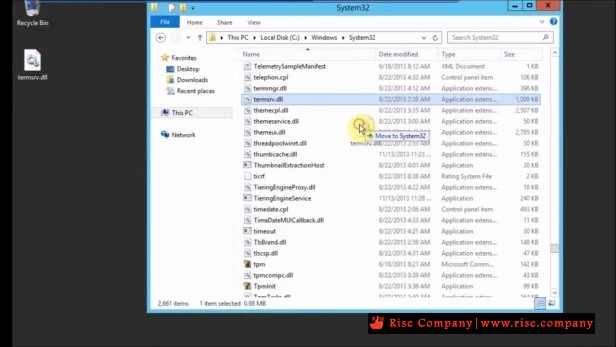
3. Copy paste termsrv.dll
خذ الباتش واستبدله بالاصلى ولا تنسى اخذ باك من الاصلى
5. Start services Remote Desktop
من داخل Services
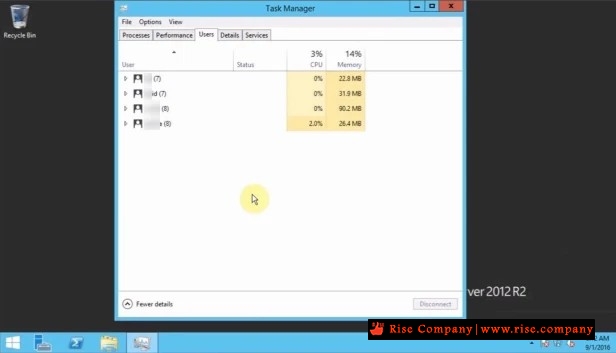
النتيجة : اكثر من user يدخل على RDP بدل من Limit الذى كان لعدد 2 فقط
-------------------.Download patched dll------------------------
you can download "termsrv.dll" on following link:
Windows Server 2019
https://github.com/stascorp/rdpwrap/releases
Windows Server 2016
https://drive.google.com/drive/folde...EE?usp=sharing
Windows Server 2012 R2
https://drive.google.com/file/d/0B9v...ew?usp=sharing
Windows Server 2008 R2
https://cloud.mail.ru/public/EK8u/DggA1qCY4
شاهد ايضا
ويندوز سيرفر 2019 Windows Server باتش RDPWrap لـ Remote Desktop لتعدد users
المرجع :
https://serverfault.com/questions/49...er-2012-standa
https://mohamedhassaneg.wordpress.co...erver-2012-r2/
+ إنشاء موضوع جديد
النتائج 1 إلى 7 من 7
-
14-08-2020, 02:07 #1Status
- Offline

- تاريخ التسجيل
- Apr 2014
- الدولة
- Egypt
- المشاركات
- 4,703
 Engineering and Technology
- معدل تقييم المستوى
- 10
 ويندوز سيرفر Windows Server باتش / كراك termsrv.dll لـ Remote Desktop لتعدد users
------------------------------------------------------------------------
ويندوز سيرفر Windows Server باتش / كراك termsrv.dll لـ Remote Desktop لتعدد users
------------------------------------------------------------------------
شركة رايز للهندسة و التكنولوجيا Rise Company for Engineering & Technology
------------------------------------------------------------------------
Web Hosting | Web Designing | E-Marketing
رقم # 1 فى خدمات الشركات Business Services
استضافة مواقع Web Hosting - عمل ايميل شركة Business Emails
تصميم موقع شركة Web Design - تسويق الكترونى على جوجل Google Adwords
www.rise.company | www.rise.company/emails
ملحوظة : جميع خدماتنا مخصصة للشركات فقط وغير متاحة للافراد
وليس لنا اى منتجات او صيانة نهائيا! يرجى الانتباه الى ذلك.
-
14-08-2020, 02:24 #2Status
- Offline
- تاريخ التسجيل
- Apr 2014
- الدولة
- Egypt
- المشاركات
- 4,703
Engineering and Technology
- معدل تقييم المستوى
- 10
رد: ويندوز سيرفر Windows Server باتش / كراك termsrv.dll لـ Remote Desktop لتعدد users
هذا الفيديو فى حالة تجديد المدة Trial الاصلى عند تفعيل الترخيص اول مرة
وهو غير الباتش و يعمل لمدة 120 يوم فقط
------------------------------------------------------------------------
شركة رايز للهندسة و التكنولوجيا Rise Company for Engineering & Technology
------------------------------------------------------------------------
Web Hosting | Web Designing | E-Marketing
رقم # 1 فى خدمات الشركات Business Services
استضافة مواقع Web Hosting - عمل ايميل شركة Business Emails
تصميم موقع شركة Web Design - تسويق الكترونى على جوجل Google Adwords
www.rise.company | www.rise.company/emails
ملحوظة : جميع خدماتنا مخصصة للشركات فقط وغير متاحة للافراد
وليس لنا اى منتجات او صيانة نهائيا! يرجى الانتباه الى ذلك.
-
14-08-2020, 03:24 #3Status
- Offline
- تاريخ التسجيل
- Apr 2014
- الدولة
- Egypt
- المشاركات
- 4,703
Engineering and Technology
- معدل تقييم المستوى
- 10
رد: ويندوز سيرفر Windows Server باتش / كراك termsrv.dll لـ Remote Desktop لتعدد users
بعض الاعدادات الهامة بعد تفعيل الباتش لـ RDP
------------------------------------------------------------------------
شركة رايز للهندسة و التكنولوجيا Rise Company for Engineering & Technology
------------------------------------------------------------------------
Web Hosting | Web Designing | E-Marketing
رقم # 1 فى خدمات الشركات Business Services
استضافة مواقع Web Hosting - عمل ايميل شركة Business Emails
تصميم موقع شركة Web Design - تسويق الكترونى على جوجل Google Adwords
www.rise.company | www.rise.company/emails
ملحوظة : جميع خدماتنا مخصصة للشركات فقط وغير متاحة للافراد
وليس لنا اى منتجات او صيانة نهائيا! يرجى الانتباه الى ذلك.
-
01-09-2020, 03:01 #4Status
- Offline
- تاريخ التسجيل
- Apr 2014
- الدولة
- Egypt
- المشاركات
- 4,703
Engineering and Technology
- معدل تقييم المستوى
- 10
رد: ويندوز سيرفر Windows Server باتش / كراك termsrv.dll لـ Remote Desktop لتعدد users
Instead of modifying termsrv.dll file you can use RDP Wrapper which acts as a middleman between Terminal Services and Service Control Manager. This way you don't need to touch termsrv.dll file. Actually, if you already modified your termsrv.dll file, you need to revert to the original version before using this method.
Download and extract RDPWrap-v1.6.1.zip (or newer), then run install.bat as admin. After installation is completed, run RDPConfig.exe. If all items under Diagnostics are green, you should be good to go.
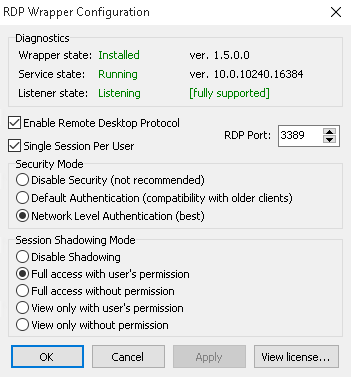
If "Listener state" is "Listening [not supported]", you will need to update the wrapper's configuration (.ini) file.
With the latest version of RDP Wrapper you no longer need to update rdpwrap.ini manually. Simply run update.bat and everything will be done automatically.
If update.bat doesn't add support to your Windows version, try checking Open Issues on RDP Wrapper GitHub page. You may find how to manually update rdpwrap.ini until official support is added.
المرجع :
https://www.osradar.com/how-to-enabl...s-server-2019/
https://github.com/stascorp/rdpwrap
------------------------------------------------------------------------
شركة رايز للهندسة و التكنولوجيا Rise Company for Engineering & Technology
------------------------------------------------------------------------
Web Hosting | Web Designing | E-Marketing
رقم # 1 فى خدمات الشركات Business Services
استضافة مواقع Web Hosting - عمل ايميل شركة Business Emails
تصميم موقع شركة Web Design - تسويق الكترونى على جوجل Google Adwords
www.rise.company | www.rise.company/emails
ملحوظة : جميع خدماتنا مخصصة للشركات فقط وغير متاحة للافراد
وليس لنا اى منتجات او صيانة نهائيا! يرجى الانتباه الى ذلك.
-
01-09-2020, 03:09 #5Status
- Offline
- تاريخ التسجيل
- Apr 2014
- الدولة
- Egypt
- المشاركات
- 4,703
Engineering and Technology
- معدل تقييم المستوى
- 10
رد: ويندوز سيرفر Windows Server باتش / كراك termsrv.dll لـ Remote Desktop لتعدد users
Part 1. Preparing the server.
The first thing we need to do is check to see if the remote desktop is activated. With this intention we follow the following path: Control Panel>System and Security>Advanced system settings. Once there, please select the Security tab. Verify that the box corresponding to Allow remote connections to this computer is checked.
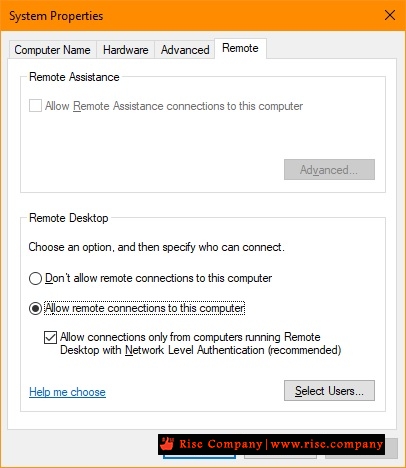
Allow remote connections. Create users who will connect by remote desktop.
Next, we will create the users who will be able to connect remotely to the server. We will then add these users to the corresponding group. To see in detail how to manage groups and users, please click here. With this in mind, press the Win+X combination and select Computer Management.
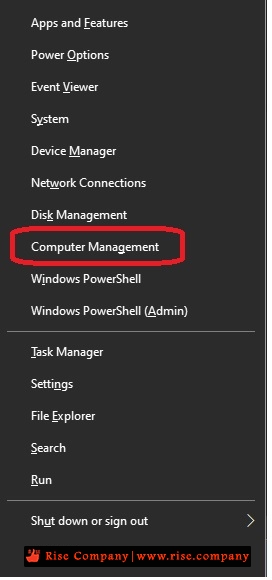
Select Computer Management. Then follow this path: Local users and groups>Users
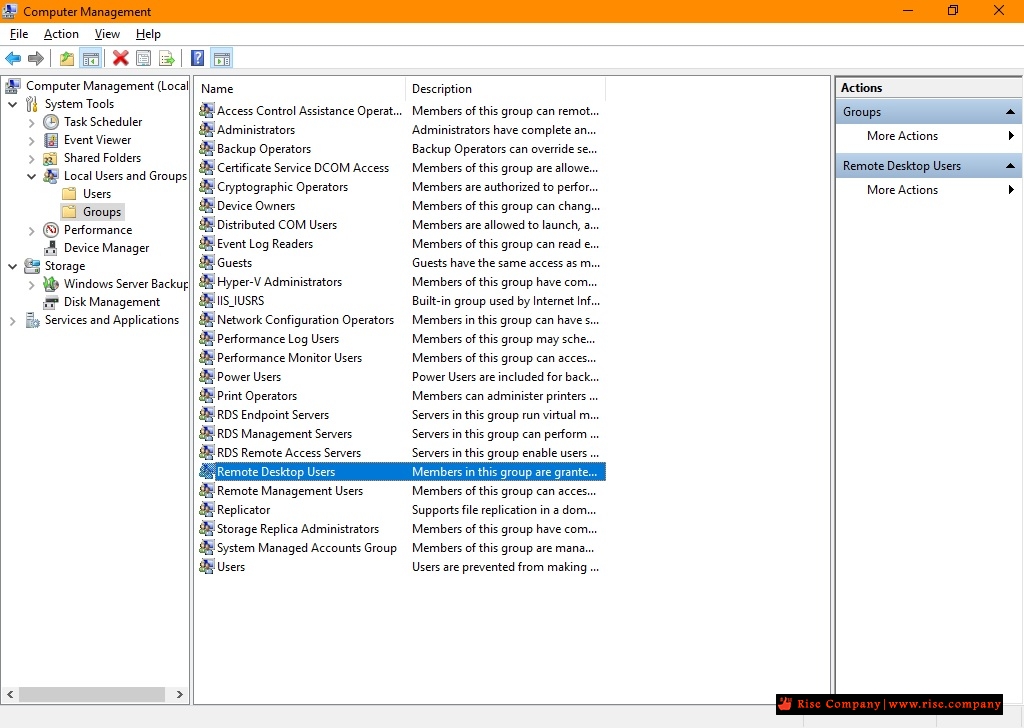
At this point, add users who will be able to connect by the remote server. In this case, I will add 5 users, but you can add any number of users.
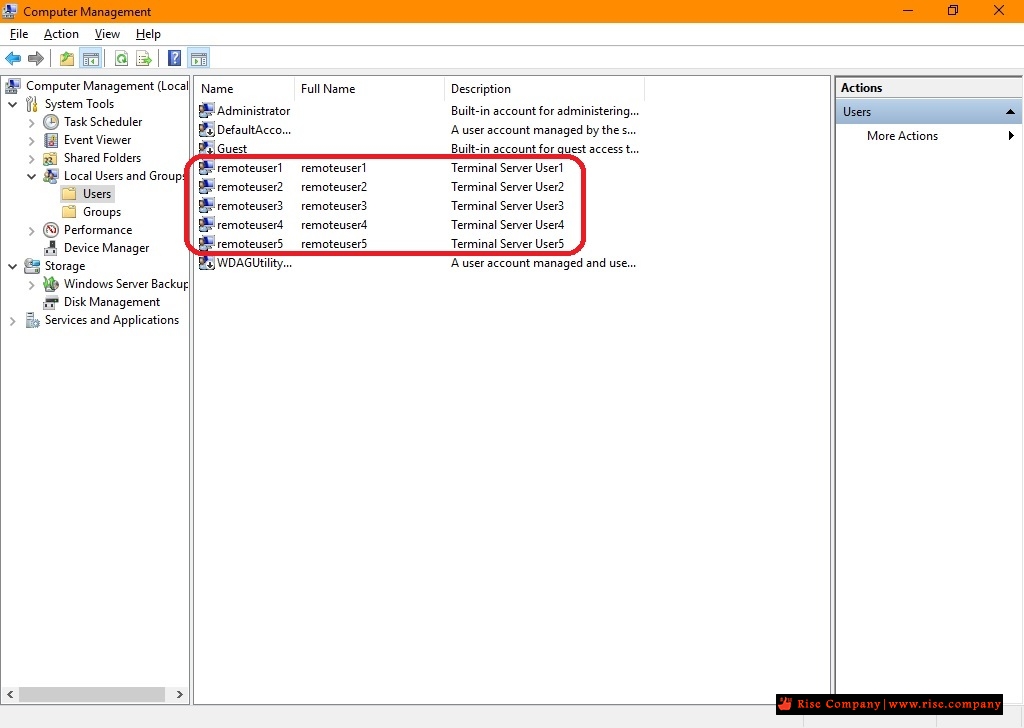
Creating Remote Desktop Users Then go to the Groups section, and click on Remote Desktop Users.
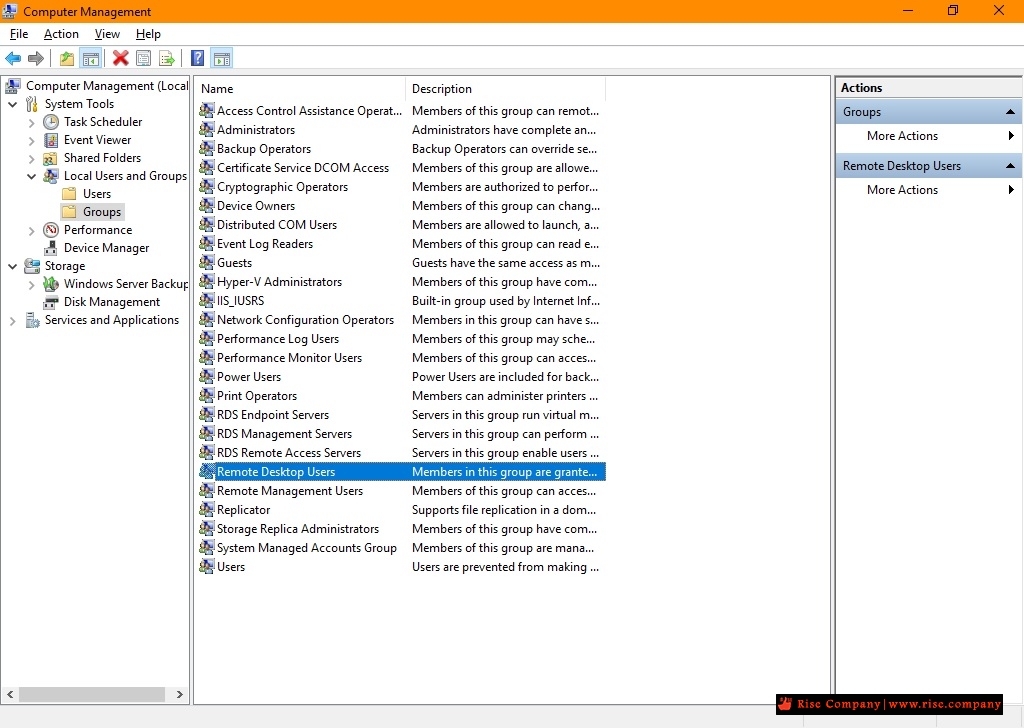
Adding users to the Remote Desktop Users group
Step 2. Downloading RDPWrapper
As mentioned above, to bypass this Microsoft ban we will use an opensource software called RDPWrapper. With this in mind, please go to the project’s GitHub page. There you can download the zipped file.
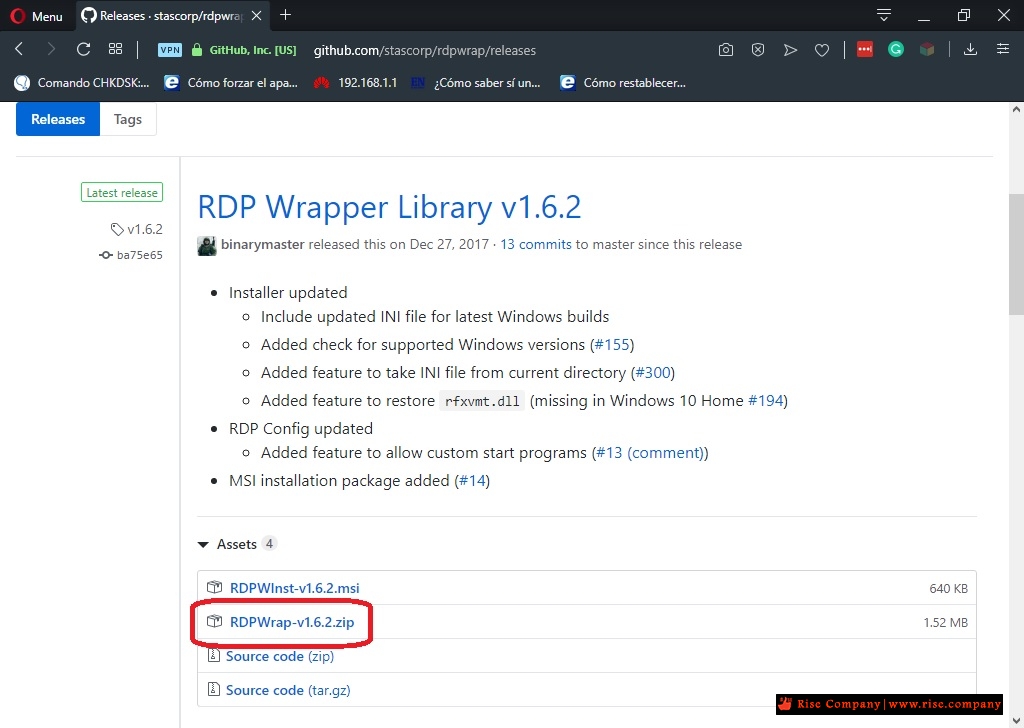
Download the zip file Then unzip the file to the location of your choice. Once the folder is unzipped, double click on the file install.bat
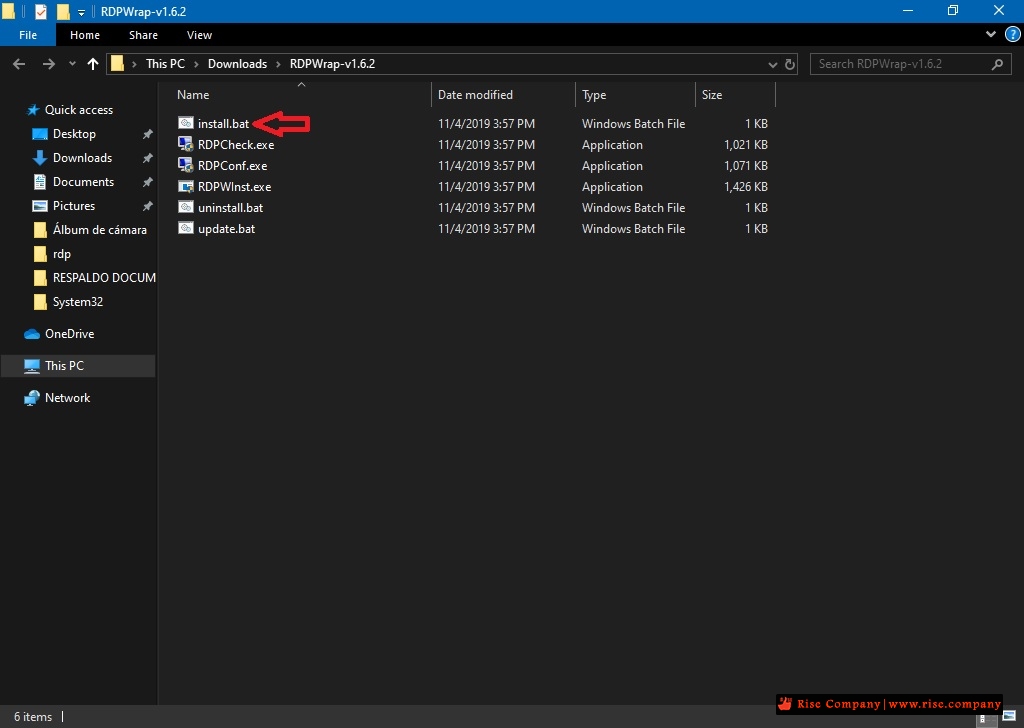
Run install.bat The installation will begin immediately, please wait a few seconds while the installer does his job.
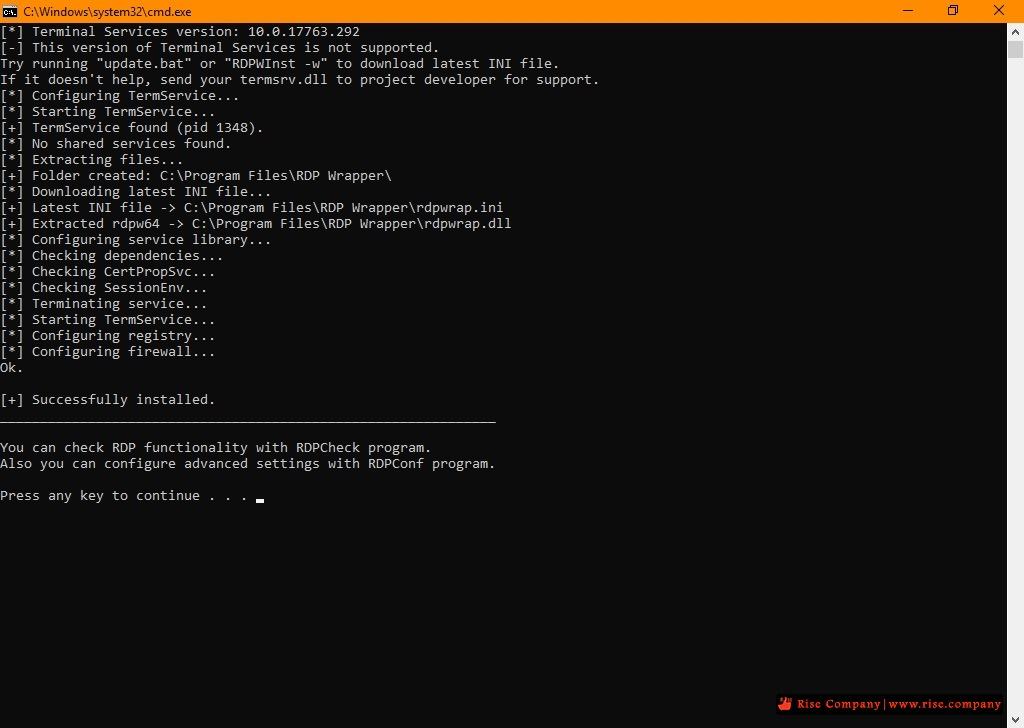
RDPWrap installer Then click on RDPConf.exe. Wait until the program’s configuration tab loads. You can leave the default settings. Please note that all three diagnostic options must be green and fully supported. However, it is likely that the not supported warning will appear in red. If this happens, the program will not work and you will not be able to connect multiple users. But do not worry, we will solve this issue.
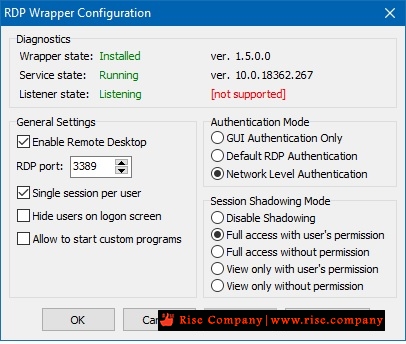
RDPWrapper with the error message “not supported”- This problem arises because Windows has released updates that have broken the program. The solution is to replace the rdpwrap.ini file in the installation folder of the program (C:\Program Files\RDP Wrapper). To download the new file, please go to the following link.
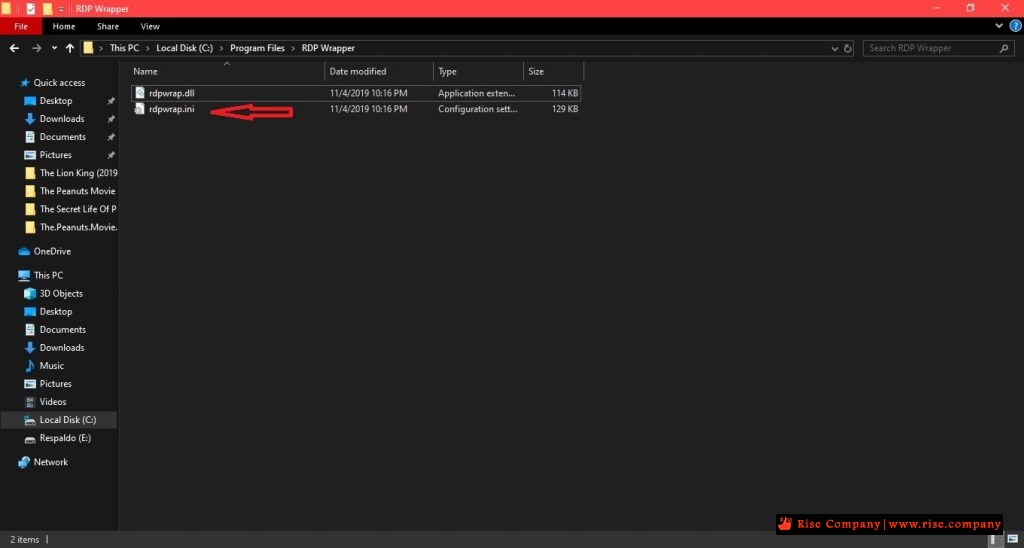
Location of the file to be replaced Now, in order to replace the file, it is necessary to stop the remote desktop service. If you don’t, the file will issue an access denied warning. So open a command prompt with administrative privileges and type the following command:
Then replaces the rdpwrap.ini file in the installation folder. And at the same command prompt with administrative privileges, please run the following command to restart the remote desktop protocolكود:net stop termservice
Once the protocol starts, please go to the program folder and re-run RDPConf.exe. If you have done everything correctly, the result of the configuration window should be as follows:كود:net start termservice
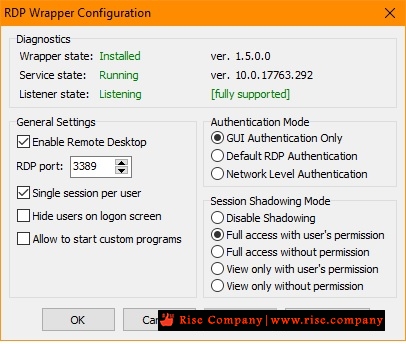
RDP Wrapper running successfully By activating the program it will be possible to enable multiple remote desktops in Windows Server 2019.
Connecting Multiple Remote Desktop Users to Windows Server 2019
Finally, we will check if it is possible to connect more than two users per remote desktop. To achieve this, we will connect from a Windows 10 computer. Please follow the directions in this article. Here you can see the 5 remote writer users connected simultaneously from a Windows 10 computer.
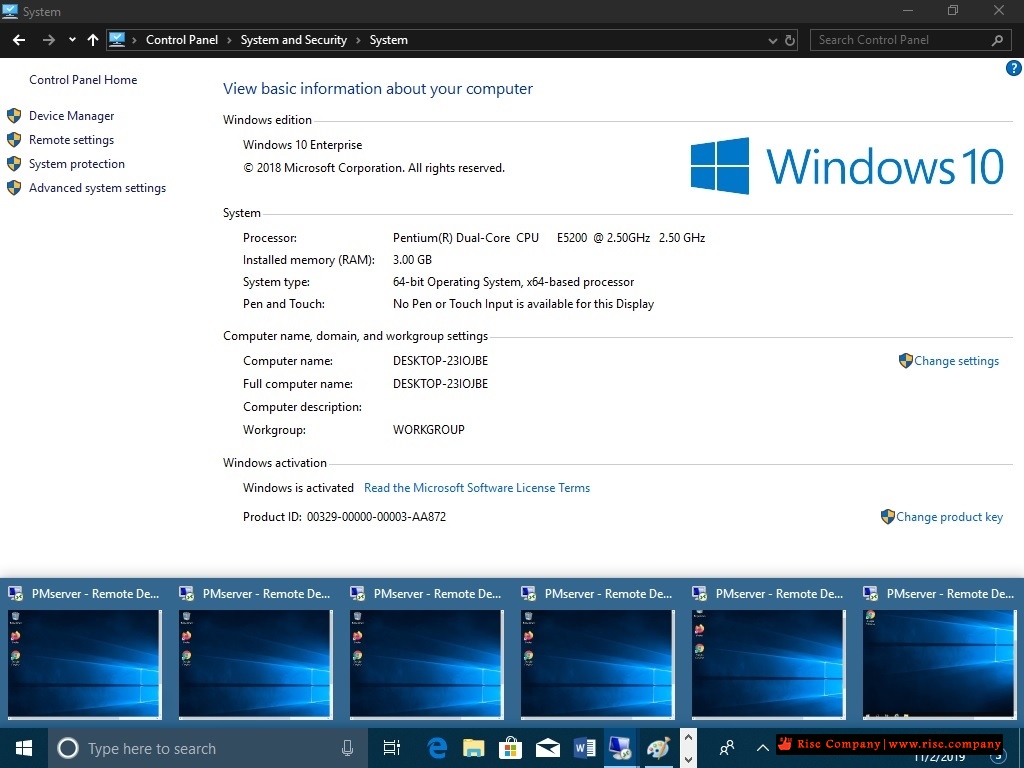
Multiple remote desktop users In the following image, you can see the 5 users running in the task manager.
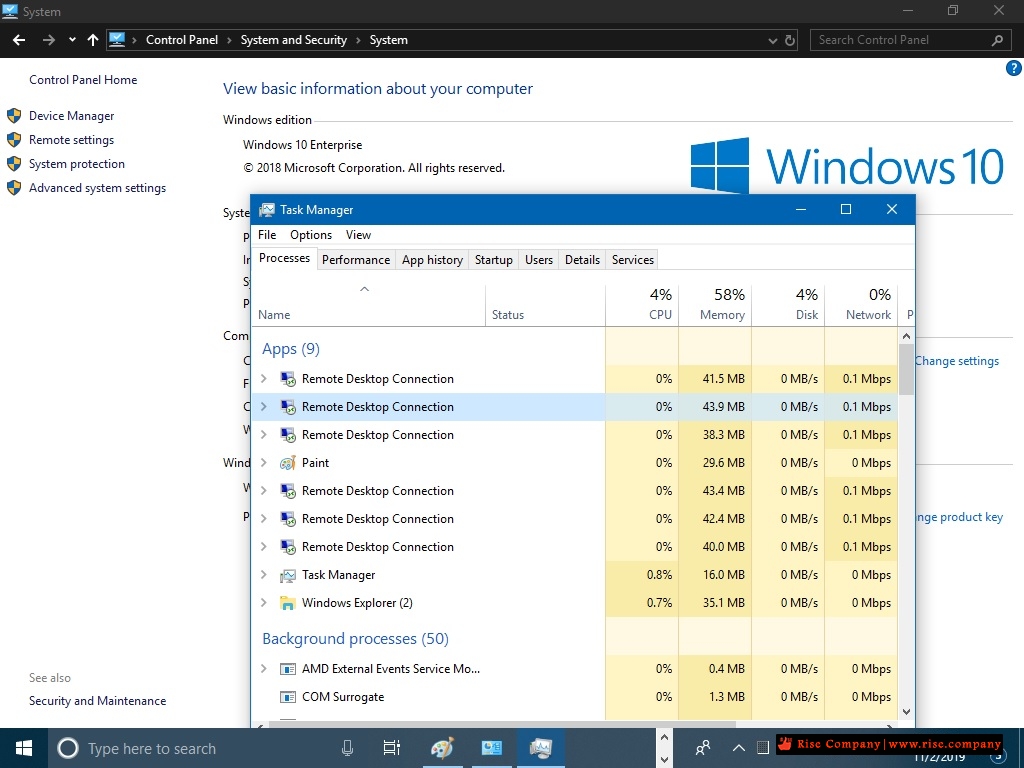
Task manager showing all remote desktop users running. In the final analysis, we have seen how to enable multiple remote desktops on Windows Server 2019. With these instructions, it is possible to bypass the restrictions imposed by Microsoft and be able to connect more than two desktops. Even if Windows updates damage the program, we learned how to solve the problem. I hope you enjoyed the tutorial as much as I did. Greetings and see you soon!
------------------------------------------------------------------------
شركة رايز للهندسة و التكنولوجيا Rise Company for Engineering & Technology
------------------------------------------------------------------------
Web Hosting | Web Designing | E-Marketing
رقم # 1 فى خدمات الشركات Business Services
استضافة مواقع Web Hosting - عمل ايميل شركة Business Emails
تصميم موقع شركة Web Design - تسويق الكترونى على جوجل Google Adwords
www.rise.company | www.rise.company/emails
ملحوظة : جميع خدماتنا مخصصة للشركات فقط وغير متاحة للافراد
وليس لنا اى منتجات او صيانة نهائيا! يرجى الانتباه الى ذلك.
-
02-09-2020, 02:48 #6Status
- Offline
- تاريخ التسجيل
- Apr 2014
- الدولة
- Egypt
- المشاركات
- 4,703
Engineering and Technology
- معدل تقييم المستوى
- 10
رد: ويندوز سيرفر Windows Server باتش / كراك termsrv.dll لـ Remote Desktop لتعدد users
ملحوظة :
لا يوجد اى role يجب تفعيلها لكى يعمل RDP
كل ما عليك فعله هو عمل enable فقط من properties وتحديد users
حتى الباتش لا يتطلب اضافة لاى role لكى يعمل.
------------------------------------------------------------------------
شركة رايز للهندسة و التكنولوجيا Rise Company for Engineering & Technology
------------------------------------------------------------------------
Web Hosting | Web Designing | E-Marketing
رقم # 1 فى خدمات الشركات Business Services
استضافة مواقع Web Hosting - عمل ايميل شركة Business Emails
تصميم موقع شركة Web Design - تسويق الكترونى على جوجل Google Adwords
www.rise.company | www.rise.company/emails
ملحوظة : جميع خدماتنا مخصصة للشركات فقط وغير متاحة للافراد
وليس لنا اى منتجات او صيانة نهائيا! يرجى الانتباه الى ذلك.
-
03-06-2021, 10:32 #7Status
- Offline

- تاريخ التسجيل
- Jun 2021
- الدولة
- Palestine
- المشاركات
- 1
عضو
- معدل تقييم المستوى
- 0
رد: ويندوز سيرفر Windows Server باتش / كراك termsrv.dll لـ Remote Desktop لتعدد users
السلام عليكم
اشكرك استاذ على المجهود
هل بالامكان توفير ملف باتش لنسخة windows server standard 2012
انا جربت باتش الخاص r2 المرفق في الموضوع ولكن للاسف لم ينجح الموضوع حيث بعد نسخ الملف لم يعمل rdp اطلاقا قمت باسترجاع الملف الاصلي
وشكرا


 رد مع اقتباس
المواضيع المتشابهه
-
ويندوز سيرفر Windows Server تغيير بورت remote desktop من 3389 الى رقم اخر
بواسطة Rise Company في المنتدى قسم الويندوز سيرفر Windows Serverمشاركات: 0آخر مشاركة: 04-05-2020, 07:37 -
ويندوز سيرفر Windows Server شرح Windows server 2016 Installation
بواسطة Rise Company في المنتدى قسم الويندوز سيرفر Windows Serverمشاركات: 0آخر مشاركة: 23-05-2019, 01:37 -
ويندوز سيرفر Windows Server نقل جميع اجهزة Users من دومين الى اخر
بواسطة Rise Company في المنتدى قسم الويندوز سيرفر Windows Serverمشاركات: 0آخر مشاركة: 20-05-2019, 12:15 -
تنزيل سيكول سيرفر SQL Server 2017 ويندوز سيرفر windows server 2016
بواسطة Rise Company في المنتدى قسم الويندوز سيرفر Windows Serverمشاركات: 0آخر مشاركة: 04-08-2018, 23:54 -
تنزيل Feature الباك اب Windows Server Backup ويندوز سيرفر windows server 2016
بواسطة Rise Company في المنتدى قسم الويندوز سيرفر Windows Serverمشاركات: 0آخر مشاركة: 04-08-2018, 02:26


المفضلات